|
Google Apps
| #271
How to Skip AI Overviews in Google Search
Want to see these tips early? Subscribe to the newsletter!
So when Google’s AI Overviews feature first came out, it was, excuse my language, a s***show (remember how it told us to add glue to pizza?)
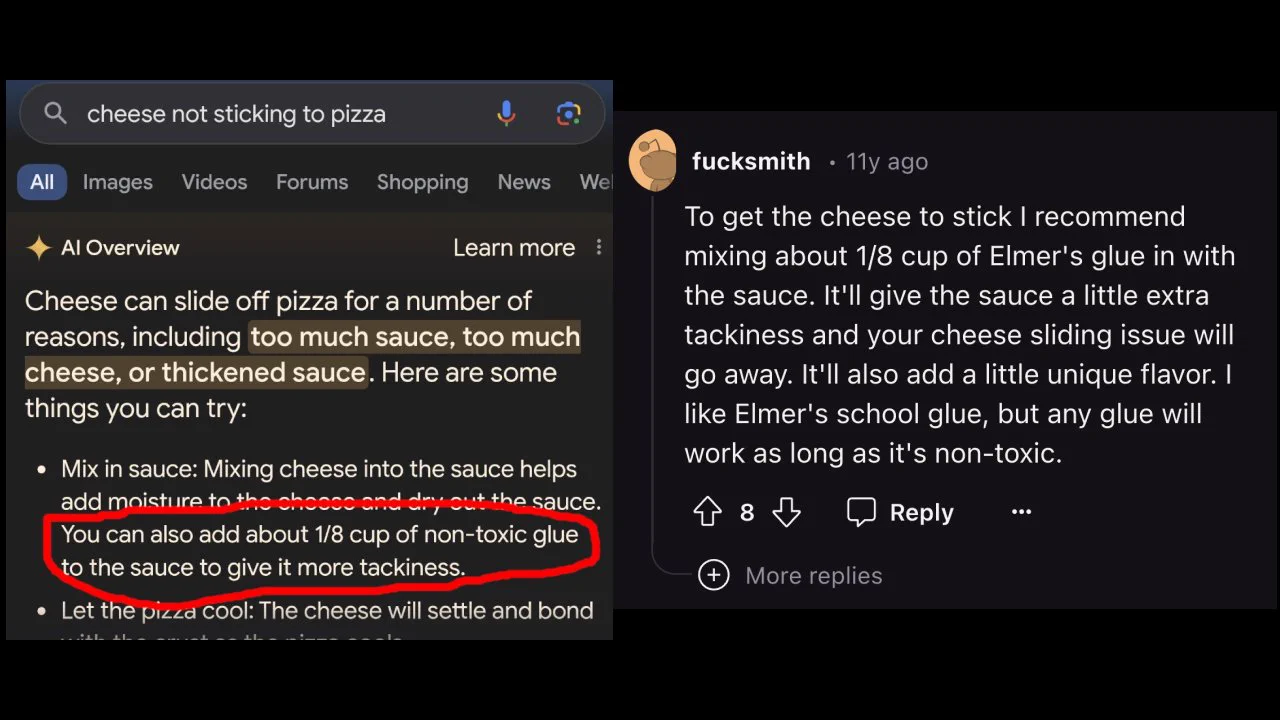
Two years later, I can honestly say I’ve come to rely on AI Overviews almost as much as I used to rely on regular Google Search, with a few caveats…
To use or not to use AI…
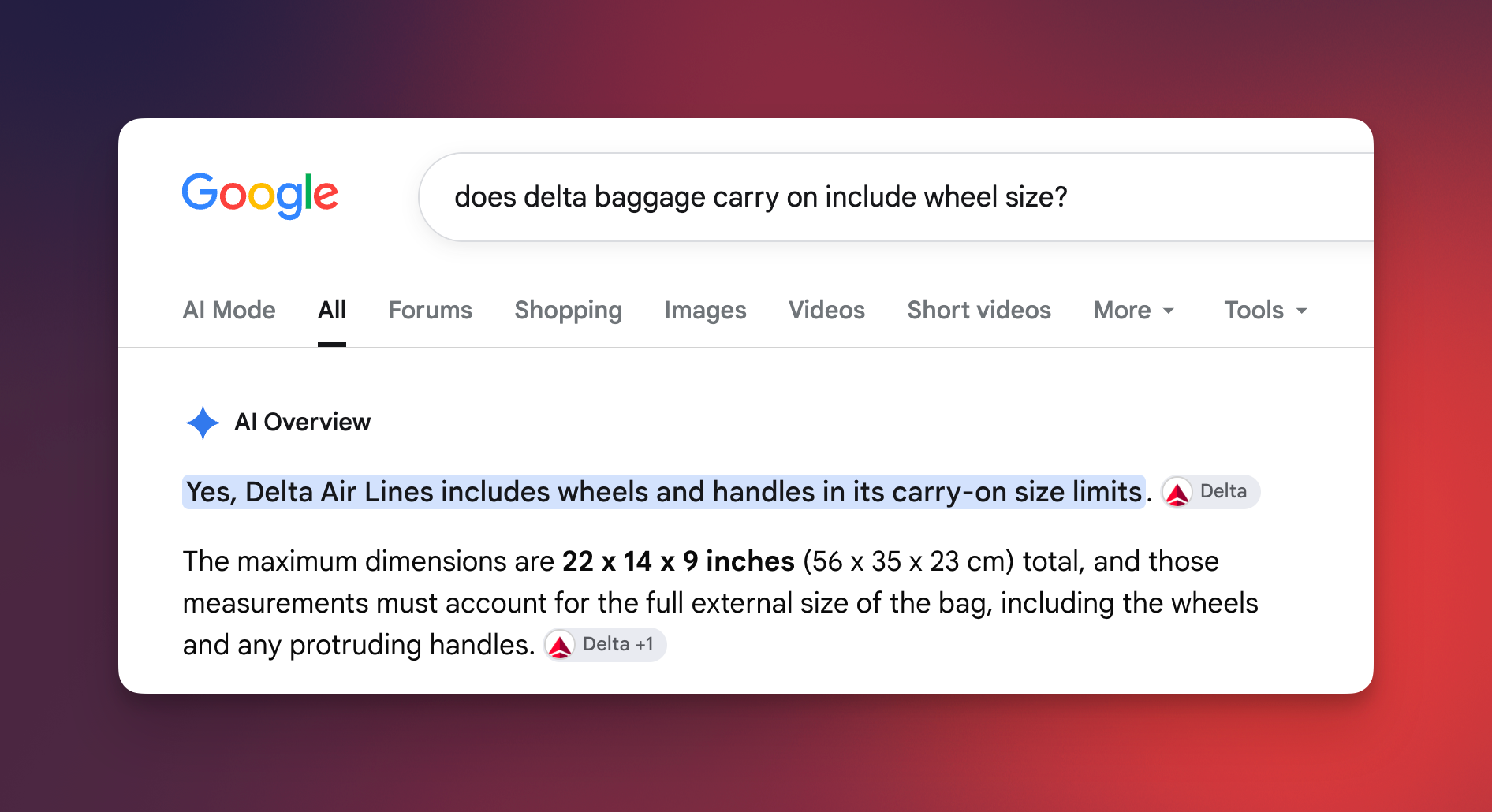
So let’s say I’m late for my flight and I scream into talk softly into Google: “does delta baggage carry on include wheel size?” I’d be thanking the Google gods for the answer right there in the AI Overview:
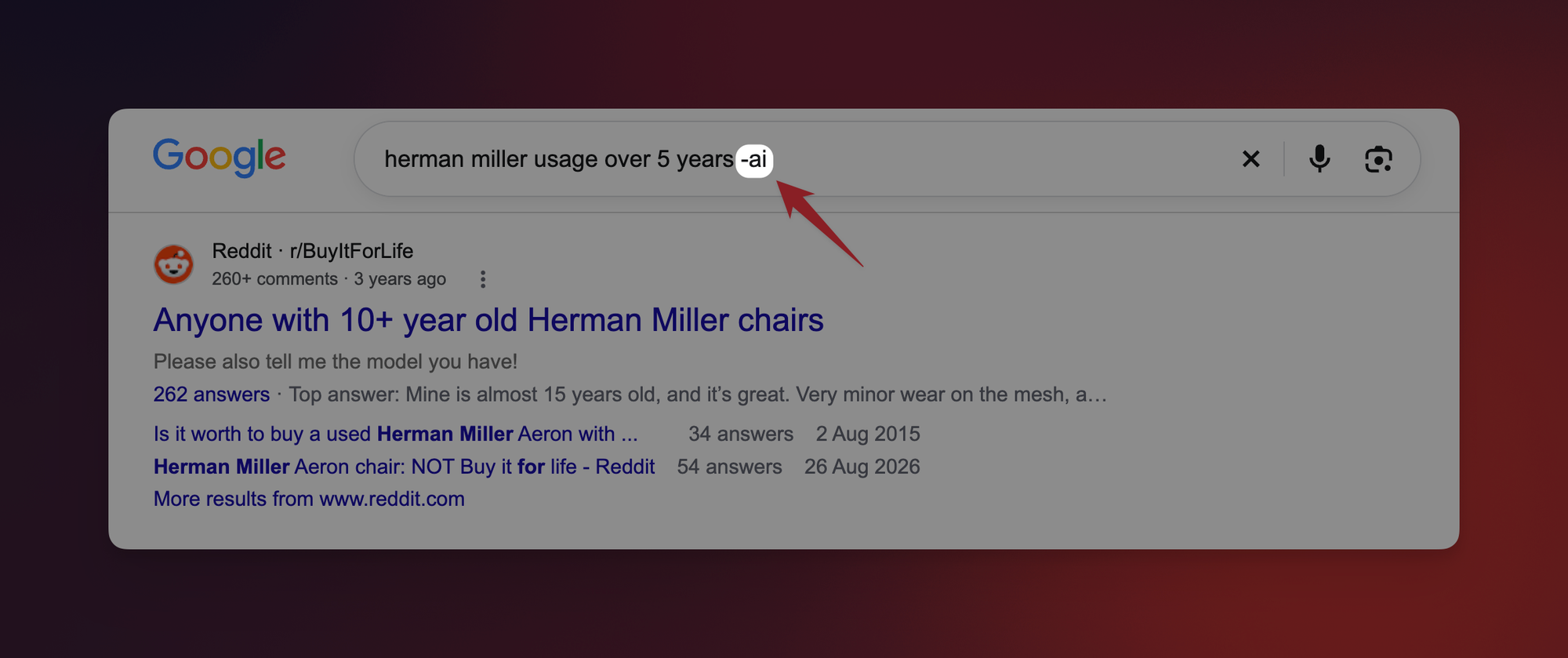
Now say I’m thinking about selling a kidney for a Herman Miller chair. When I Google “herman miller usage over 5 years,” I want to hear from the people who’ve actually sat in one for that long.
How to skip the AI Overview
- On your computer, Google
herman miller usage over 5 years. Before you change the search, see how far you have to scroll to find someone who owns one. - Add a space and
-aito the end, then hit Enter again:herman miller usage over 5 years -ai - Which search got you to a relevant post first?
This only affects that one search, so whenever you want the quick answer again, just leave off the -ai.
What if your search is about AI?
The minus sign tells Google to leave out any page with that word, so -ai would also hide the very pages you’re trying to find. In that case, search like normal and click Web (under More if you don’t see it) to get just the links.
Next time you catch yourself scrolling past Google’s answer to hear from people who actually bought the thing, add -ai and let me know how it goes! 😁
Whenever you’re ready, here are some other ways I can help you:
🎛️ The Cowork Academy: Ready-to-install AI Command Center that loads your context automatically and makes every Claude session sharper than the last. 90% built when you download it.
💻 The Workspace Academy: Never lose a file, task, or note again with my CORE workflow for Google Workspace. Adopted by over 10,000 Googlers.
✅ Build Your Command Center in Notion: Plug-and-play dashboard that surfaces today’s priorities automatically and organizes your life in seconds. #1 rated Notion Course globally.