| #270
How to Create Reliable AI Skills: 3 Essential Tips
Want to see these tips early? Subscribe to the newsletter!
If you’re reading this, there’s a 99.9% chance you use Skills in your day-to-day, BUT I’m equally confident that you’ve been frustrated with inconsistent results from your Skills as well. 😛
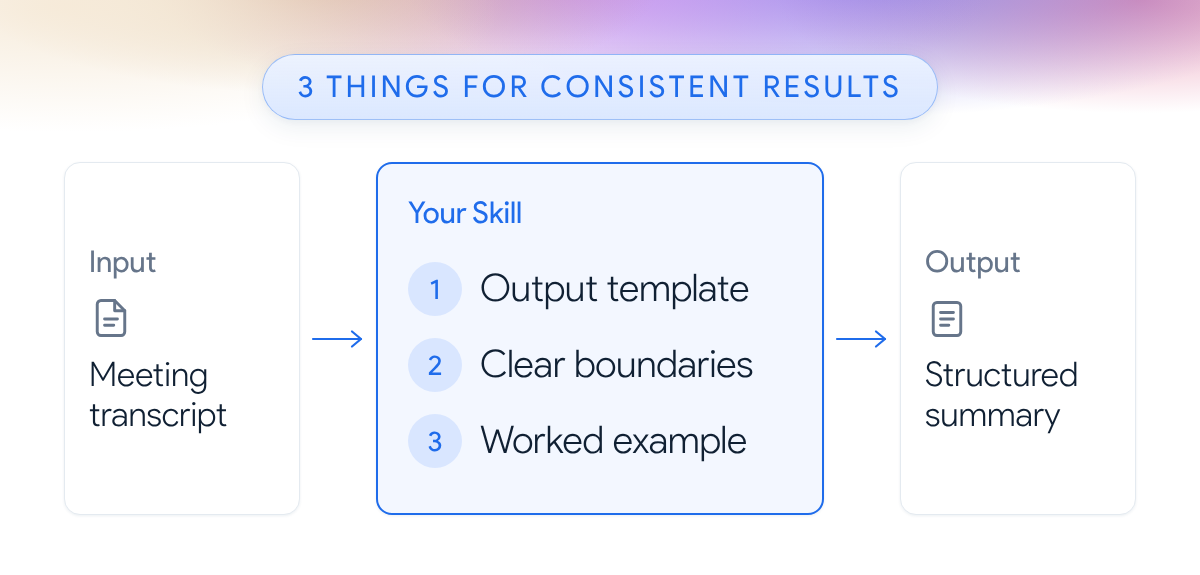
In case you’re new to them, a Skill is basically a set of reusable instructions your AI follows for a specific task. For example, a “meeting-summary” Skill might turn a raw meeting transcript (i.e. the Input) into a structured summary for you to review (i.e. the Output).
I’ve been using Skills since they first came out, and here are the 3 things to include in every Skill you create if you want high-quality and, most importantly, consistent results.
1. An output template: tell it what to produce
An output template describes what the finished result should look like: which sections to include, what goes in each one, and which ones to skip when they don’t apply.
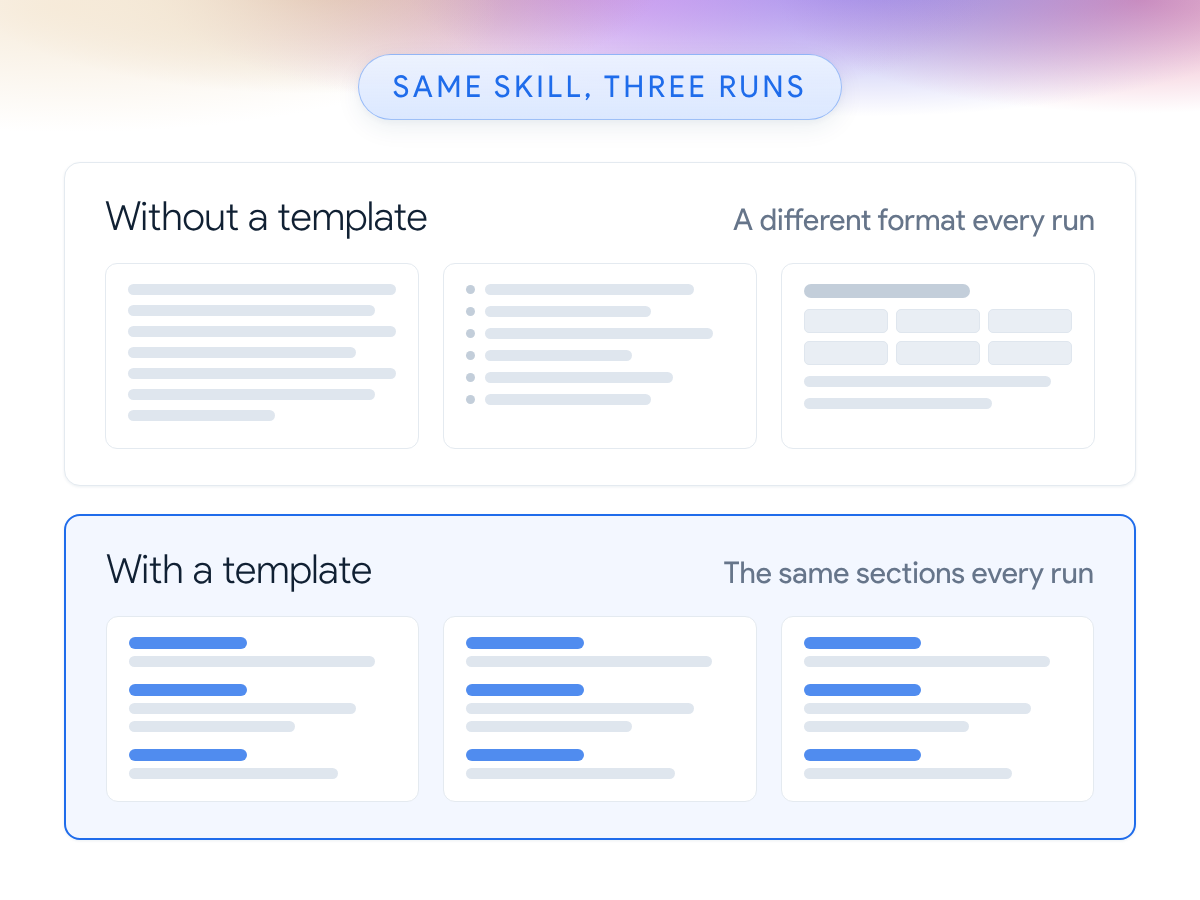
Without one, your AI decides the format on its own, so you might get a neat summary one day and a wall of bullet points the next.
For example, my actual ‘meeting-review’ Skill reads the transcript of my latest meeting and suggests updates to my notes. Here’s a condensed version of the report it’s told to produce:
- Meeting in Brief: meeting name, date, and purpose, then the main outcome and what it means for me
- Key Takeaways: usually 3-5 numbered points, each with a bold lead sentence
- Decisions Needed: only when I still have a choice to make, with the tradeoff and a recommendation
- Next Steps: who does what, with dates only when someone actually gave one
- Proposed Updates: only when my notes need changing, with the exact change and where it goes
So for your own Skill, write out the sections you want, what goes in each one, and when to leave one out.
2. Clear boundaries: tell it when to run
Boundaries tell your AI when to use a Skill and, just as importantly, when NOT to.
Your AI mainly reads a Skill’s description (the short summary at the top) to decide when to use it, so two similar-sounding requests can easily get mixed up.
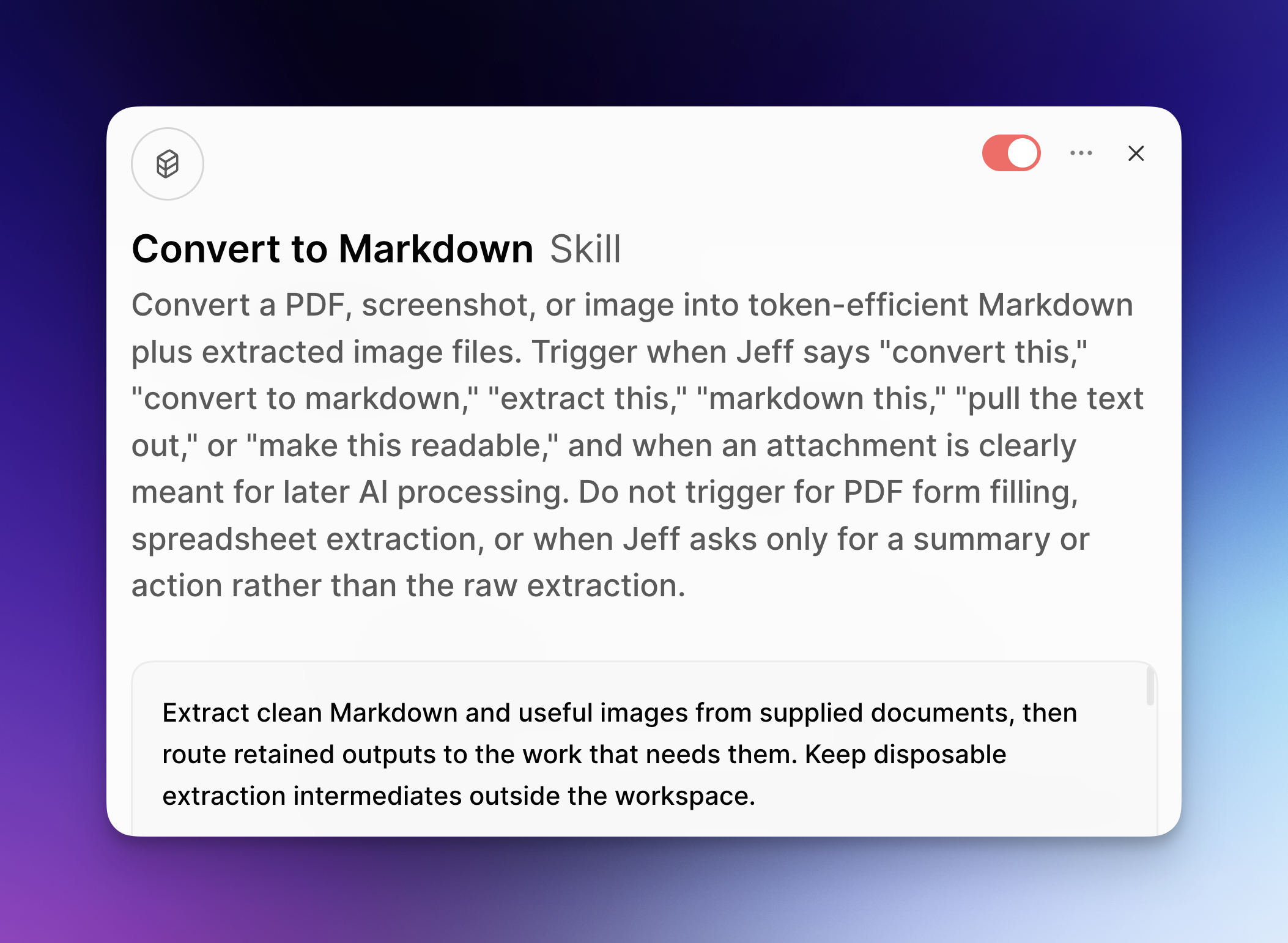
For example, my ‘convert-to-markdown’ Skill turns a PDF or screenshot into a Markdown file (a plain-text format AI reads easily). The tricky part is that “convert this document into a Markdown file” and “summarize this document” both start with the same document, BUT they need completely different results: reusable files for the first and a quick summary in chat for the second.
That’s why my Skill spells out exactly when NOT to use it:
If Jeff says “summarize this PDF” or “what does this email say” without asking for conversion, do NOT trigger this skill. Just answer the question directly using the PDF content already visible in context.
(Yes, my Skills refer to me in the third person.)
Takeaway: Describe when the Skill should run in the words you’d actually type, then name the closest request it shouldn’t handle AND what your AI should do instead.
3. A worked example: show it what good looks like
A worked example is a finished result you were genuinely happy with, saved with the Skill so your AI can see what “good” means to you.
To be clear: A template is good since it covers the structure of how the output should look, but even the “best” template in the world can’t provide the level of detail an actual example brings to the table.
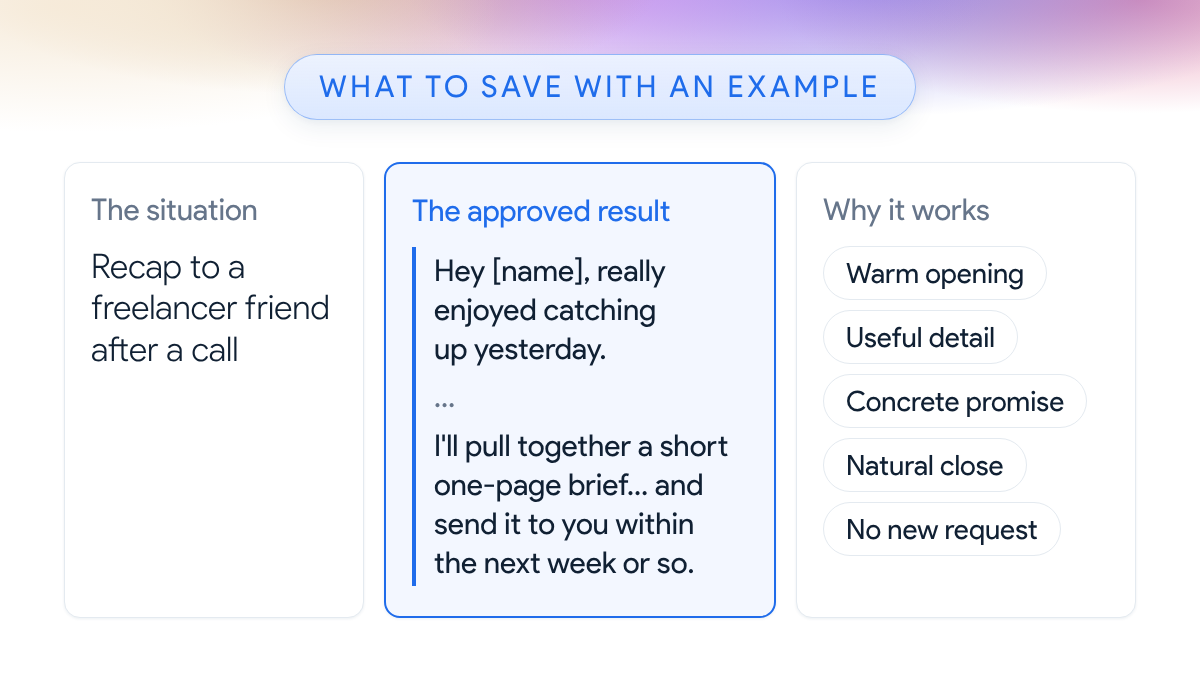
Before my inbox-triage Skill drafts a substantive email reply for me, it pulls up relevant emails I’ve already approved, like this trimmed recap I sent a freelancer friend after a call:
Hey [name], really enjoyed catching up yesterday.
Quick recap so we’re aligned: I’ll pull together a short one-page brief on [the project], detailing the offer, my go-to-market plan, and the couple of areas I’m concerned about, and send it to you within the next week or so.
…
Thanks again, [name]. Talk soon!
It’s saved with the situation behind it and a short note on why it works: a warm opening, useful detail, a concrete promise (a one-page brief within the next week or so), a natural close, and no new request for the other person.
Improve a Skill you already use
We’re all about practical tips here so here’s a copy-paste-ready prompt template you can use immediately to improve the Skill you use the most (just fill in the brackets first):
Here's one of my Skills: [name the Skill]

Improve it with these 3 things:

1. An output template: the sections a finished result needs, what goes in each one, and when to skip a section.
2. Clear boundaries: when this Skill should run, plus the closest request it shouldn't handle and what to do instead.
3. A worked example: [paste a past result you were happy with], with its starting context and a short note on why it works. If I left that blank, ask me for one first.

Show me your proposed changes before editing the Skill.
Try it on your most-used Skill this week and let me know how it goes! 😁
Whenever you're ready, here are some other ways I can help you:
🎛️ The Cowork Academy: Ready-to-install AI Command Center that loads your context automatically and makes every Claude session sharper than the last. 90% built when you download it.
💻 The Workspace Academy: Never lose a file, task, or note again with my CORE workflow for Google Workspace. Adopted by over 10,000 Googlers.