|
Gmail
| #261
Gmail: How to Automatically Organize Emails With Filters
Want to see these tips early? Subscribe to the newsletter!
Hey friends, today, I’ve got three of my favorite time-saving tips for Gmail so let’s just dive right in! 😁
Tip #1: Forward the whole thread
Someone forwards you a 14-email thread with one “FYI” at the top (how much lazier can you get? Come on), and now you’re reading the entire thread backwards.
Don’t be that guy (or gal).
Here’s what to do instead:
- Open the thread.
- Click More in the top toolbar.
- Select Forward all.
- Add the recipients and send.
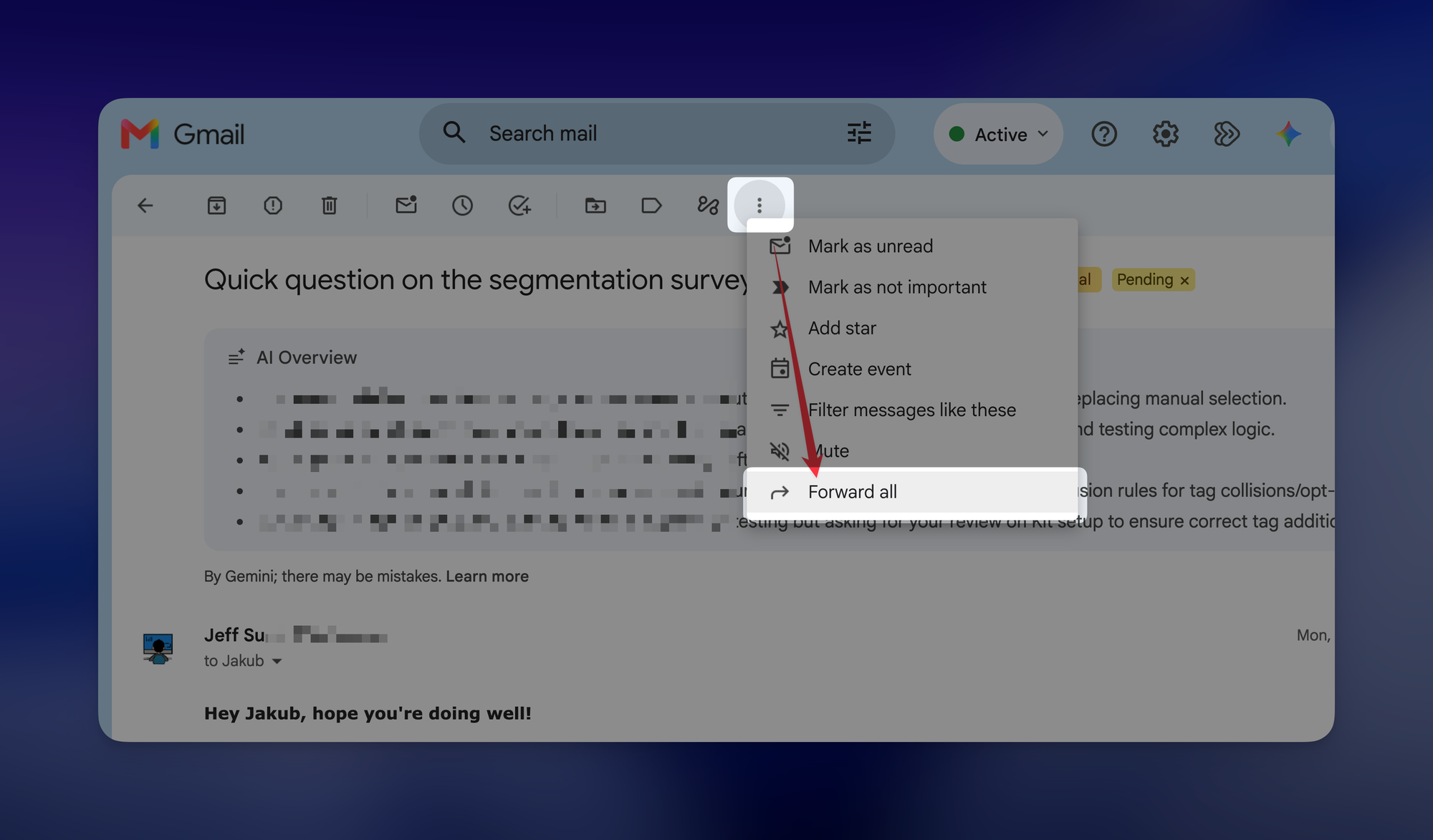
The recipient gets the complete conversation in one message.
Tip #2: Narrow a search with chips
You probably already know how to use Gmail’s search bar to find specific emails, BUT you also probably had to try a few times before finding the specific email you were looking for.
Here’s what to do next time:
- Run one basic search first by entering a word from the message in the search bar (you only need one rough term to start).
- Press Enter.
- Choose a chip such as From, Any time, or Has attachment.
- Add another chip if the list is still too long.
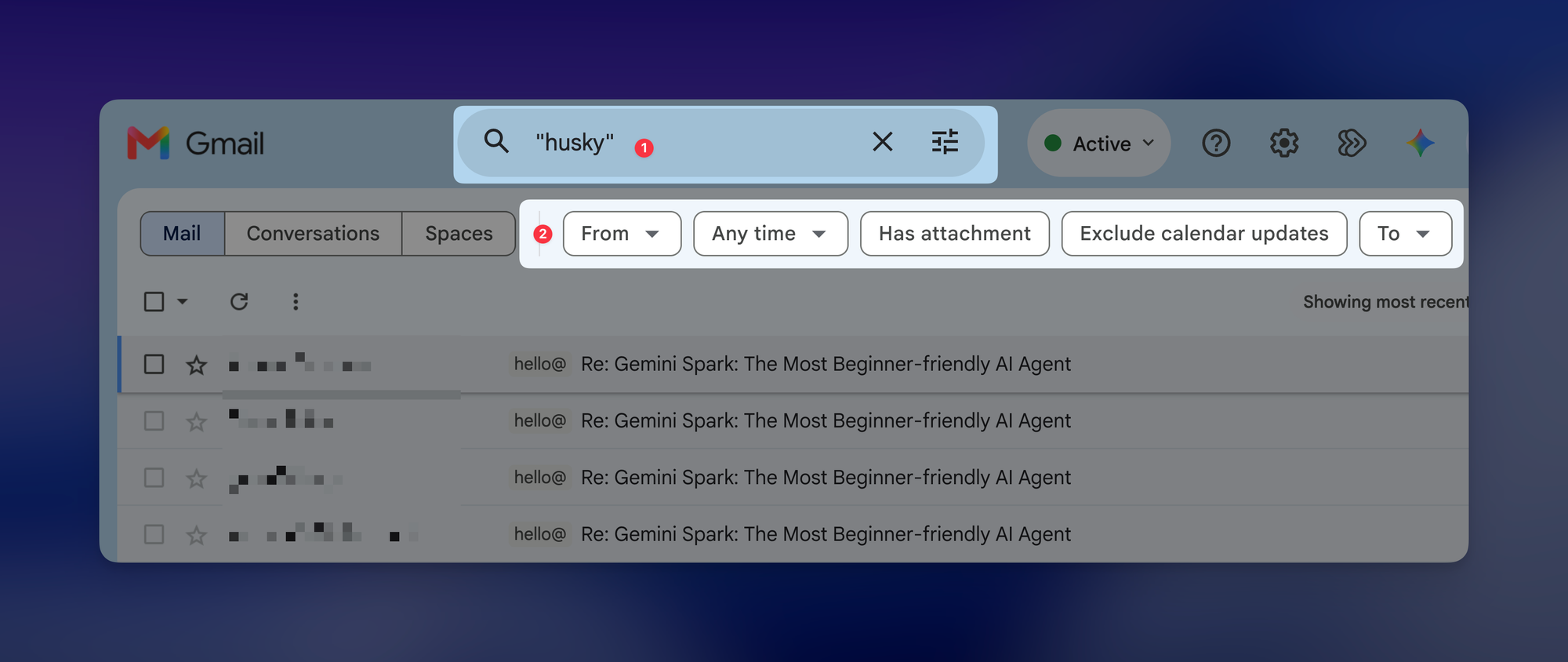
You can narrow thousands of messages without guessing the exact search syntax.
Tip #3: Sort incoming mail with a + address
I’ve talked about this before but I use jeff+newsletters@gmail.com when I sign up for newsletters (it still lands in my normal inbox).
By the same logic, you can use the same pattern with your address by adding +category before the @, and then creating a filter for that variation!
For example:
- For all your travel-related notifications (e.g. flight and hotel confirmations), you can sign up using something like “jeff+travel@gmail.com”
- Create a filter where all emails sent to “jeff+travel@gmail.com” get tagged with a “Travel” label
Those messages now sort themselves as soon as they arrive.
Bonus shortcut: Clear pasted formatting
If pasted text brings old formatting into a draft, select it and press CMD/CTRL + \ to clear it (much faster than fixing each style manually).
Try one of these this week and let me know how it goes! 😁
Whenever you're ready, here are some other ways I can help you:
🎛️ The Cowork Academy: Ready-to-install AI Command Center that loads your context automatically and makes every Claude session sharper than the last. 90% built when you download it.
💻 The Workspace Academy: Never lose a file, task, or note again with my CORE workflow for Google Workspace. Adopted by over 10,000 Googlers.