|
Chrome
| #255
Chrome: How to Block Notifications and Switch Tabs Faster
Want to see these tips early? Subscribe to the newsletter!
Hey friends, chances are if you're reading this email you're probably using Google Chrome so today I'm sharing three quick tips for everyone's favorite default browser. 😉
Tip #1: Switch phone tabs with one swipe
Switching tabs on your phone is a tiny bit annoying:
- Tap the little tab icon...
- ...wait for the grid to load...
- ...hunt for the right one...
- ...and finally tap it.
Here's a much faster way:
- Open Chrome on your phone (this works in Safari too)
- Put (do NOT hold) your finger on the address bar at the top
- Swipe left or right to flip between your open tabs
Boom. You move through tabs like flipping pages.
💡
Pro tip: On Android, swipe down on the address bar to pull up the full tab grid instantly.
Tip #2: Kill those notification pop-ups
You open a site to read something, and before you've gotten anywhere, a box slides in asking to send you notifications. You click Block. Then a few minutes later in another site, you receive yet another notification.
Here's how to shut them off for good:
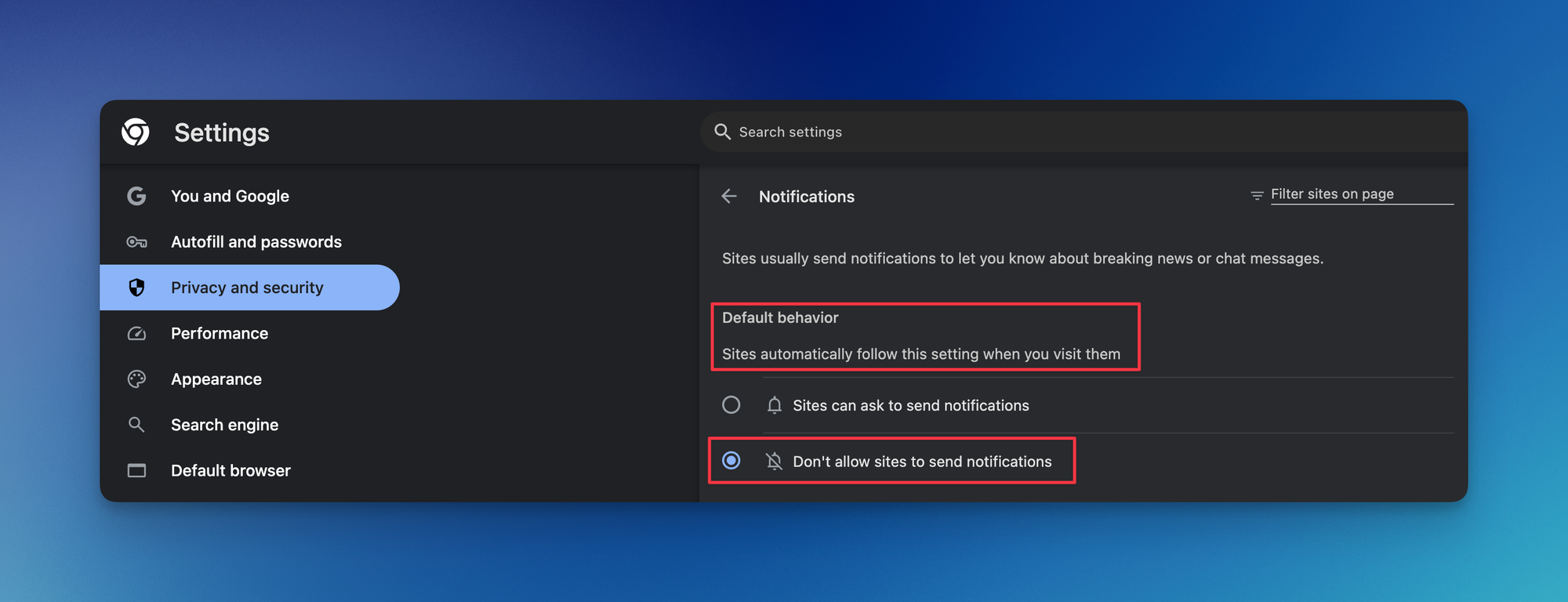
- Type chrome://settings/content/notifications in your address bar and press Enter
- Select Don't allow sites to send notifications so Chrome stops the pop-ups but still lets you opt in site by site
💡
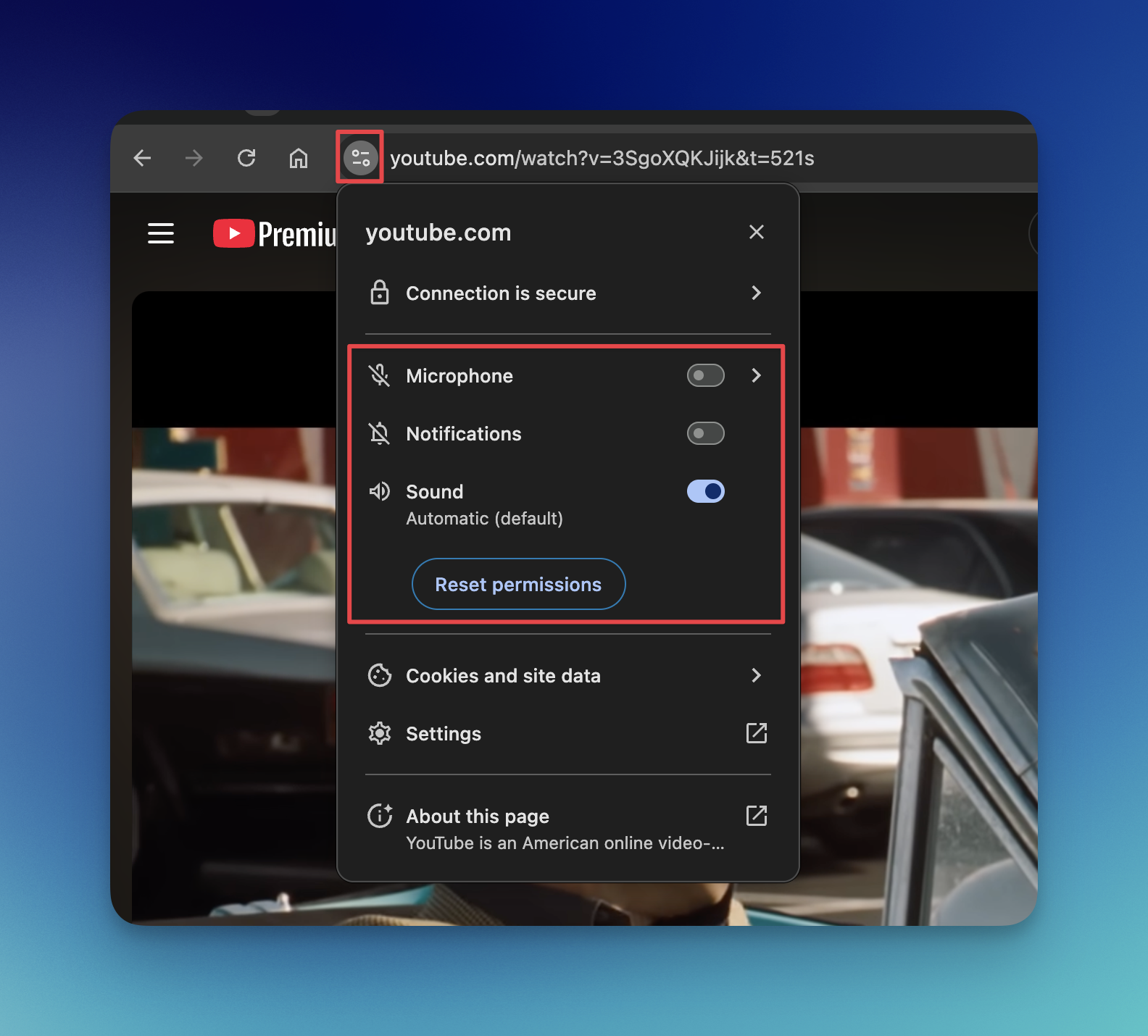
Pro tip: Blocked a site you actually wanted? Click the site-info icon on the left of the address bar (the little sliders icon that replaced the old padlock) and turn notifications back on for that one site.
Tip #3: Find any open tab in seconds
Let's be honest, you've got 20-something tabs open right now, shrunk down to slivers you can't read (hit reply if I caught you 😛). Finding the one you need means clicking through them one at a time.
There's a built-in search for exactly this:
- Press CMD + Shift + A (CTRL + Shift + A on Windows)
- Start typing the name of the page you're after
- Press Enter to jump straight to it
⌨️ Keyboard Shortcuts
- CMD/CTRL + Shift + T = reopen the last tab you closed
- CTRL + Tab = jump to your next open tab (Mac and Windows)
- CMD/CTRL + Shift + N = open a new Incognito window
- Middle-click a tab = close it without aiming for the tiny x (technically your mouse, not the keyboard, but too handy to skip)
Try one of these this week and let me know how it goes! 😁
Whenever you're ready, here are some other ways I can help you:
💻 The Workspace Academy: Never lose a file, task, or note again with my CORE workflow for Google Workspace. Adopted by over 10,000 Googlers.
✅ Build Your Command Center in Notion: Plug-and-play dashboard that surfaces today's priorities automatically and organizes your life in seconds. #1 rated Notion Course globally.