|
Google Drive
| #252
Google Drive: How to Update a File Without Changing the Link
Want to see these tips early? Subscribe to the newsletter!
Hey friends, today's tip means you never have to re-send a file in Google Drive just because you updated it, so let's get started! 😁
Updating a shared file shouldn't break the link
When you share a file with your team (e.g. a template or report), that link ends up in an email, a doc, and maybe a dozen other places.
So if/when you need to change something, you'd have to delete the old file and upload a new one, which is exactly how you break every link you already shared, since they all now point to a file that no longer exists.
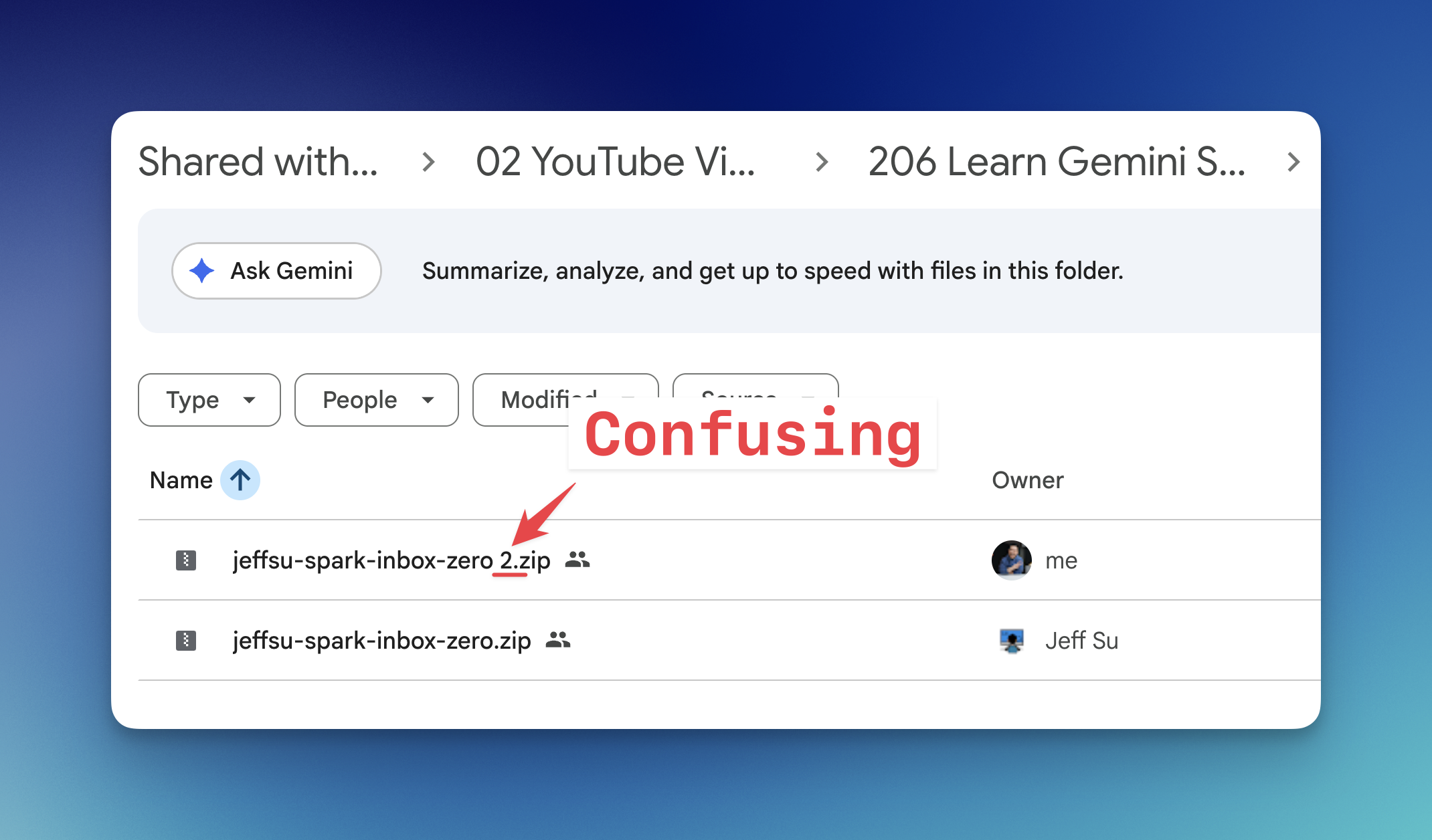
So wouldn't it be great if you could swap in the updated file and keep the exact same link, so everywhere you've shared it just updates itself?
Upload a new version in Google Drive
My next YouTube video is on Gemini Spark (it's great for those of us deep in the Google Workspace ecosystem), and I'm including a free resource to help you get started.
But imagine, for a second, the unthinkable happens: I (Jeff Su) make a mistake, and there's an issue with the file I shared.
Instead of uploading another file and re-sharing a new link, I just use Manage versions in Google Drive. It replaces any uploaded file (a PDF, an image, a zip, an Office doc) with a new version that keeps the same link.
- Right-click the file in Google Drive and select Manage versions
- Click Upload new version and pick the updated file
- Click Open
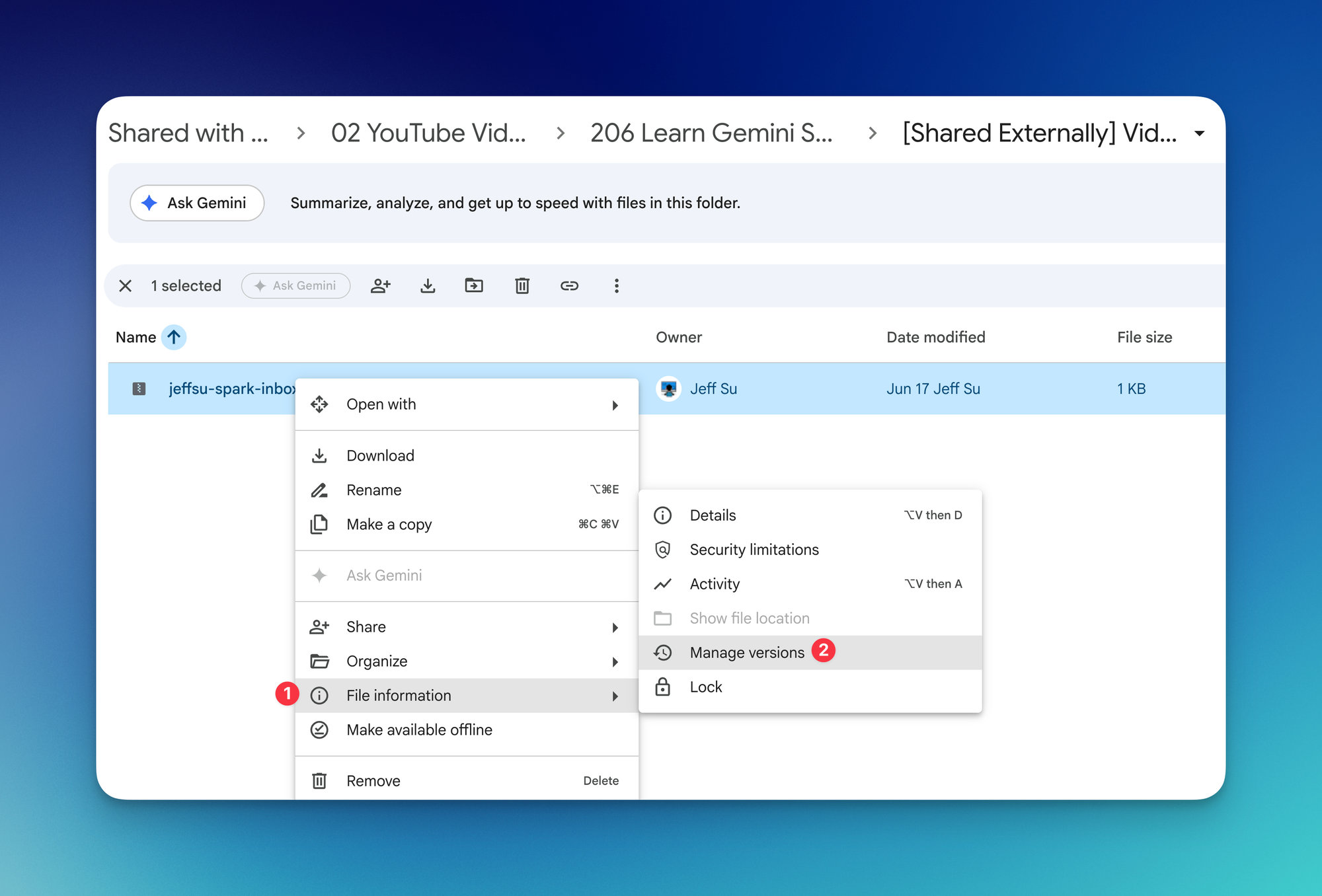
And that's it! The file's updated, AND the share link never changes.
💡
Pro tip: Drive auto-deletes old versions after 30 days. If a file matters (a signed contract, a final invoice), open Manage versions, click the three-dot menu next to a version, and choose Keep forever.
Next time you need to update a file you've already shared, swap the version instead of re-uploading, and let me know how it goes! 😁
Whenever you're ready, here are some other ways I can help you:
💻 The Workspace Academy: Never lose a file, task, or note again with my CORE workflow for Google Workspace. Adopted by over 10,000 Googlers.
✅ Build Your Command Center in Notion: Plug-and-play dashboard that surfaces today's priorities automatically and organizes your life in seconds. #1 rated Notion Course globally.