|
Google Calendar
| #254
Google Calendar: How to Connect Gmail, Chat, and Meet
Want to see these tips early? Subscribe to the newsletter!
Hey friends, this week I've got 3 of my favorite Google Calendar features that connect it to Gmail, Chat, and Meet, so you're not copy-pasting between apps all day. Let's dive right in! 😁
Tip #1: Create an event straight from an email
You get an email that's obviously going to turn into a meeting, so you:
- open Google Calendar...
- ...create a new event...
- ...retype the subject line as the title...
- ...and re-add everyone who was on the thread.
Here's a much faster way:
- Open the email in its own window (not the reading pane)
- Click the three-dot menu at the top right of the email
- Select Create event
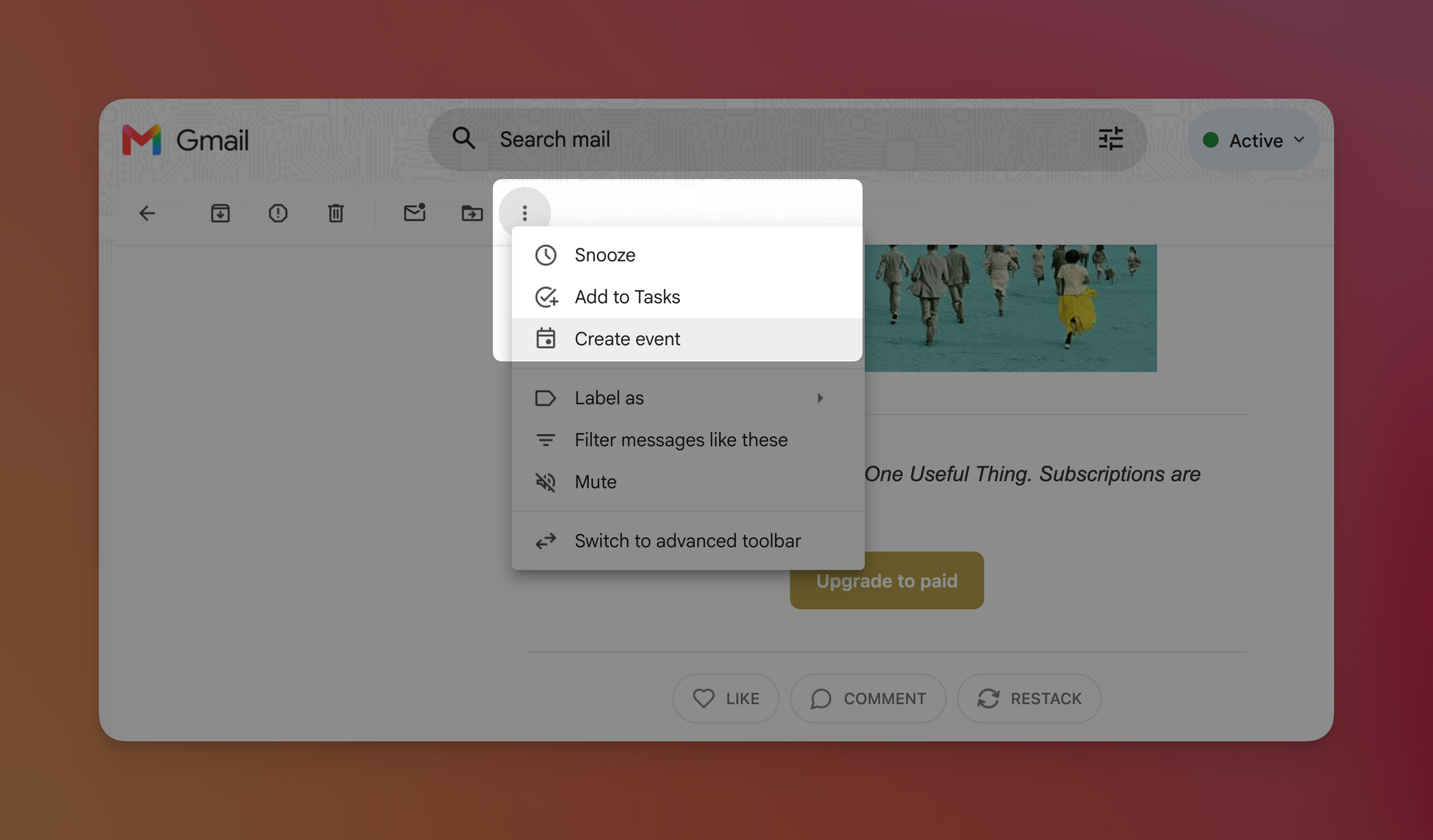
And that's it! Calendar opens with the title, description, and everyone from the email already filled in.
Tip #2: Turn a Google Chat message into a task on your calendar
Someone pings you an action item in Google Chat: "can you send the deck by Thursday?" You swear you'll remember it, then you forget get distracted by something that's totally not your fault and it's buried under 40 messages by lunch.
So here's what to do instead:
- Hover over the message and click the three-dot menu
- Click Add to Tasks
- Open the new task and add a due date
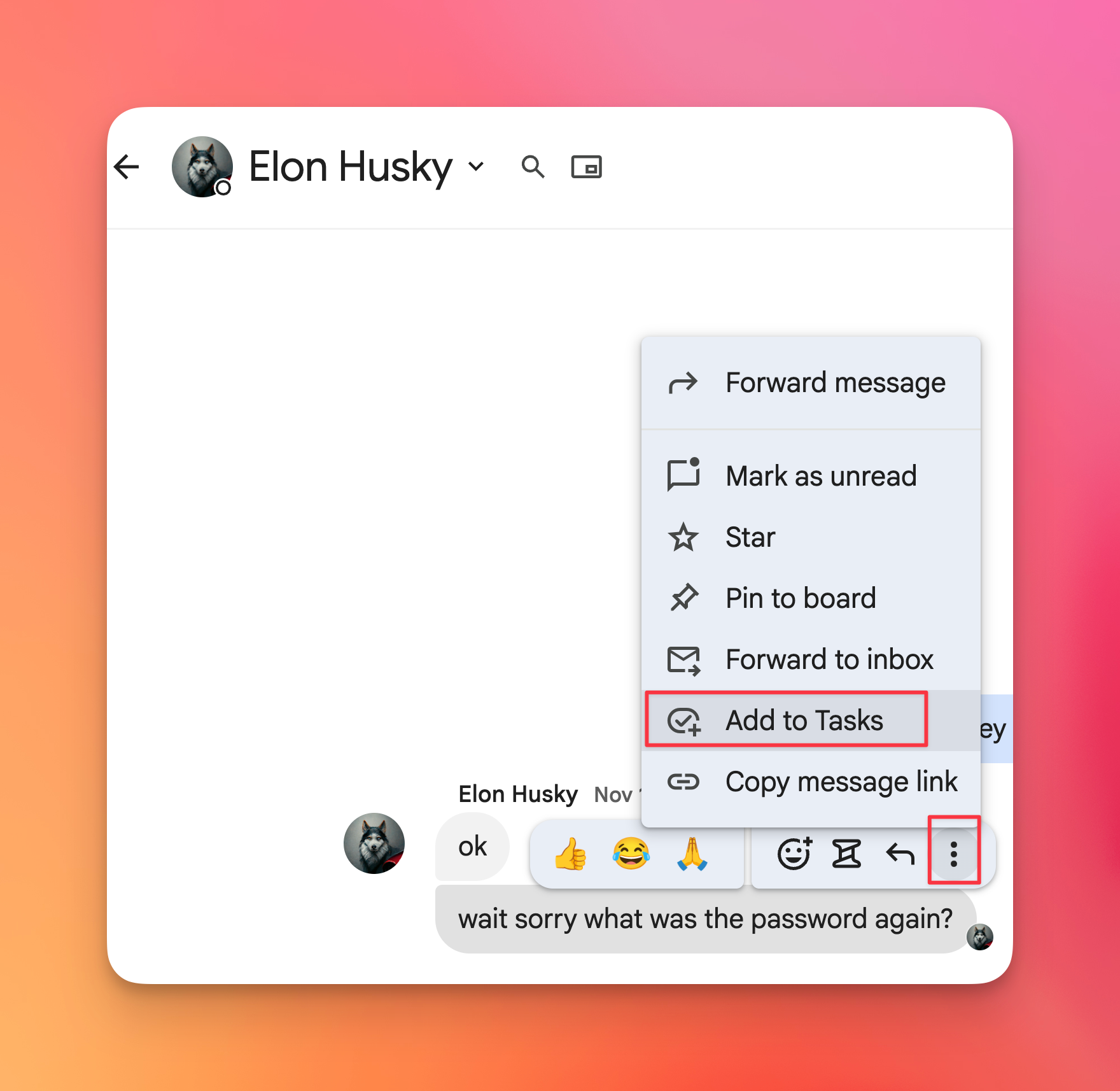
Now it lands on your Google Calendar with a checkbox you can tick off from the day view. No toggling between Chat, Tasks, and Calendar.
💡 Pro tip: The due date is what puts it on your calendar. Skip it and the task just sits in your list.
Tip #3: Lock down your meeting before it starts
Heads up: this one's for Google Workspace accounts.
Back when I was a PMM at Google, I gave a lot of presentations, and nothing derails one faster than someone accidentally sharing their screen over yours in front of the whole room 😩. The old fix was scrambling through Meet's settings mid-meeting.
Here's how to prevent it from the invite:
- Open the event in Google Calendar and click Edit
- Next to Google Meet, click the Video call options gear
- Turn on Host management
- Optional: add a co-host so a teammate can help run the room
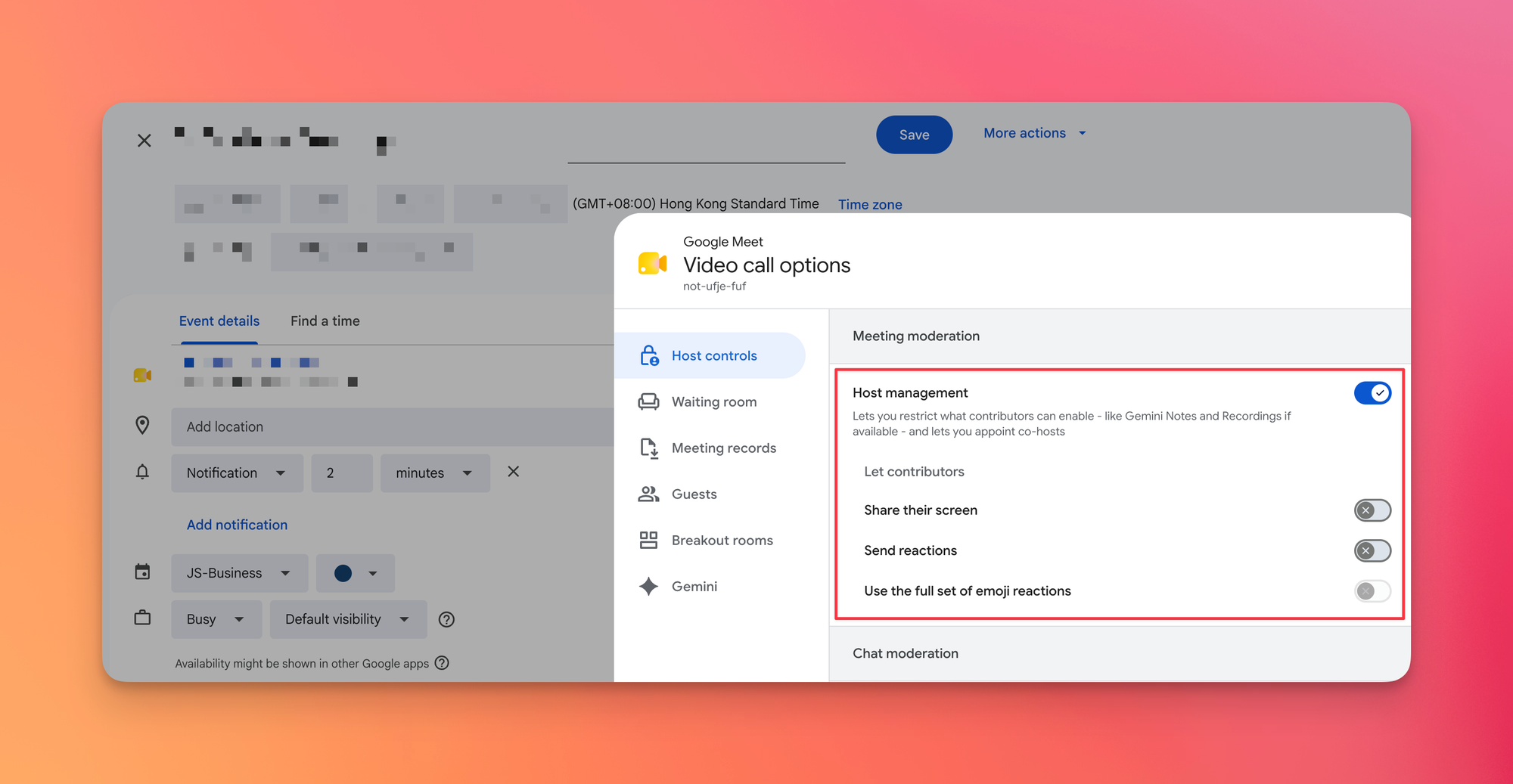
Now only you and your co-hosts can share a screen. No surprises.
Free workaround
On a personal account you can still control this, just not ahead of time. Once the meeting starts, open Host controls (the shield icon) and turn off screen sharing for everyone but you.
⌨️ Google Calendar keyboard shortcuts
- C = Create a new event
- E = Open a selected event's details
- T = Jump to today
- X = Switch to your custom (4-day) view
- G = Go to a specific date
Try one of these this week and let me know how it goes! 😁
Whenever you're ready, here are some other ways I can help you:
💻 The Workspace Academy: Never lose a file, task, or note again with my CORE workflow for Google Workspace. Adopted by over 10,000 Googlers.
✅ Build Your Command Center in Notion: Plug-and-play dashboard that surfaces today's priorities automatically and organizes your life in seconds. #1 rated Notion Course globally.