|
AI
| #266
How to get consistent AI images with a prompt template
Want to see these tips early? Subscribe to the newsletter!
You probably don’t use AI to generate images THAT often, BUT when you do, you probably get pretty inconsistent results no matter what text-to-image tool you use.
By the end of this post, you’ll know how to:
- Get consistently great images with less back-and-forth using a standardized prompt template.
- Try the template right away in a free and paid image tool.
Steal my four-section prompt template
Long story short, image models have become so powerful that I’ve found a simple template with these four sections works pretty well:
- Overarching concept: What are we making, and what should it communicate?
- References: If you’re uploading images, tell the AI what to use from each one. If you don’t need references, just write “None.”
- Visual details: Get specific about what goes where, plus the colors, lighting and any details you care about.
- Output and finishing: What shape and size should the image be, and what will you add yourself?
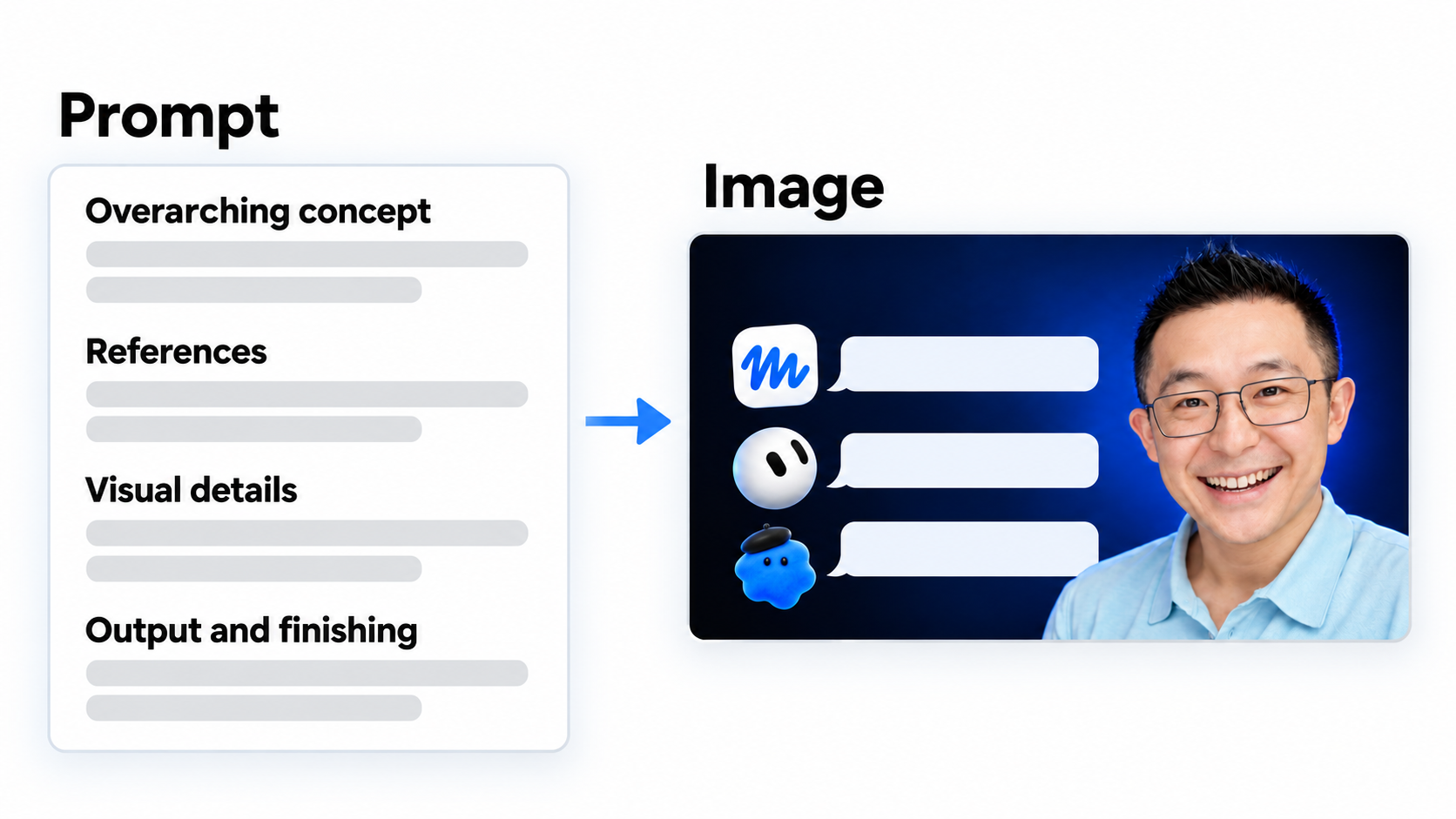
Copy this, fill in the brackets, and attach any reference images you mention:
## Overarching concept
Create a [IMAGE TYPE] for [PURPOSE].
The main idea is [CORE IDEA].

## References
[WRITE "NONE", OR LIST EACH ATTACHED IMAGE AND WHAT TO USE FROM IT]

## Visual details
Subject: [SUBJECT AND APPEARANCE]
Layout and background: [COMPOSITION]
Style, colors and lighting: [VISUAL DIRECTION]
Important constraints: [WHAT MUST OR MUST NOT APPEAR]

## Output and finishing
Aspect ratio and resolution: [OUTPUT REQUIREMENTS]
Text: [EXACT WORDS OR "NO TEXT"]
Later edits: [WHAT I'LL CHANGE MYSELF, OR "NONE"]
Get consistent results across platforms
To show this works across platforms, I used the same four-section prompt and the same reference images in Google Pics (available for paid Google AI users) and ChatGPT Images (free).
Look at how similar the results are:
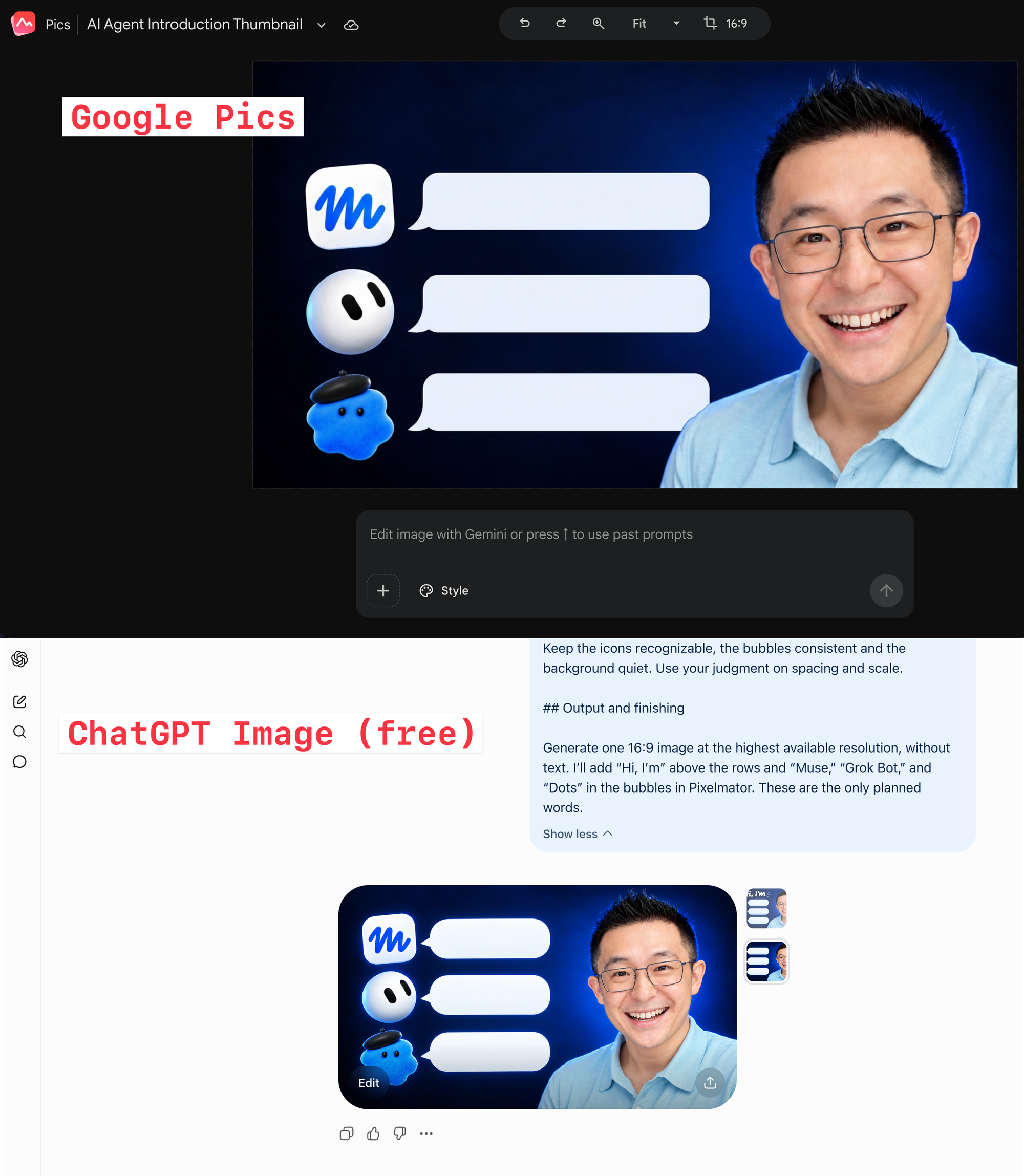
Both put me on the right, with the three agents and speech bubbles on the left, and kept the dark blue background.
So when you switch tools, keep the same four sections and just change what’s inside them for the image you need.
Which image tool should you use (right now)?
Unless you’re a power user (like a creative agency who needs to generate thousands of images daily for A/B testing), the free version of ChatGPT Images is more than enough given how powerful the underlying Images 2.5 model is.
If you’re already paying for a Google AI plan, I’ve found Google Pics to be an extremely strong and no-frills alternative that produces images much faster than ChatGPT Images.
All that said, a standardized prompt template gives you more consistent results across platforms. Save these four headers and reuse them the next time you need an image!
Whenever you’re ready, here are some other ways I can help you:
🎛️ The Cowork Academy: Ready-to-install AI Command Center that loads your context automatically and makes every Claude session sharper than the last. 90% built when you download it.
💻 The Workspace Academy: Never lose a file, task, or note again with my CORE workflow for Google Workspace. Adopted by over 10,000 Googlers.
✅ Build Your Command Center in Notion: Plug-and-play dashboard that surfaces today’s priorities automatically and organizes your life in seconds. #1 rated Notion Course globally.