|
AI
| #267
How to teach your AI to manage other AI tools
Want to see these tips early? Subscribe to the newsletter!
You know when you try something new with AI and it actually works, and you’re like, “HOLY SH**”? Yeah, this was one of those moments for me.
Let me know if this sounds familiar: You ask your AI for help with something, copy its instructions into another tool, wait for the result, then bring that result back so your AI can tell you what to change.
The results do get better after every iteration but you end up spending A LOT of time copying and pasting between the AI tool and the other application.
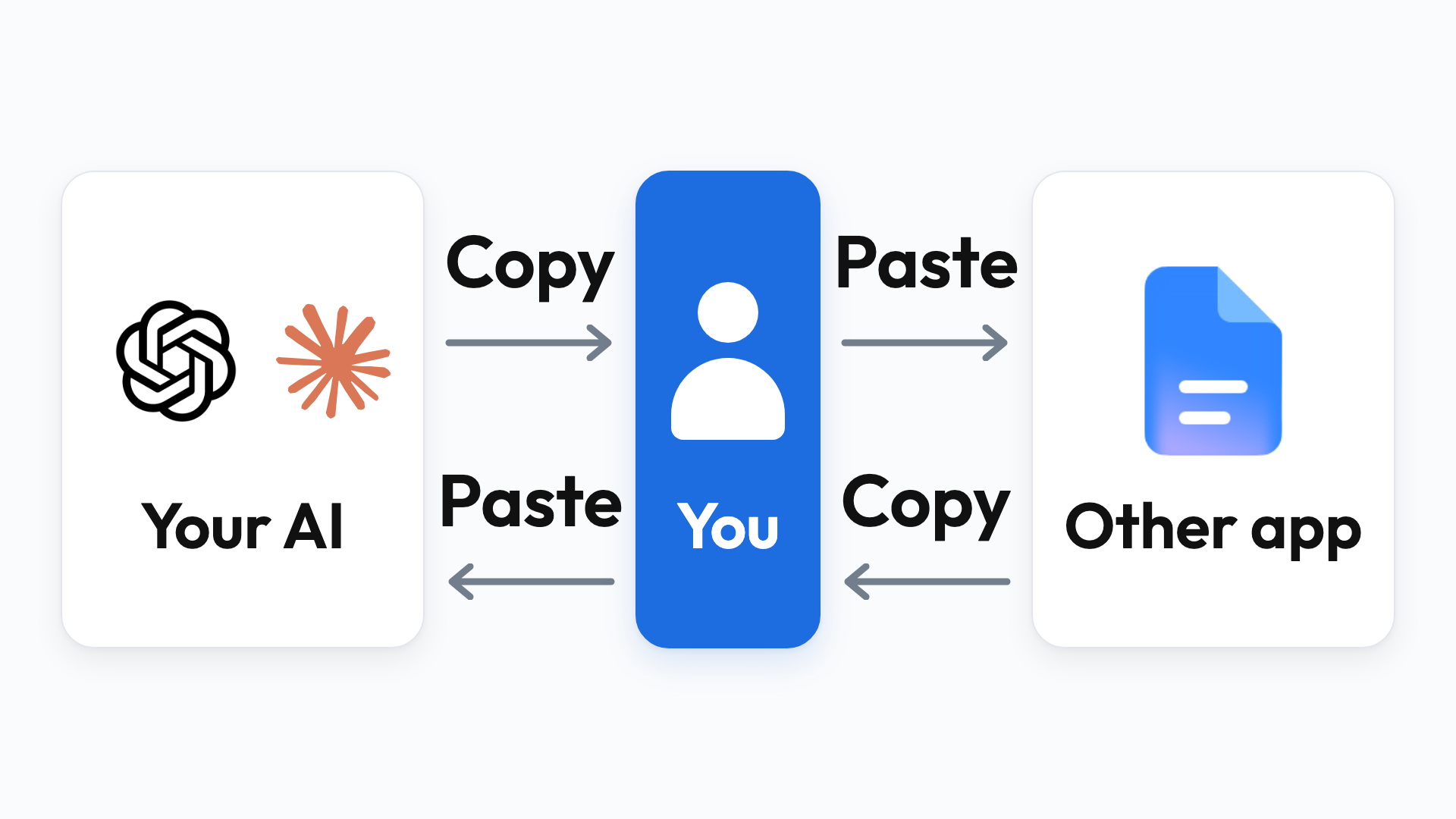
🌟 Fun fact: You can let your “main AI” handle those instructions and revisions through its built-in browser. It opens the other application, checks the work and sends feedback for you.
Why the in-app browser has become useful
As a quick refresher, both ChatGPT and Claude have a browser built into their desktop apps (see screenshot below). It lets the AI (1) See the website you’re working on, and (2) Click, type and navigate it for you.
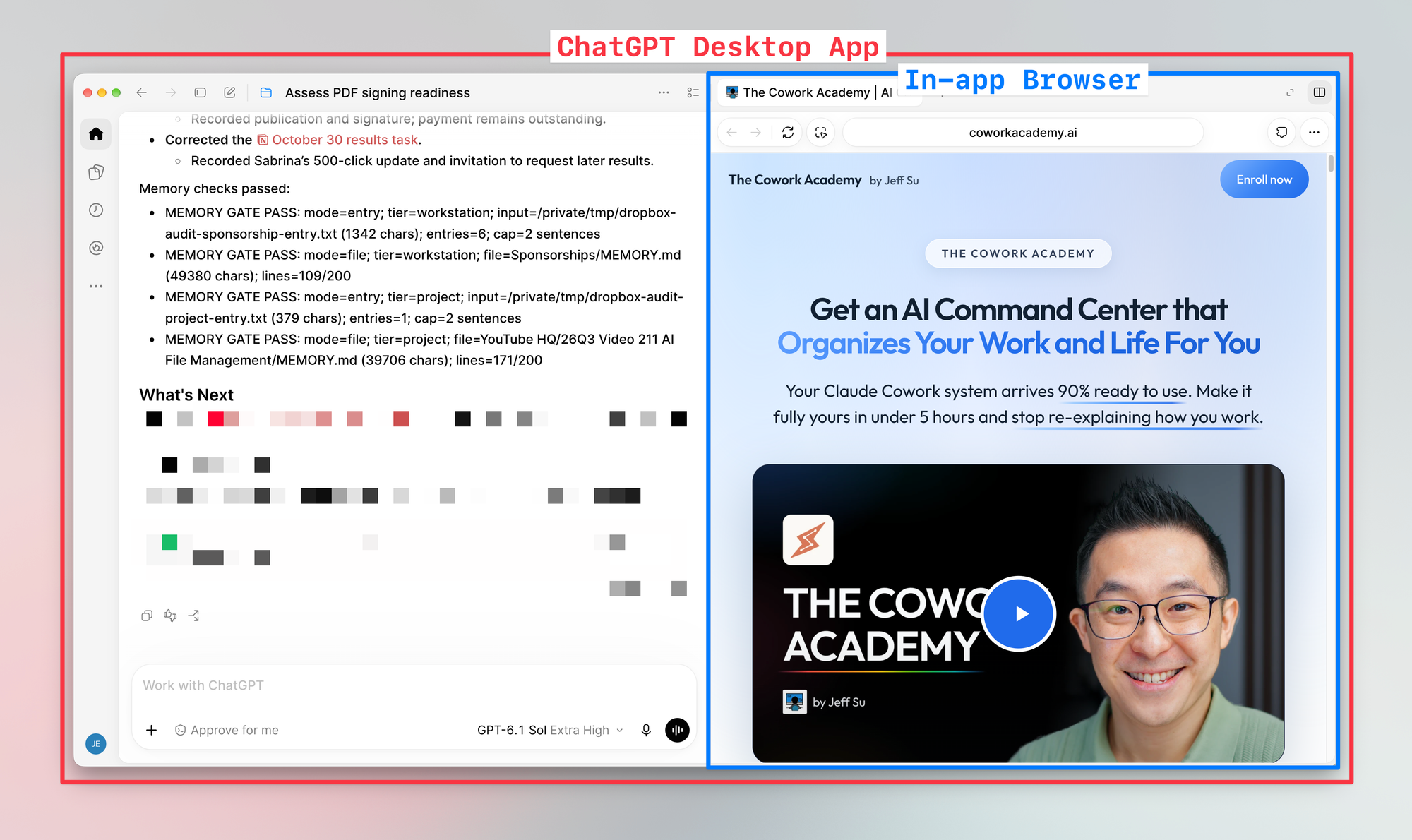
For a long time, this feature felt like a gimmick to me. The models were either too slow or made too many mistakes to save me much time.
BUT newer models like Astra and Sol from OpenAI, and Fable and Opus from Anthropic, have made browser tasks much faster and MUCH MUCH MUCH more accurate.
How I use this with Claude Design
For the longest time, I’d ask the Claude desktop app to give me clear and articulate instructions to paste into Claude Design because obviously Claude knows how to guide Claude Design better than I do, and to be clear, this process worked really well and Claude Design gave me fantastic designs!
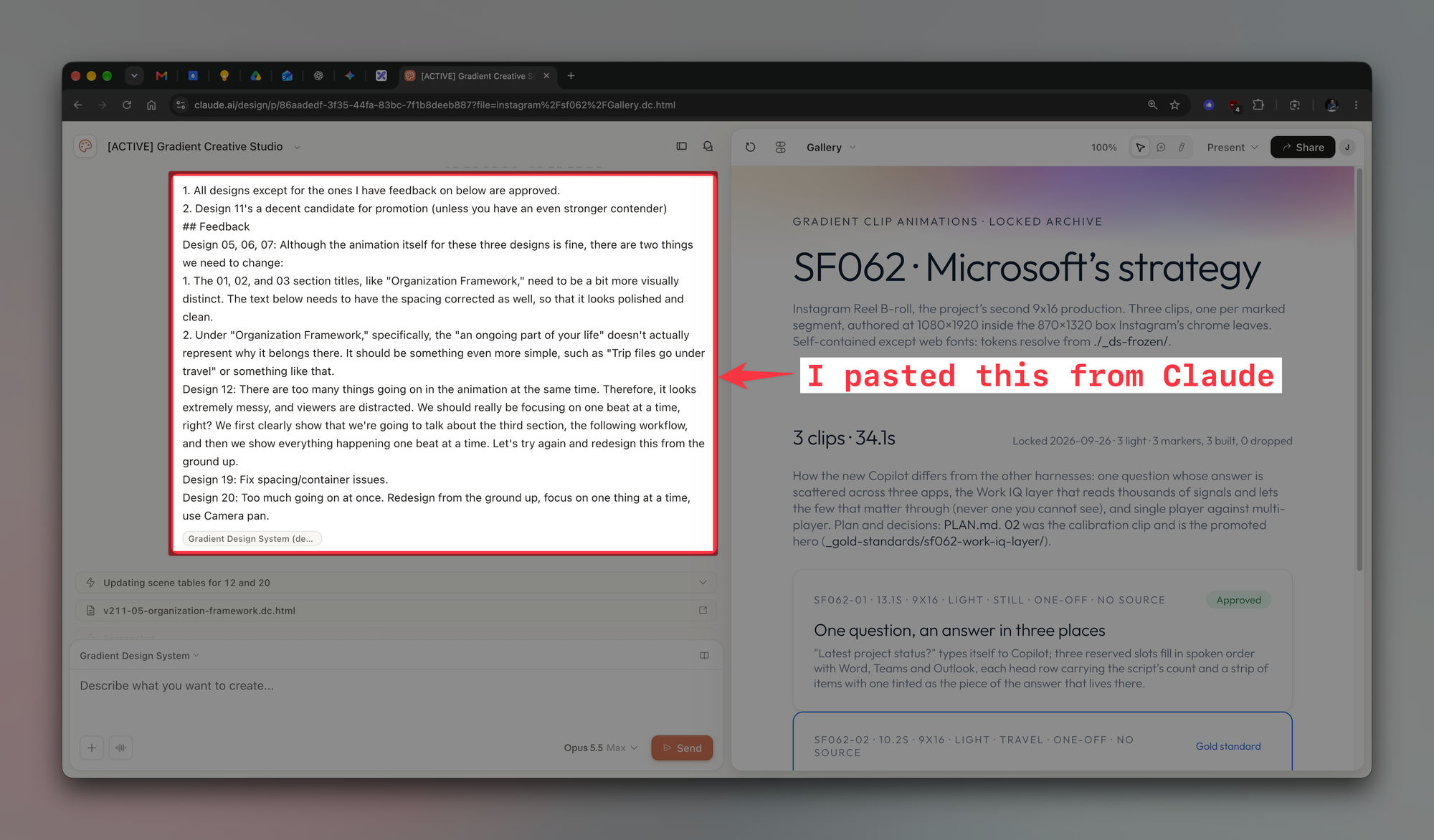
But again, this meant I spent a LOT of time just copy and pasting instructions and screenshots back and forth. 😅
The solution? I opened the in-app browser in the Claude desktop app, signed into Claude Design (web), and basically told the main chat in the Claude desktop app to “Develop the designs and iterate until the designs are finalized.”
Basically, the main Claude app gives Design the relevant instructions, sets a timer and checks whether it’s finished. Once it has, Claude reviews the rendered output and sends feedback on what can be improved.
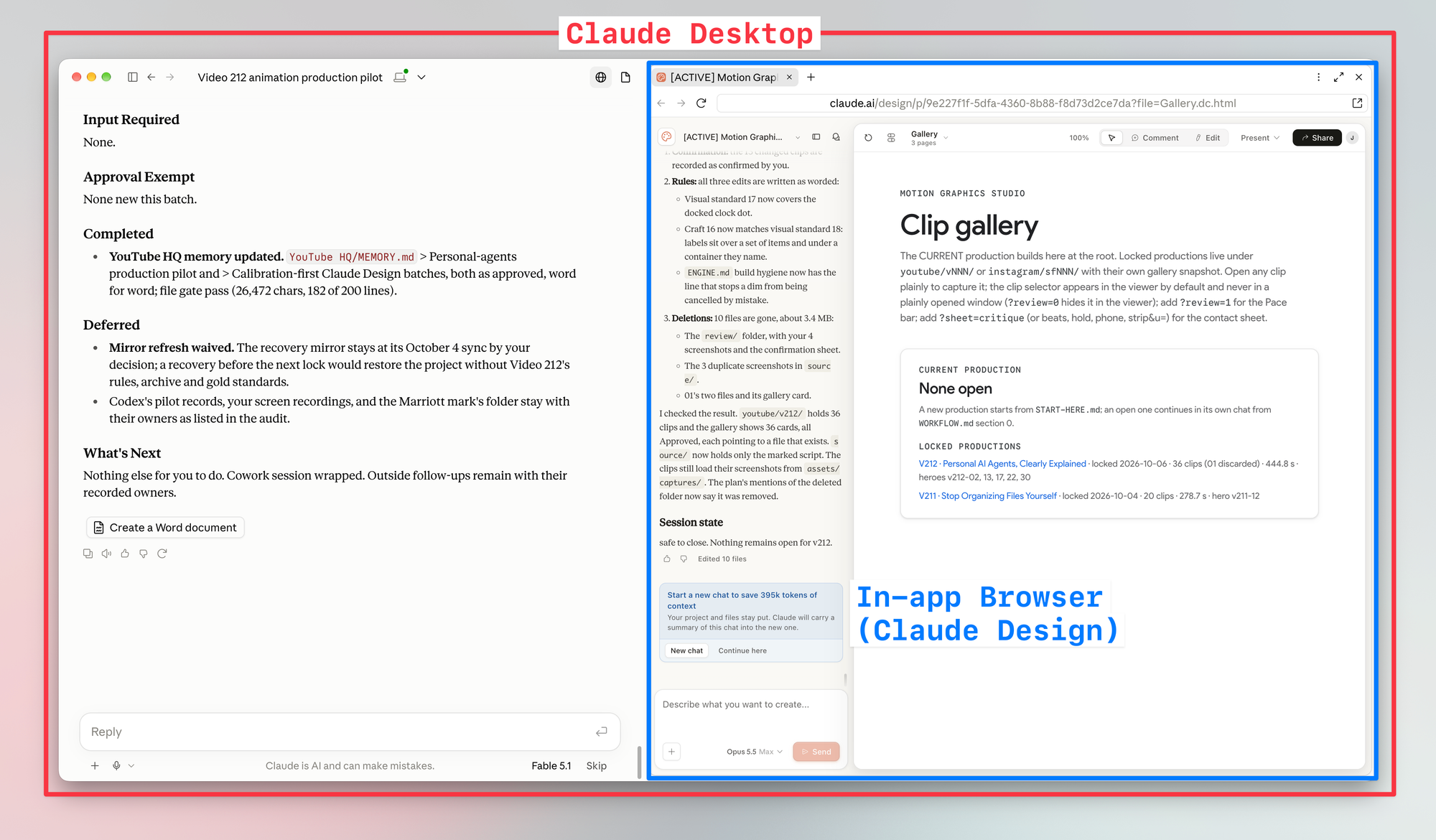
Specifically, I use Fable (the most powerful model) in the main chat to handle the creative judgment and Opus (powerful but cheaper model) in Claude Design to create the designs. After each output, Fable reviews it against my creative standard and gives feedback on what can be improved.
This cycle gets repeated until the output meets my creative standard, and now I would just kick off a task using this workflow, go to the gym, and come back to a batch of designs that’s ready for me to review and approve! 🤯
How to start with your own task
- Choose a task with repeated copying and pasting. Look for instructions or feedback you keep carrying between your AI and a website.
- Open that website in the built-in browser.
- In Claude desktop, either include a link you want Claude to open within your instructions or click the globe icon in the top right after starting a new chat.
- In ChatGPT Work, just press CMD/CTRL + T to open a new browser tab (similar to opening a tab in Chrome).
- Give it a clear brief. Explain the result you want, the context it needs and what a good result looks like. Tell it when to stop revising and bring the work back to you.
Two things to watch
- Token usage can add up. If your instructions are vague, repeated checking and revisions can use A LOT of tokens. Give it a clear result, acceptance criteria and a stopping point (your usage limit still applies while it works).
- Signing in carries a privacy risk. You’re giving the AI access to that account and its information. Claude’s signed-in sites can remain available in future sessions, so decide which accounts you’re comfortable making available.
Try this out next time you catch yourself copying and pasting between an AI and another app and let me know how it goes! 😁
Whenever you’re ready, here are some other ways I can help you:
🎛️ The Cowork Academy: Ready-to-install AI Command Center that loads your context automatically and makes every Claude session sharper than the last. 90% built when you download it.
💻 The Workspace Academy: Never lose a file, task, or note again with my CORE workflow for Google Workspace. Adopted by over 10,000 Googlers.
✅ Build Your Command Center in Notion: Plug-and-play dashboard that surfaces today’s priorities automatically and organizes your life in seconds. #1 rated Notion Course globally.