| #269
How to give Claude or ChatGPT an API key to manage your apps
Want to see these tips early? Subscribe to the newsletter!
As you probably know, I don’t have a technical background, so when I first needed a website back in 2020, I paid about $5,000 in freelancer fees, and over the years I’ve paid roughly $2,000 more for small changes I didn’t know how to make myself: adding custom designs, updating tags in bulk, etc.
Since last year though, every single change I’ve made to my website has been done with either Claude or ChatGPT Work; I give them something called an “API key” and I just say what I want in plain English!
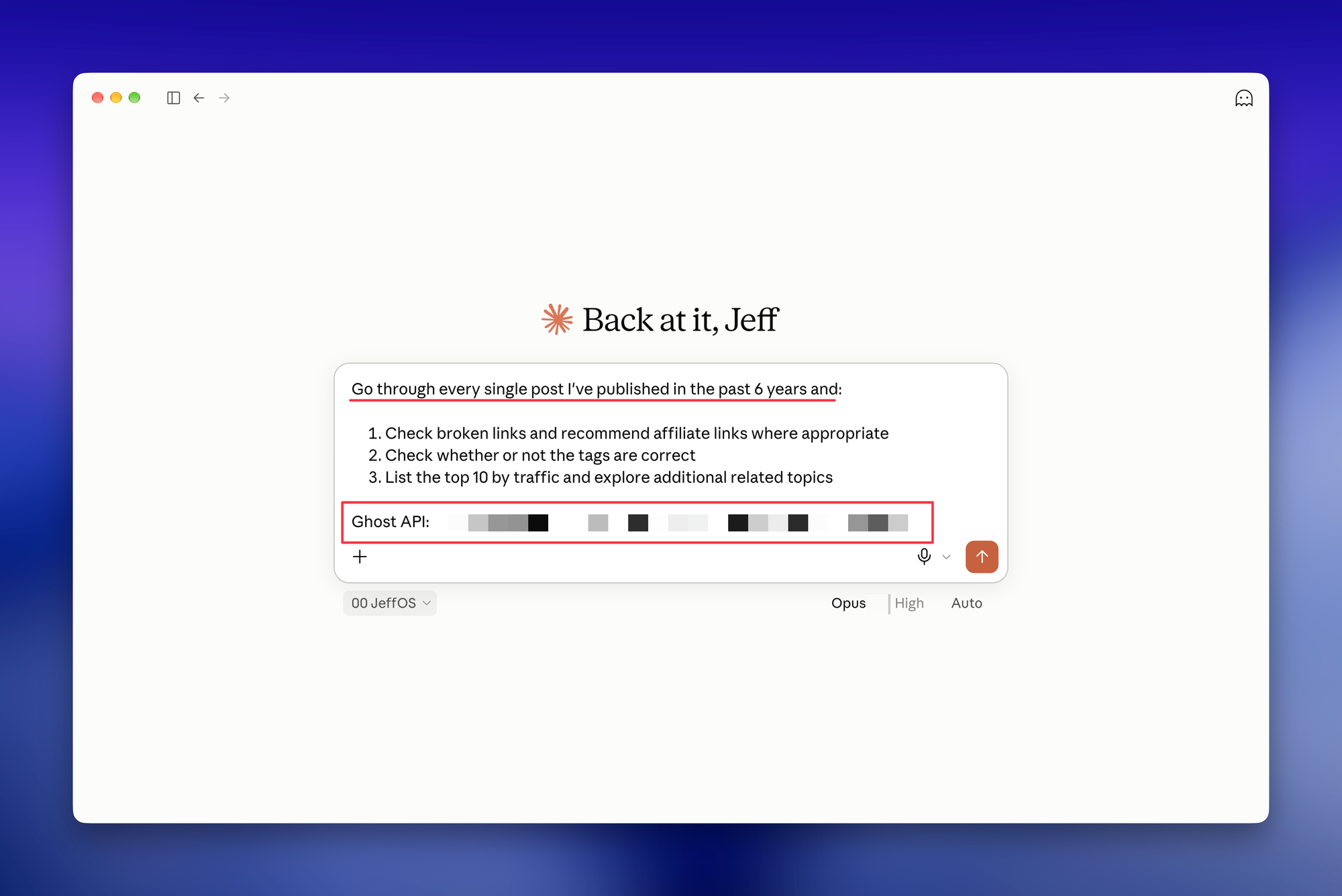
And you probably didn’t know this, but you can do the same with most of the tools you already pay for, even if you’ve never touched a connector or plugin.
What an API key actually is
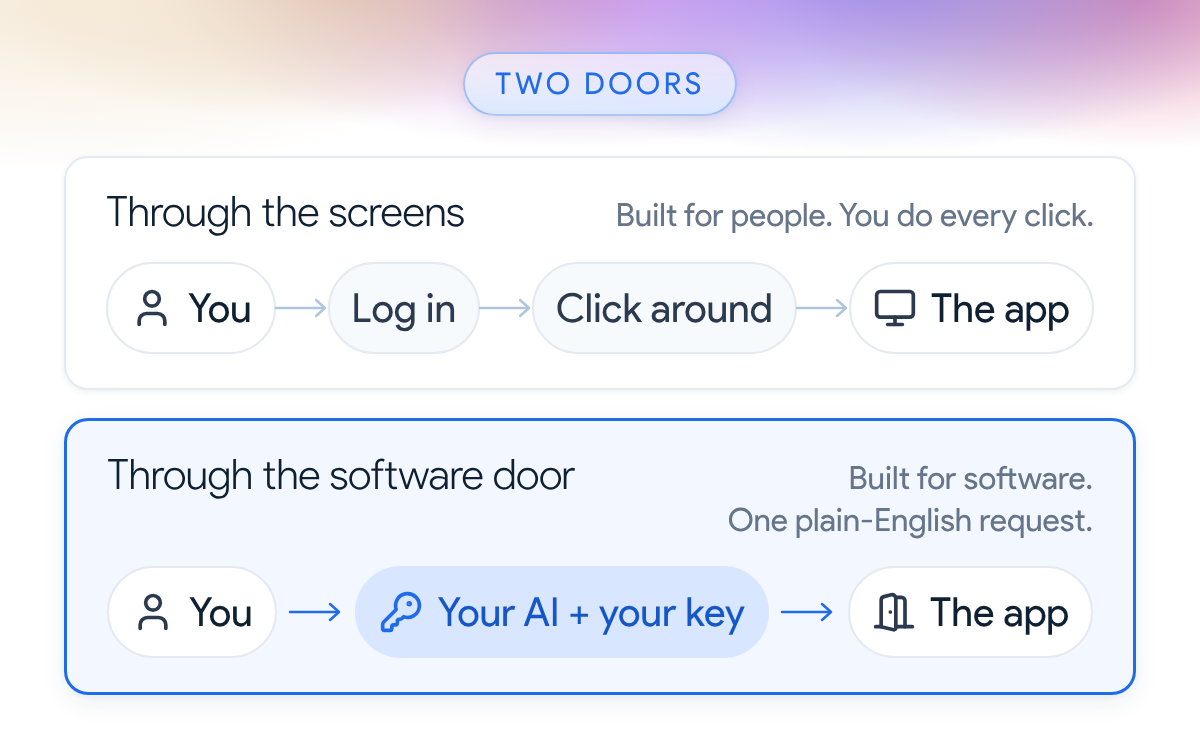
Most apps you pay for have two doors:
- The screens (front-end user interface) are the door built for people.
- The API (application programming interface) is the door built for software, and the API key is the pass that opens it.
Connectors and plugins (features you’re probably familiar with) are pre-built ways of walking through that second door. The API key lets your AI walk through it directly, today, for any tool nobody built a connector for.
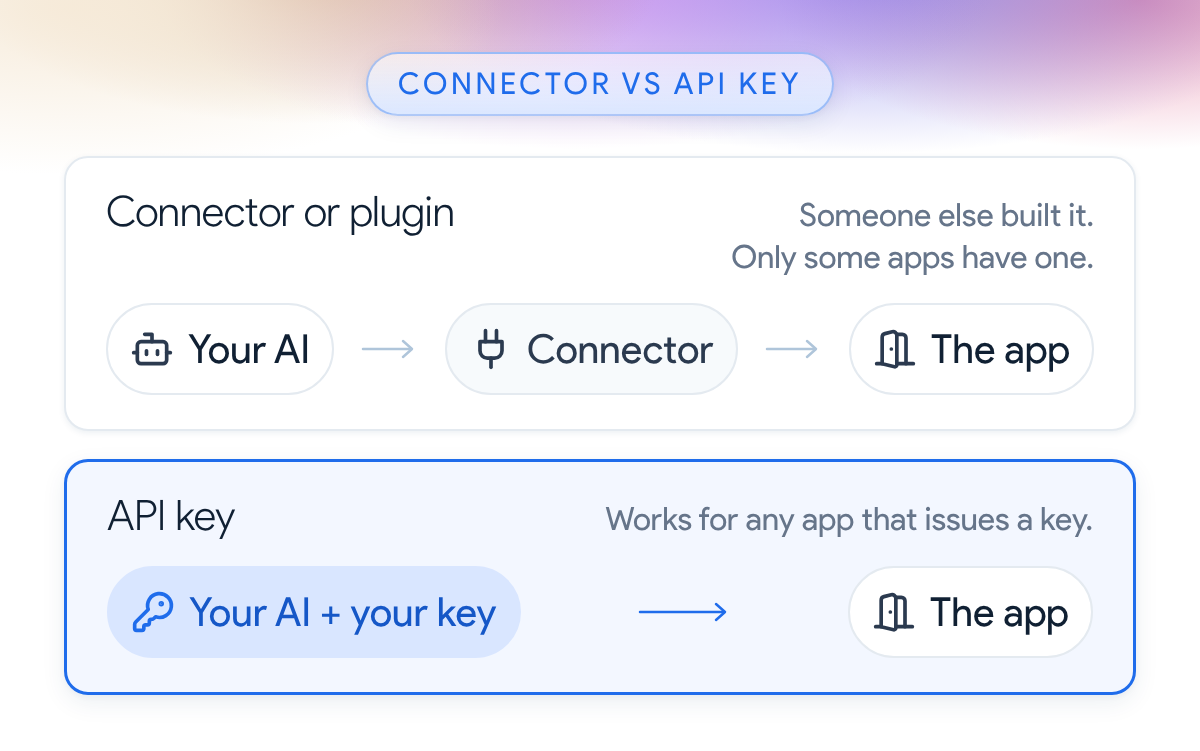
In practice, the AI uses the API key to “read” what’s currently in your account, make the change, then update you in chat!
How I run my website now
My site runs on a platform called Ghost, and all I need to do is go into settings to create an Admin API Key and share that with Claude or ChatGPT Work.
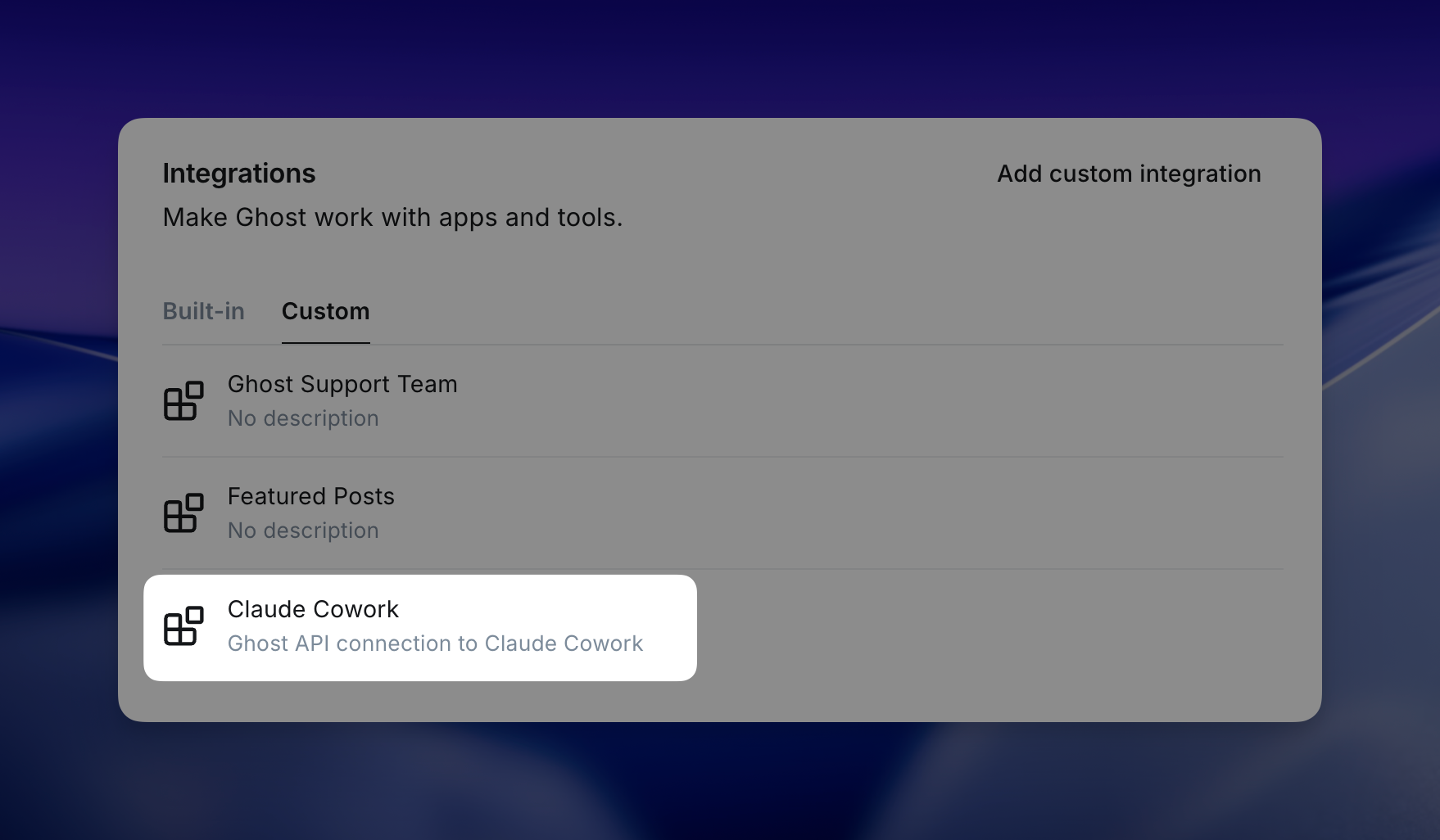
Here are two recent tasks where this workflow saved me HOURS:
- I pasted the key into the Claude desktop app and asked it to rewrite my /ai/ page and update the publish dates on all 23 pages of the site.
- I asked it to completely revamp my Links page and fix a few layout issues on other pages. It made the changes, then re-checked the live pages at phone width and desktop width before telling me it was done.
Try it on a tool you already use
If you use the Claude desktop app or ChatGPT Work/Codex, I highly recommend you try this out yourself with a basic task.
Step 1: Find your key
Most tools keep it under Settings (these are just a few examples):
- Notion: the developer portal > create a connection > copy its API token, then share the pages you want it to touch with that connection.
- Airtable: airtable.com/create/tokens, where you pick which bases it can see.
- Typeform: Account > Personal tokens.
- Todoist: Settings > Integrations > Developer > Copy API token.
- Calendly: Integrations > API & Webhooks > Get a token.
- Mailchimp: Profile > Extras > API keys.
Step 2: Paste the key with your task
Fill in the brackets of the prompt below and send it as one message.
Here is my [platform] API key: [paste key]. Using it, [the change you want, for example: update the About page on my site so the first paragraph reads "..."].

Before you change anything, show me exactly what you plan to change. After the change, read it back from the platform and confirm it matches.
Step 3: Treat the key like a password
Paste it only into the AI app you trust; a shared doc or a public chat is the fastest way to leak it. Give it the smallest access the job needs, and revoke or regenerate it when the job is done.
I regenerate mine after big batches of changes. On a company account, check with IT first, since some tools only let an admin create a key.
So next time you’re about to click through a settings page, or pay someone to make a change you can’t make yourself, find the key first. Let me know what you get your AI to change this week! 😁
Whenever you’re ready, here are some other ways I can help you:
🎛️ The Cowork Academy: Ready-to-install AI Command Center that loads your context automatically and makes every Claude session sharper than the last. 90% built when you download it.
💻 The Workspace Academy: Never lose a file, task, or note again with my CORE workflow for Google Workspace. Adopted by over 10,000 Googlers.
✅ Build Your Command Center in Notion: Plug-and-play dashboard that surfaces today’s priorities automatically and organizes your life in seconds. #1 rated Notion Course globally.