|
Google Sheets
| #59
[Workspace] Present a pretty timeline in Google Sheets
Workspace editions only apply for Google Workspace users (i.e. businesses), and are sent in addition to the regular weekly Productivity Pings
(you can now filter previous editions by application!)
🤔 What is it?
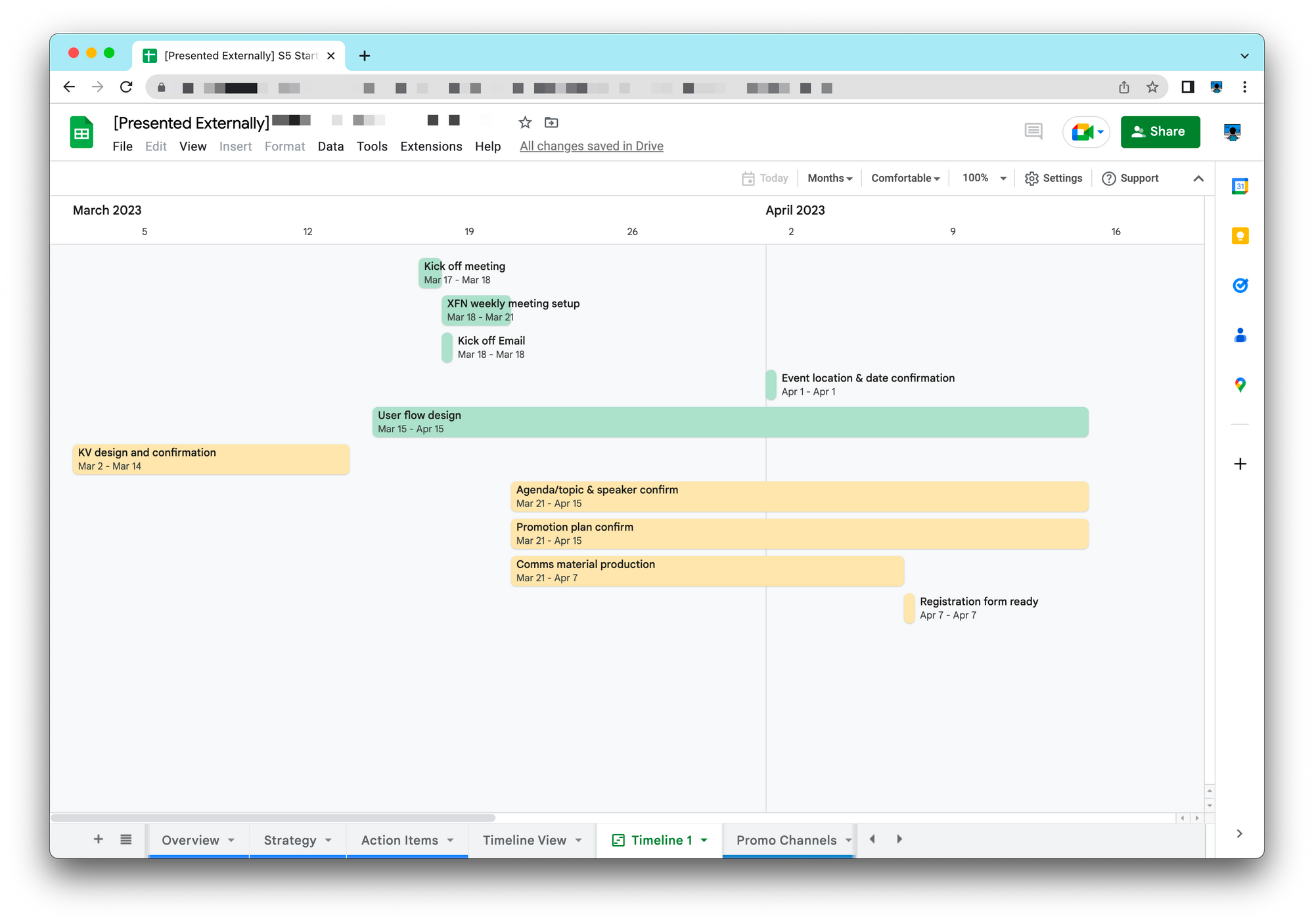
Google Sheets is taking a page out of Notion’s book; you can now create a Timeline View from a table that includes ‘Start’ and ‘End’ dates
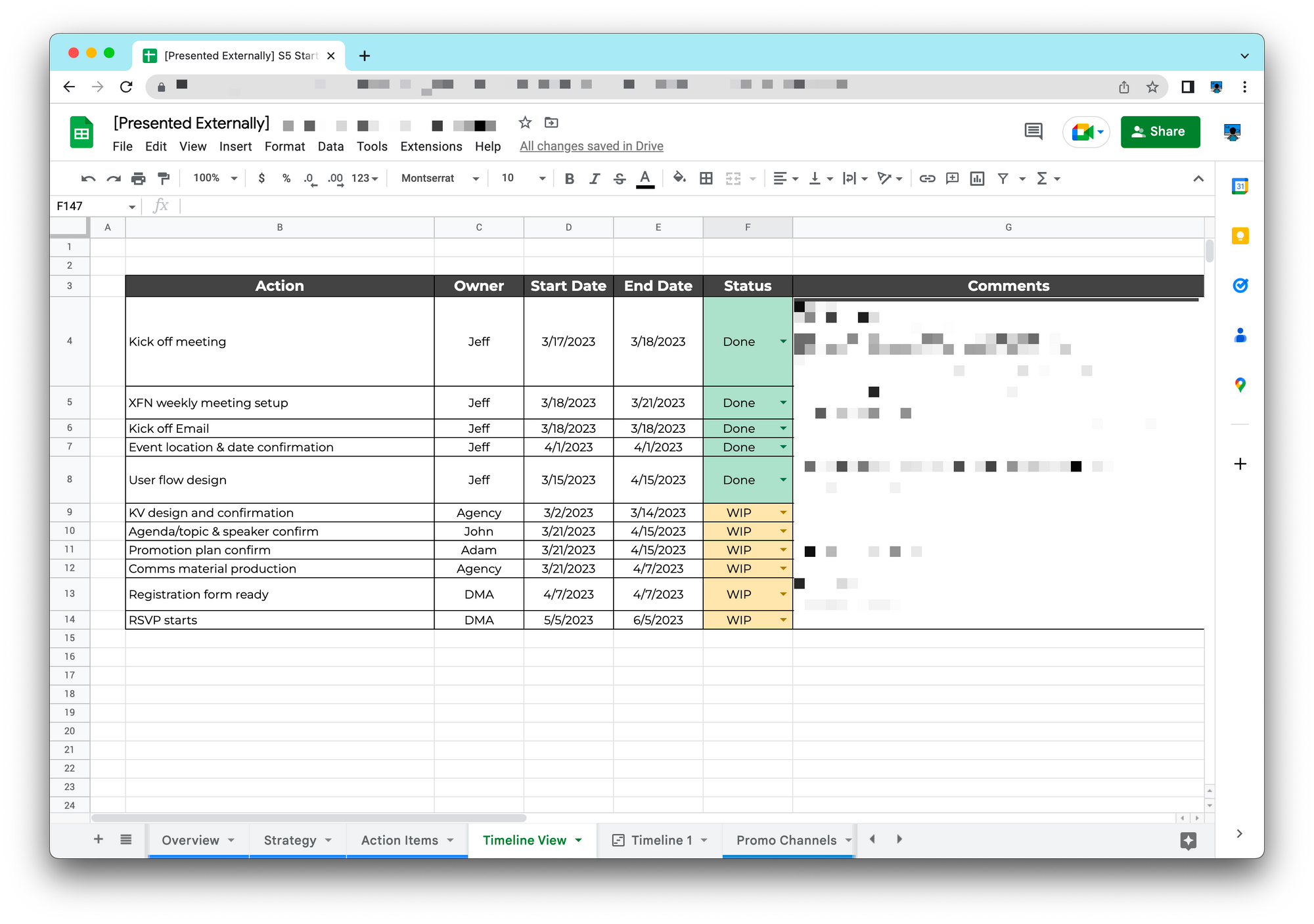
Before
After
💡
Pro tip: You technically only need a “Start Date” column to create a timeline but I’d recommend at least 4 columns: “Start Date,” “End Date,” “Action Details,” and “Status”
🤷🏻 When should I use this?
If I’m a project owner, I wouldn’t want to present the “Action Items” table (see “Before” image above) to my manager or stakeholders since it’s so wordy
Therefore, I personally use the Timeline View to generate a easy-to-digest visual representation of how the project is going so far
💡
Pro tip: Use data validation + conditional formatting to add color to your timeline cards (for me,I always use WIP = Yellow, Done = Green)
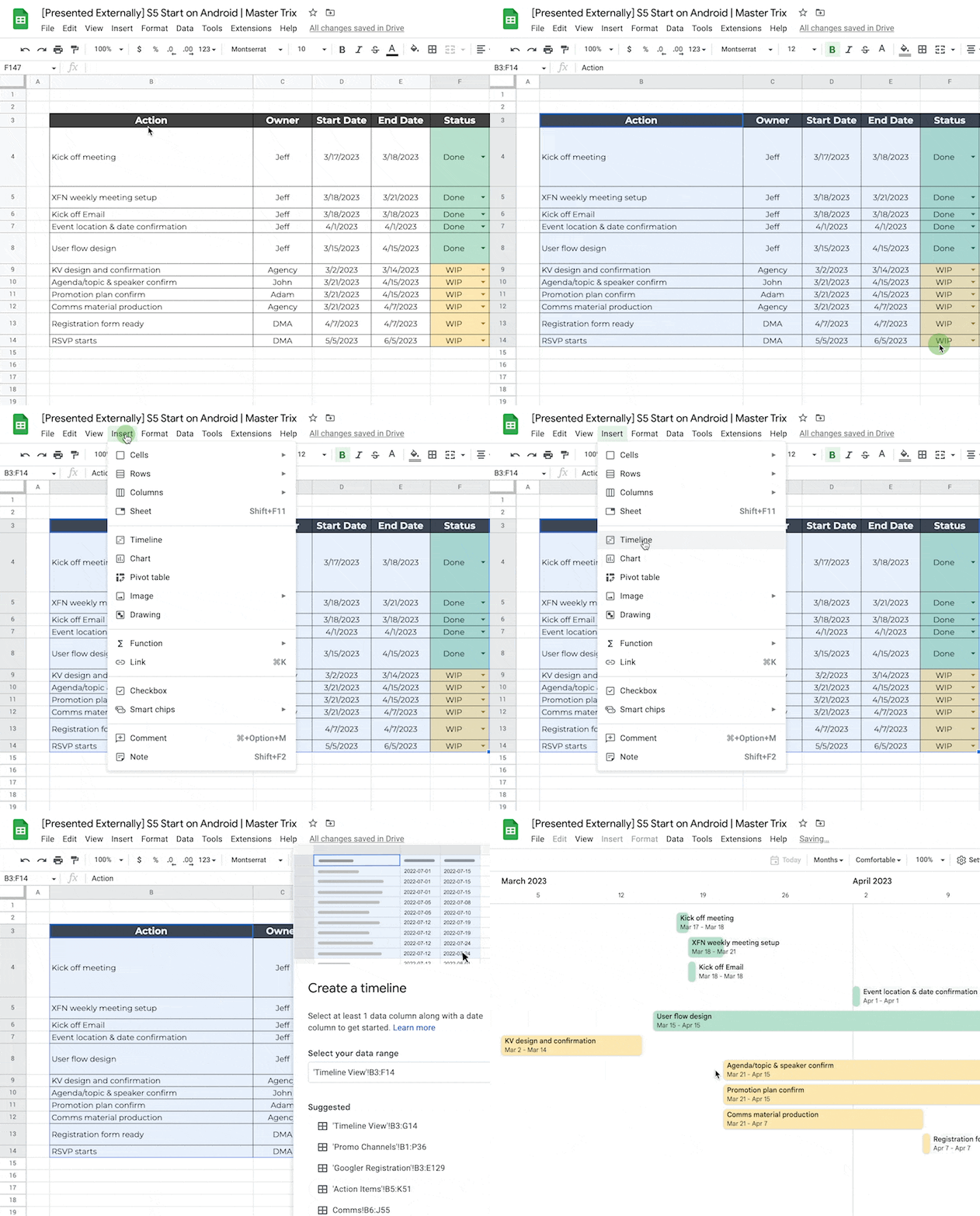
Instructions to generate Timeline view
⌨️ Keyboard shortcut
- Press CMD+A twice to quickly select all cells within a Google Sheets tab (CTRL+A for Windows users)
Follow up questions? Click “View Online” and you can comment on this post directly! Or give anonymous feedback here 📝
Want someone to be more productive? Let them subscribe here 😉
Thanks for being a subscriber, and have a great day!