Hey friends - if you’ve ever installed one of those fancy ChatGPT or Claude plugins that promise you the world, only to be completely let down by the results, then this one’s for you.
The eight plugins and skills I actually use are all boring as heck, but install them once and they’ll run in the background and save you HOURS every week.
Watch it in action
Resources
- Download my free custom skills: Level Set, Meeting Review and Brief (they work across ChatGPT, Claude, and Gemini)
- Excalidraw setup instructions (how to add Excalidraw to ChatGPT)
- Claude Toolkit (my free 7-day email course for setting up a Claude workspace)
- The Cowork Academy (my AI Command Center, 90% built when you download it)
Plugin #1: Data
Long story short, the native Data plugin in ChatGPT and Claude is so good at analyzing numbers and building dashboards that I stopped using my own custom data skill and third-party tools like Flourish.
Setting this up is super simple:
- ChatGPT: Plugins > search for “data” > install the first-party Data plugin developed by OpenAI.
- Claude: Customize > Connectors > search for “data” > toggle on the first-party Data plugin developed by Anthropic.
Then just ask in plain English, something like “Analyze this data and give me actionable insights.”
- For example, you’re planning a team offsite for 40 people, so you share quotes from three venues and ask for an interactive dashboard that shows which venue is cheapest based on headcount. With the slider, one option is the cheapest at 40 people, but as more people sign up another venue takes over, and the third turns out to be the best deal past 75.
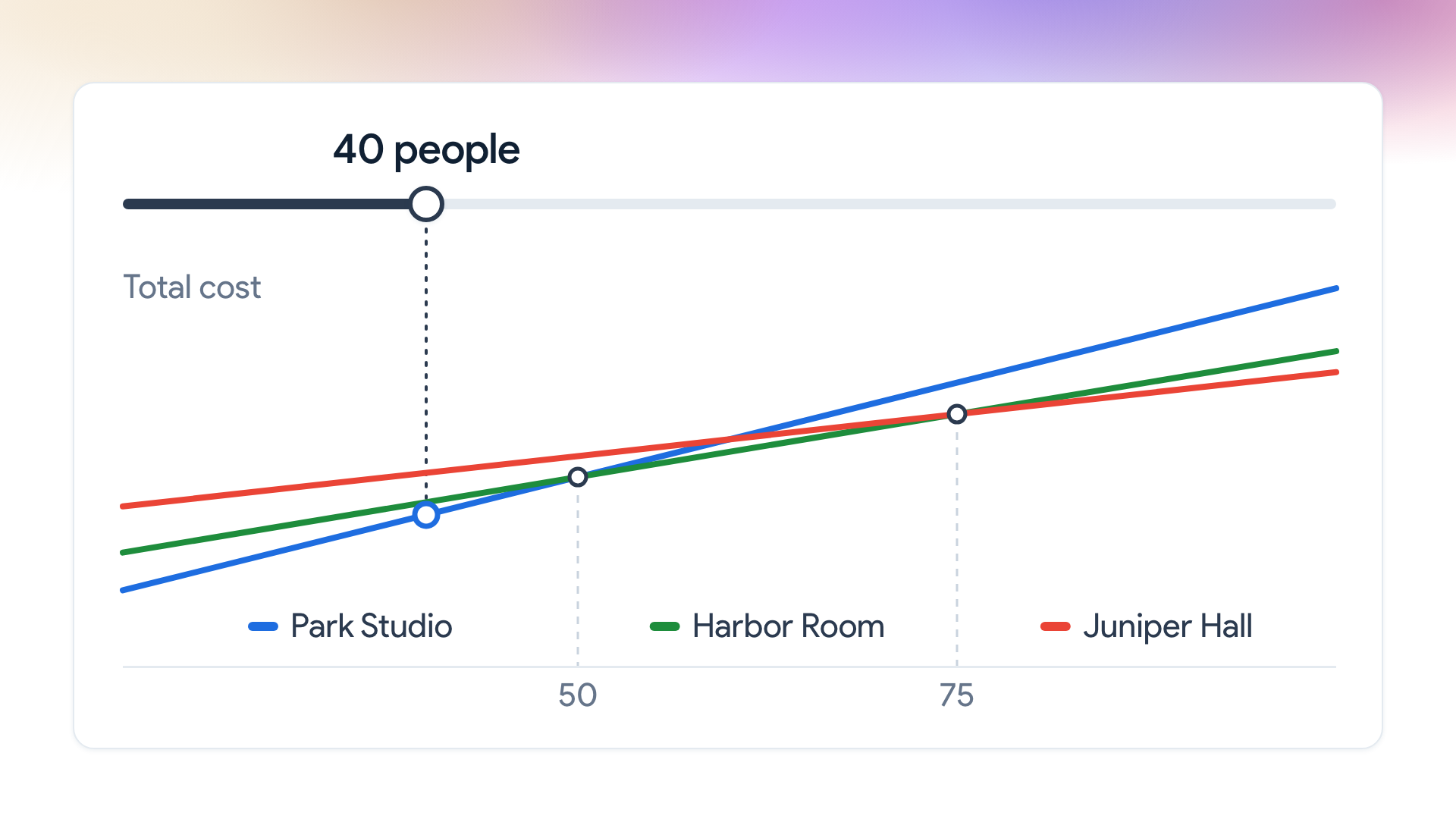
I use it for my own newsletter too: Claude built a dashboard that shows the numbers that matter most to me, and a scheduled task refreshes it every month so it never goes stale.
Plugin #2: Level Set
Level Set is a free custom skill I built, and I use it all the time to quickly reorient myself on long-running tasks my brain has gotten a bit hazy on.
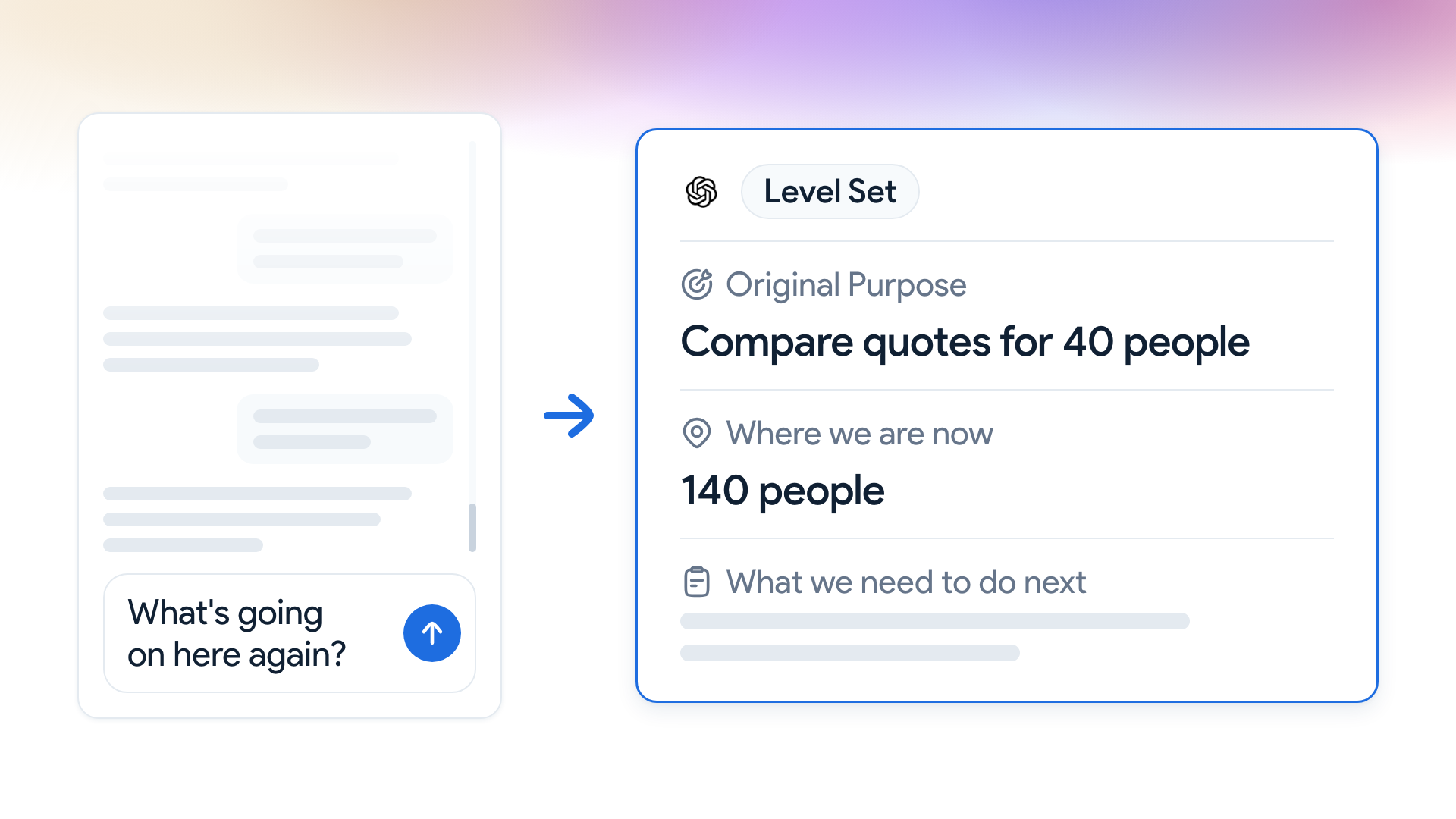
For example, on a Friday the Sales team tells me they want to bring 100 more people to that offsite (typical sales team behavior). On Monday, instead of scrolling all the way back up, I just say “What’s going on here again?” and the skill reminds me of three things:
- Original Purpose: compare quotes for 40 people.
- Where we are now: a total of 140 people, thanks to our lovely revenue-driving and shareholder value-maximizing sales team.
- What we need to do next: a next step so clear and concise that even a hypothetically hungover me can follow.
Plugin #3: Wispr Flow
As a quick refresher, Wispr Flow is the most accurate voice-to-text tool I’ve used, and since I give AI way more detail out loud than I’d bother typing, I get way better results from AI (that’s also why AI prompts make up 75% of my usage).
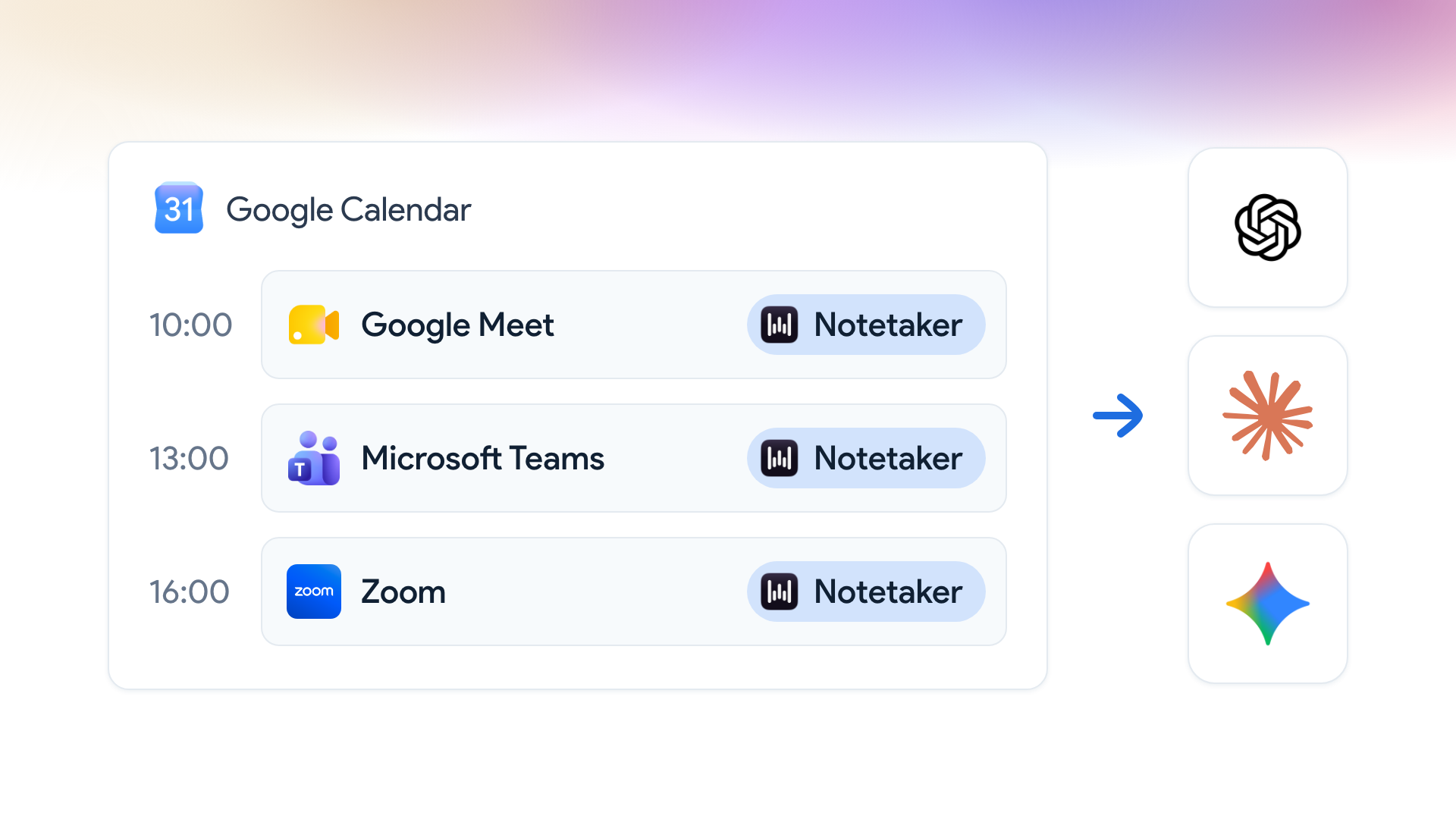
But I have to say my favorite feature by far is Notetaker. Now that I’m using Google Meet, Microsoft Teams, and Zoom, there’s absolutely no way I’m paying for and managing all these different meeting assistants.
Instead, I have Wispr Flow connected to my Google Calendar so that it can start transcribing no matter which platform I’m using for the call, and since it has native connectors to ChatGPT, Claude, and Gemini, I can ask any of them to process the transcripts after the meeting ends.
Plugin #4: Meeting Review
Meeting Review is another custom skill I built for both professional and personal meetings. At first glance it’s just another skill that summarizes meeting notes, but its biggest advantage is the “Proposed Updates” section: it’s able to figure out what I’m going to need from a conversation later and suggests capturing that context in a place where I’ll actually look.
- For example, after a recent doctor’s visit, Claude recommended updating my Respiratory Health page in Notion so that I can easily review the notes before my next follow-up consultation.
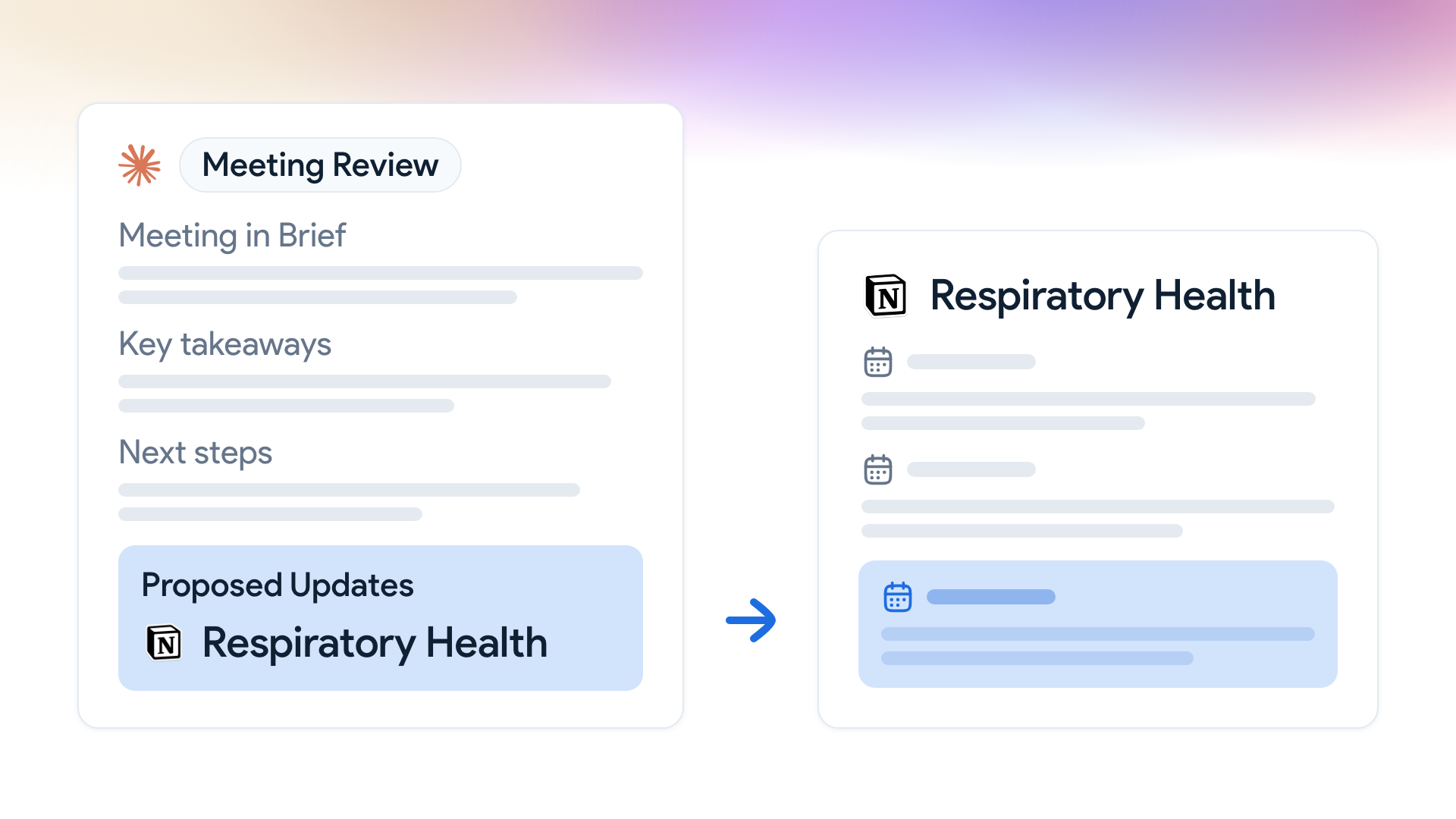
To be clear, you don’t have to use Notion. If you keep a notes thread in Google Docs, the AI would have recommended adding a new entry there, since the skill itself is tool-agnostic.
Plugin #5: Firecrawl
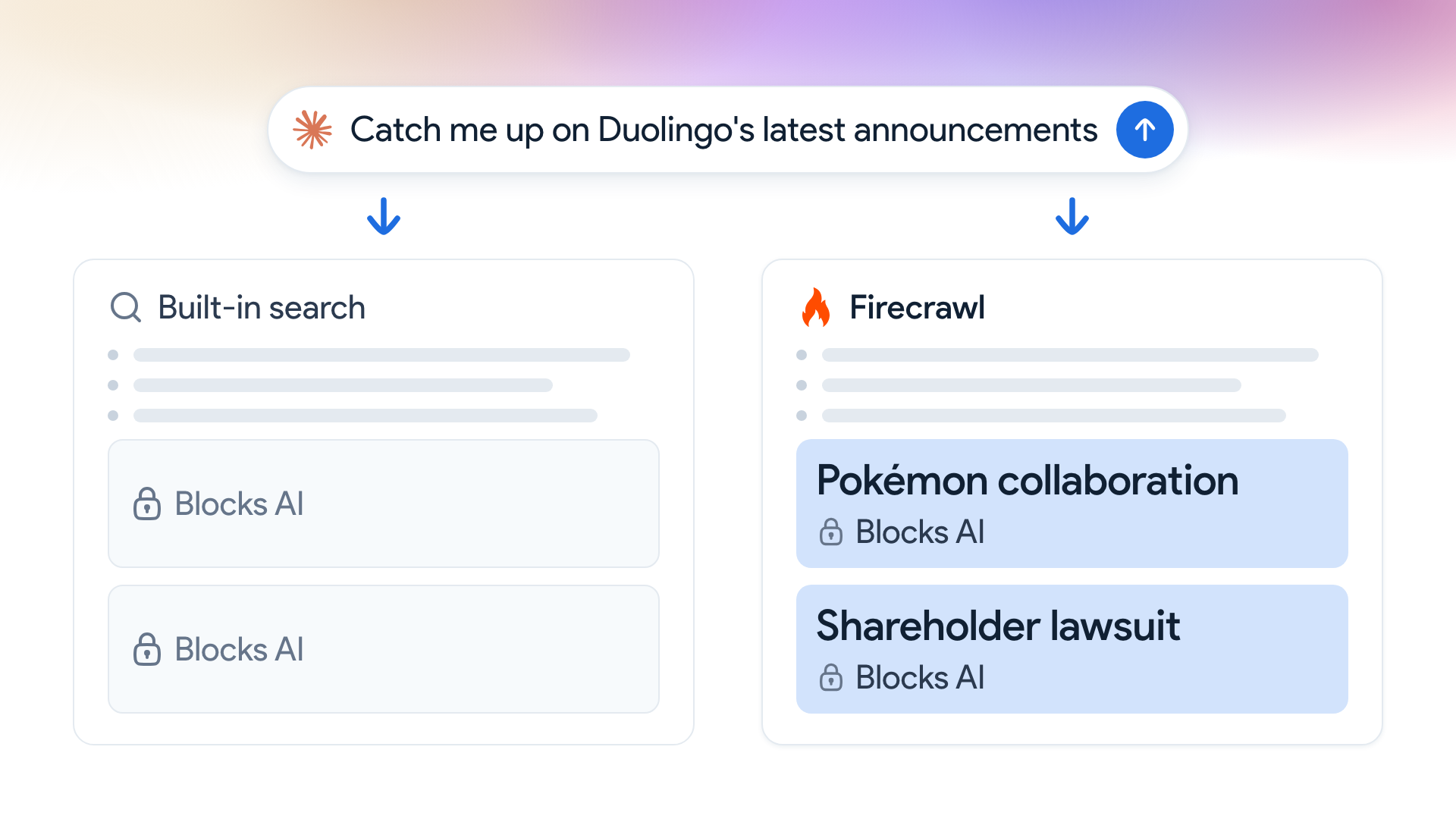
Firecrawl is my favorite in this entire list. To oversimplify a bit, it gives you more accurate answers whenever you ask AI to look something up online because it “forces” your AI to search like a human, instead of like, well, an AI.
Specifically, your chatbot’s built-in search tool has two limitations:
- It can NOT open websites that block AI, so whatever’s on those pages never makes it into your answer.
- On websites with a lot of information, it might only load part of the page, meaning your answer could be missing key numbers that you really needed.
Firecrawl, on the other hand, gets into most of the websites that block AI AND gives your chatbot the entire page as clean text.
- Putting this straight to the test: I asked Claude to catch me up on Duolingo’s latest announcements using the exact same prompt twice. With Firecrawl, the brief had two things the first one completely missed: a Pokémon collaboration and a shareholder lawsuit, both from news websites that block AI.
Plugin #6: Excalidraw
Excalidraw is a free and lightweight whiteboard tool for anyone who’s ever needed a quick diagram for a meeting or a slide.
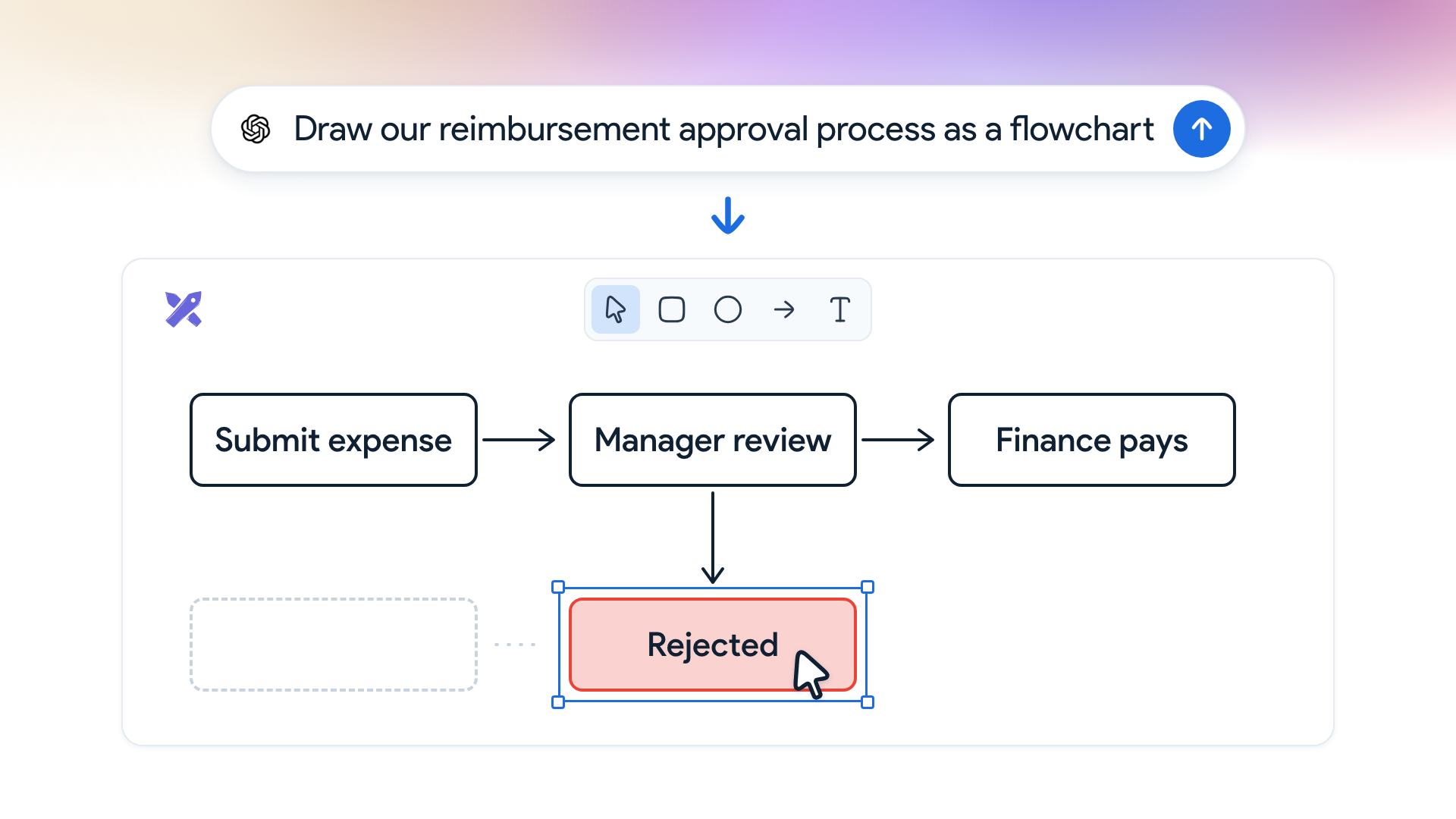
ChatGPT, Claude, and Gemini can all produce diagrams on their own, but if I wanted to change something, I’d basically have to ask the AI to redraw the whole thing. With Excalidraw connected, the AI draws on a whiteboard, so every box, arrow, and label is something I can drag around and edit myself.
- For example, ask ChatGPT to draw your employee reimbursement approval process as a flowchart, and you get a link to open it up in Excalidraw directly (completely free by the way, you don’t even need to create an account).
Installation works slightly differently with this one:
- Claude: Customize > Connectors > search for “Excalidraw” > Connect.
- ChatGPT: you have to add Excalidraw as an MCP server, and I’ve linked the instructions.
Plugin #7: Brief
Basically, Brief is another custom skill I built that takes any long and dense material and pulls out just enough context to get me back up to speed. It’s the most boring item in this entire list, but it has also saved my ass the most times.
- Here’s my most common use case: I’ve completely lost track of who said what in a long email thread (although I think my longest is over 100), so I literally just take a screenshot, paste it into AI, which is connected to my Gmail, and say “brief me on this thread.”
As a rule of thumb, you wanna use Brief whenever it feels like you’ve forgotten everything about a certain thing, but you know a few key pieces of context would instantly remind you of what’s going on.
Plugin #8: Supadata
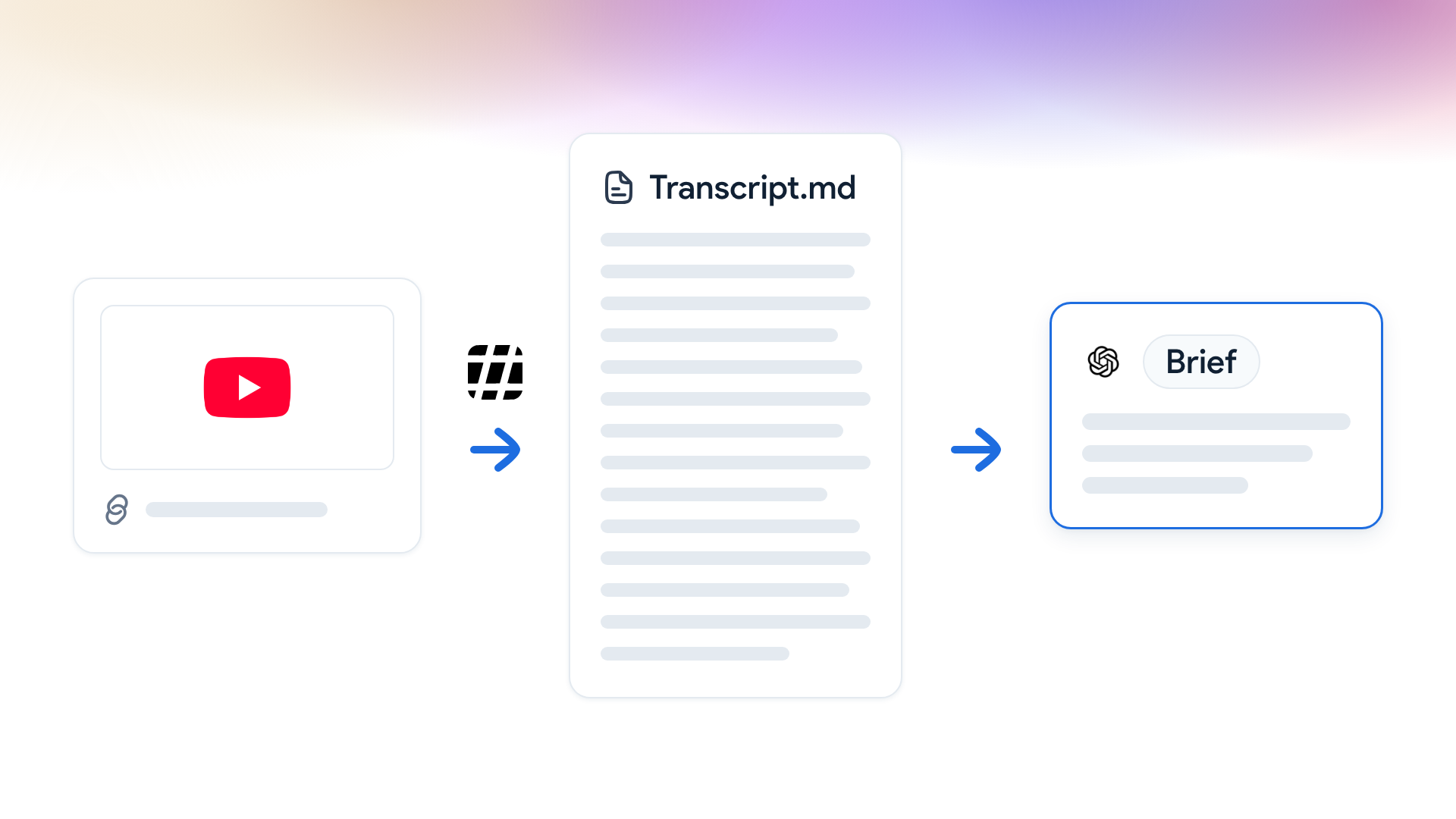
In simple terms, Supadata takes a video link from YouTube, TikTok, Instagram, X or Facebook and gives your AI the full text transcript, so you can ask questions and pull insights from a video the same way you would from a document.
It’s the most niche plugin on this list but also the most fun to say, and the free plan covers around 100 videos a month.
- So when would you use this? Let’s say you come across an extremely long yet informative video from the late and great Daniel Kahneman. Paste the link, ask AI to use Supadata to get the full transcript, then run the Brief skill on that transcript for a clear and concise summary in chat.
If you enjoyed this...
You might also like: Top 10 AI Productivity Tips that Save Time at Work