|
AI
Notion + AI: Manage Your Workspace with ChatGPT and Claude
Hey friends - connecting AI to Notion is easy, but getting it to organize everything the way YOU like is another story.
Put simply: An assistant that summarizes your notes and one that manages your workspace according to your preferences are two very different things.
The fix is a written rulebook your AI can use in every new chat, so you can stop explaining how you like your tasks, notes, and projects organized.
Watch it in action
Resources
- Notion preferences starter kit (the starter conventions file, teaching prompts, and task and notes templates)
- My free Cowork Toolkit (templates to help you build a working AI system)
- Build Your Command Center in Notion (my Notion course and exact databases)
- The Cowork Academy (a ready-to-install second brain that's 90% built when you download it)
How ChatGPT and Claude Work with Notion
If you hired a human assistant, you'd teach them how you like things done:
- Maybe your recurring calendar meetings start with “[Weekly]”
- Or your Notion tasks always start with a verb and include three bullets of context
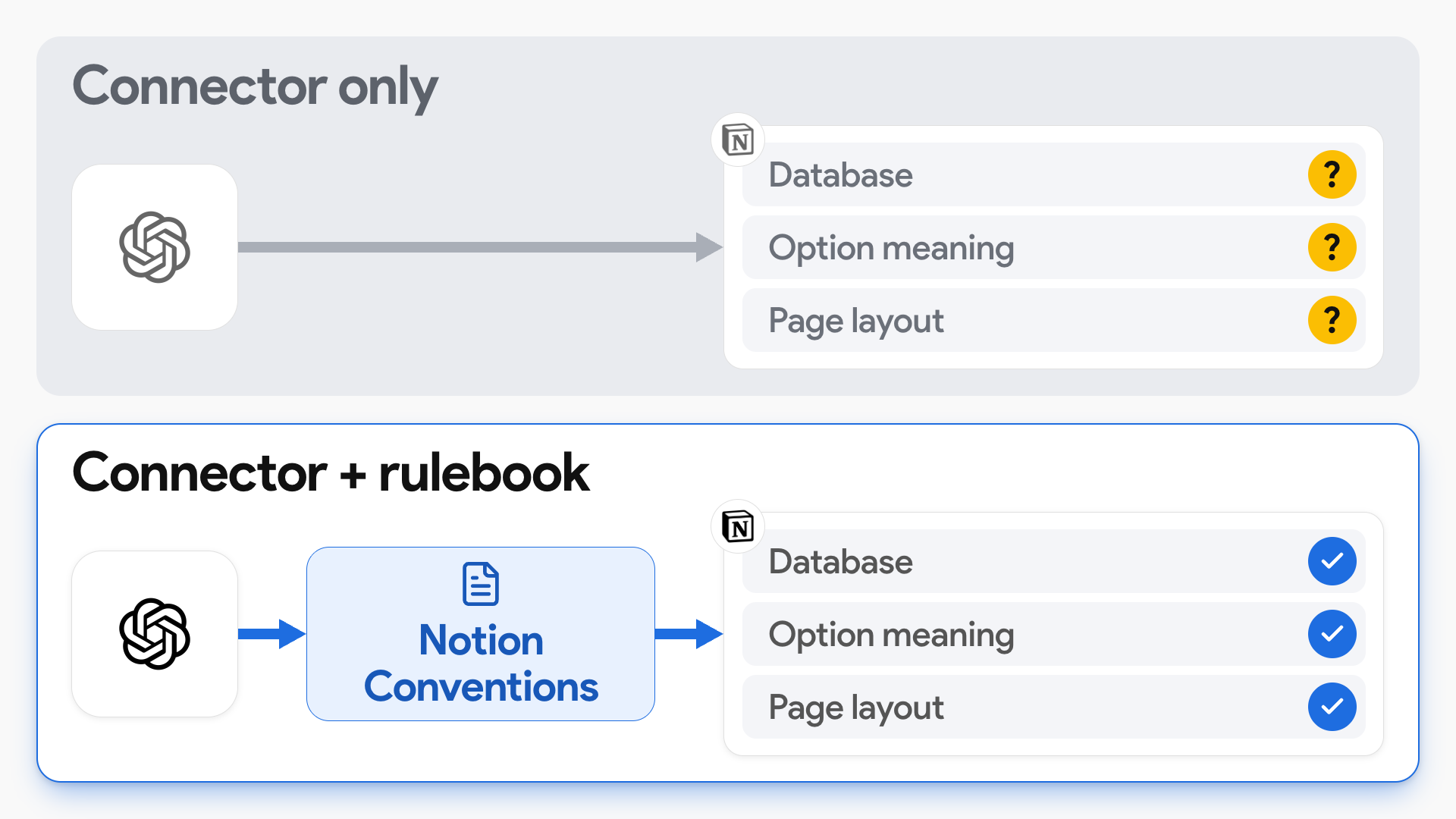
AI needs the same instruction. A connector gives your assistant access to Notion; a rulebook teaches it your preferences. That includes which database and template to use, what property options mean, and how each page should look.
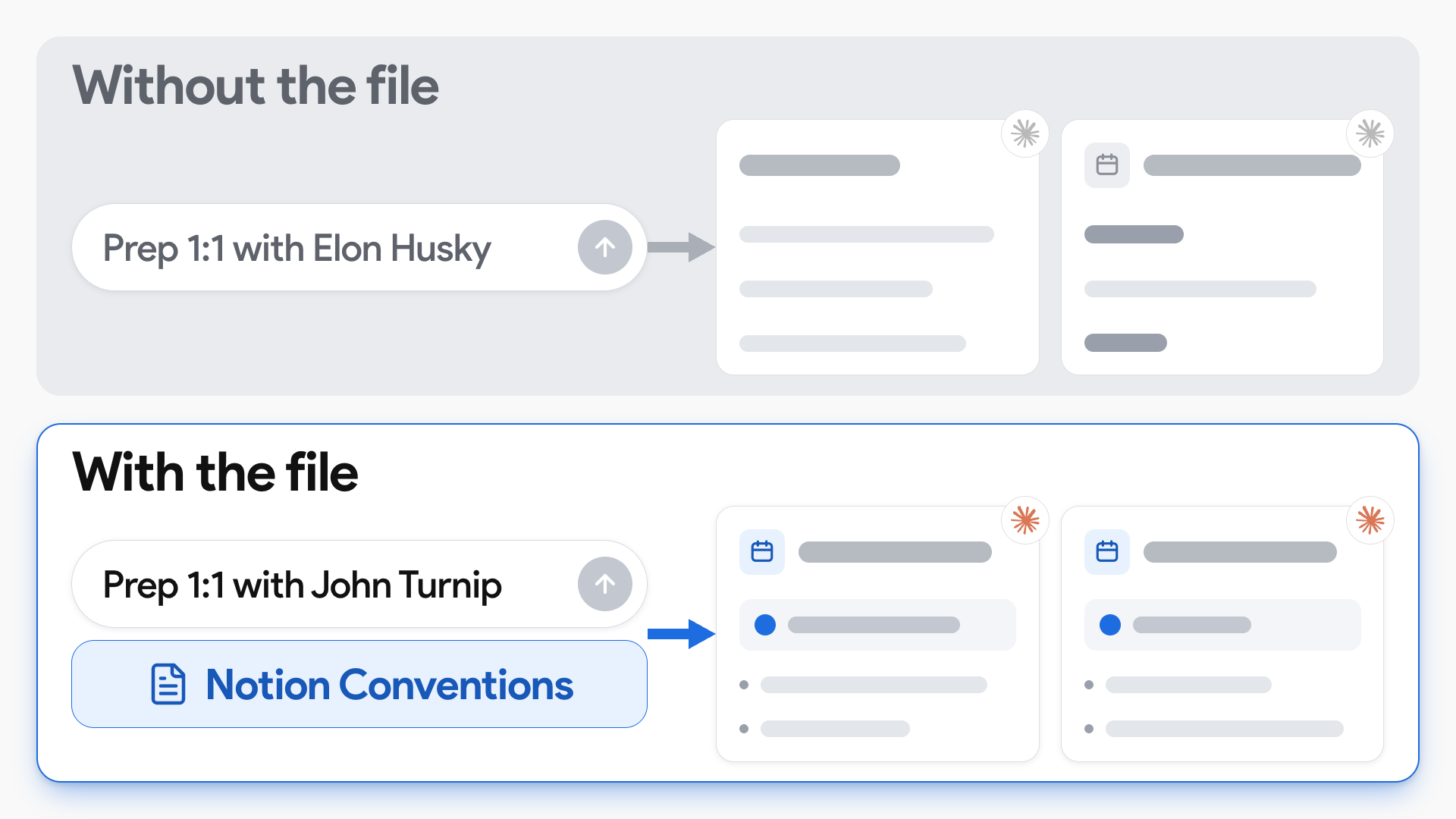
I tested this in four fresh chats with Claude: two without my conventions file and two with it:
- Without my conventions file, the pages had different icons, headings, and formatting.
- With the file available, both followed the same structure, even though the sentences weren't identical.
The useful consistency is in how your workspace is organized, so you can open the result and get on with your work.
Teach AI Your Notion Preferences
The Notion Conventions file holds your rules for working in Notion. The starter file already tells AI to confirm the destination and use the closest matching database template, while its Tasks and Notes sections start empty so you can teach it your preferences.
To set this up:
- Download the starter Google Doc as a Markdown file.
- Move it into a folder called “Notion Ops.”
- Connect Notion to your AI assistant and give it access to that folder.
1. Teach It Your Task Structure
Pick a task you've already formatted the way you like, then use the task-teaching prompt with that task's link. Give the AI an example of what good looks like and tell it which choices to preserve.
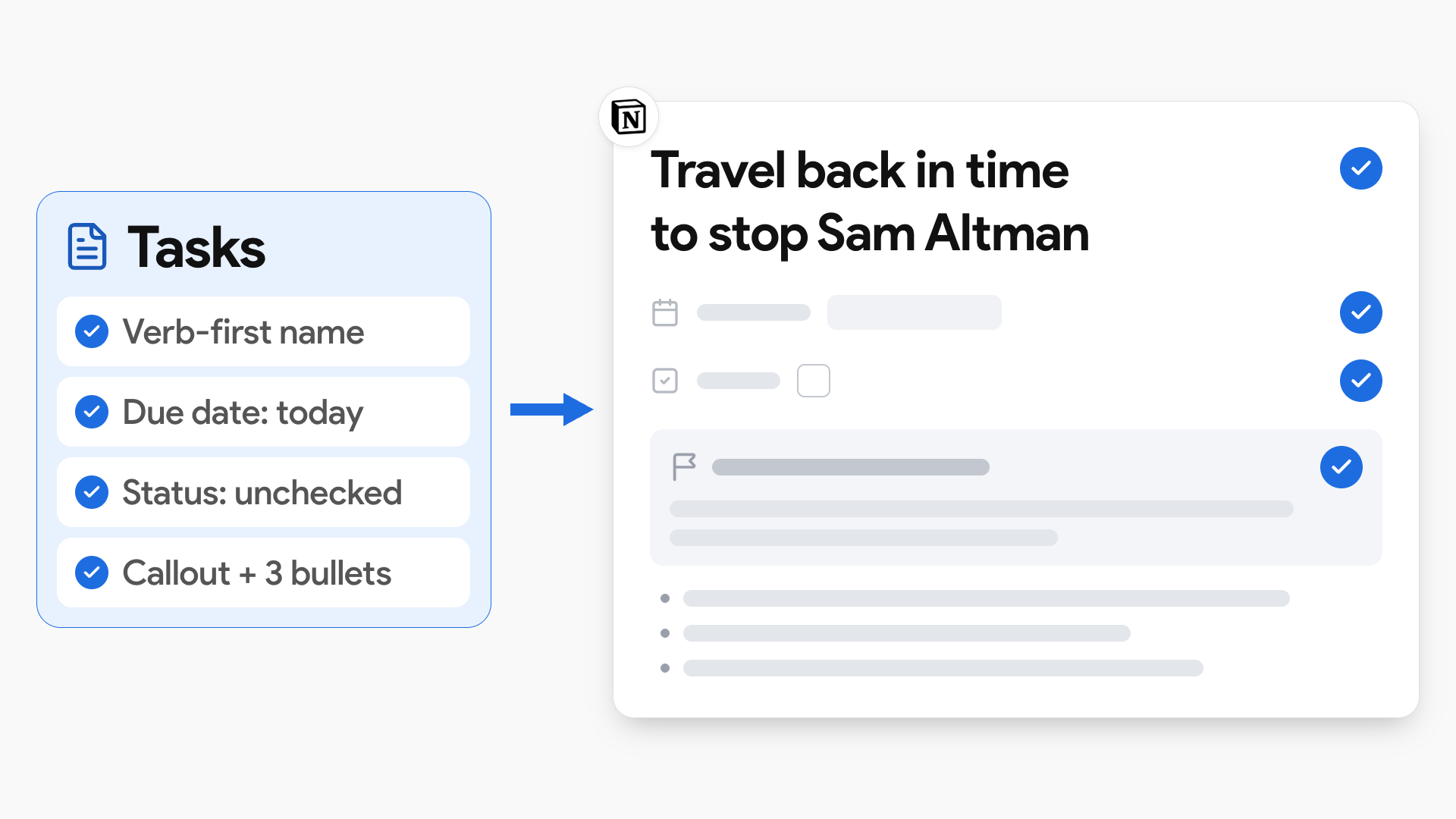
For my tasks, that means:
- A name that starts with a verb.
- A due date that defaults to the creation date unless I specify otherwise.
- An unchecked status.
- A callout explaining the task, followed by up to three context bullets.
The assistant saves those preferences under Tasks in the conventions file. Start a fresh chat with the same folder available and ask it to create a task, then check that it follows your structure.
2. Teach It Your Notes Database
For notes, give AI the database link and template name, then explain what the different note types mean. A label like “Research” might seem obvious to you, but the assistant needs to know when you use it.
My Notes database uses:
- Research: A note based on a source, like a website or PDF.
- Thoughts: A rough idea I explicitly describe that way.
- Notes: Everything else.
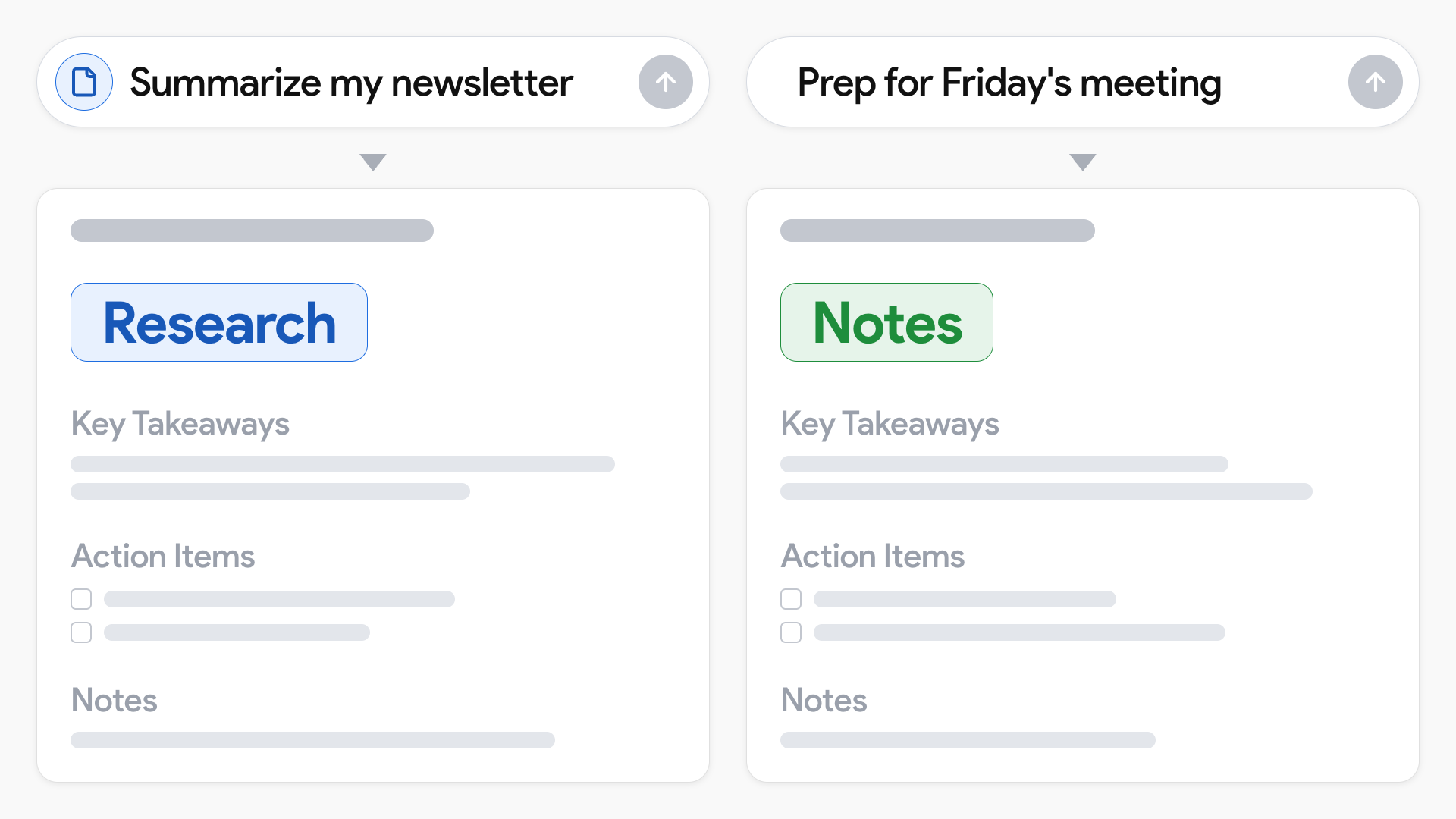
Every note uses the same template, with Key Takeaways, Action Items, and Notes sections. The notes-teaching prompt saves these choices alongside the task rules without replacing them.
For example, a summary of my newsletter gets tagged Research, while preparation for a meeting gets tagged Notes. Both follow the same layout.
💡
Pro tip: As long as your AI has access to the conventions file, you can reuse your preferences in new chats without explaining them every time.
Apply Your Rules Across Notion
The same process works across the rest of your databases. You don't need to write every rule yourself (thankfully).
Use the database-teaching prompt to:
- Have AI inspect the database's properties, templates, and recent entries.
- Ask it to explain how it thinks you use them and identify anything unclear.
- Clarify those gaps and confirm its understanding.
- Have it save the confirmed rules in the relevant section of your conventions file.
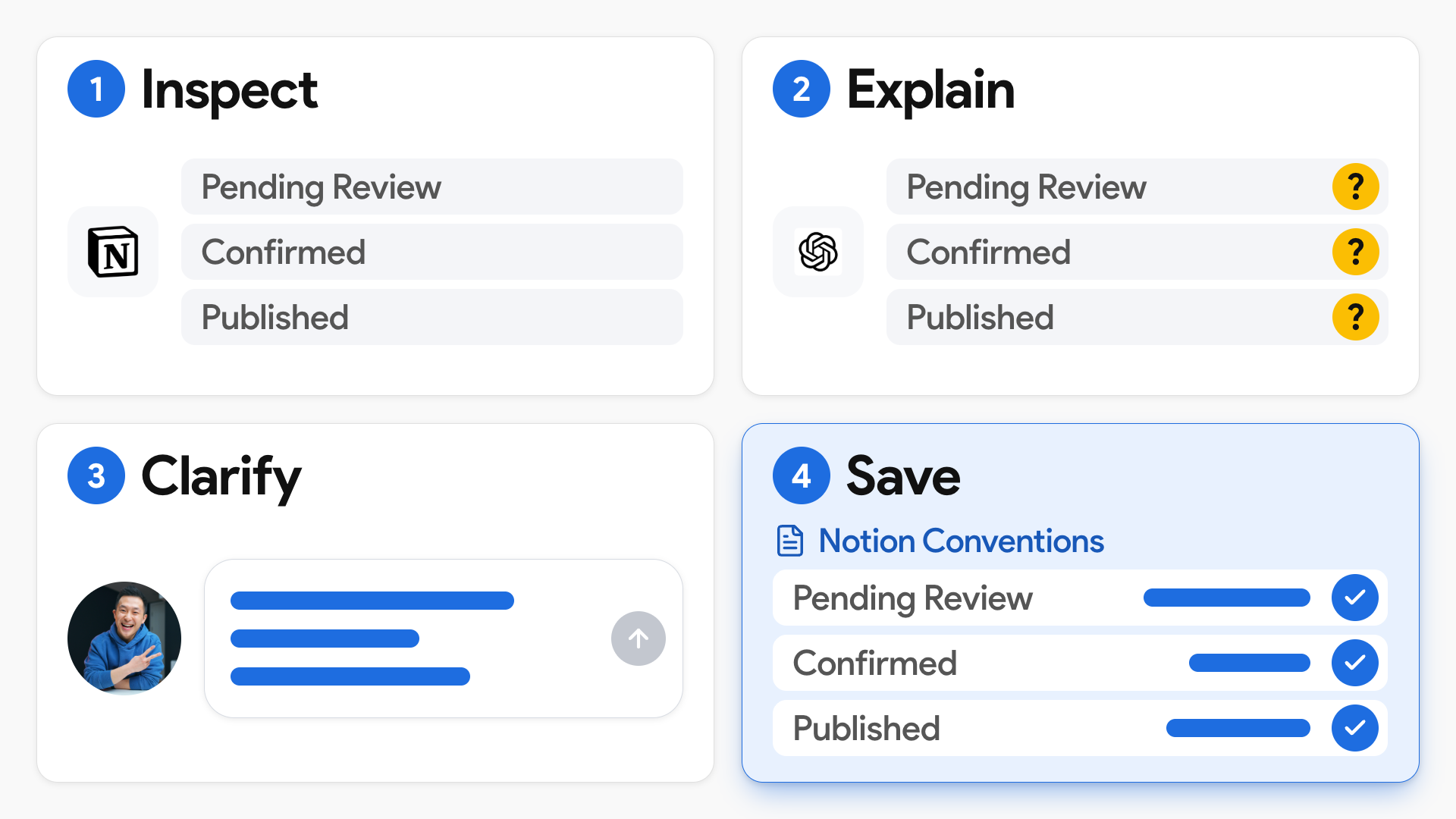
For example, the assistant might need you to explain the difference between “Pending Review,” “Confirmed,” and “Published.” AI can inspect the structure, but you supply the meaning behind your choices.
Where Notion AI Fits
You can use Notion AI as your main assistant, with Notion connected to your other tools. My setup puts Claude, ChatGPT, or Gemini at the center, with access to my JeffOS folder of context and preferences, and Notion is one of the tools it manages.
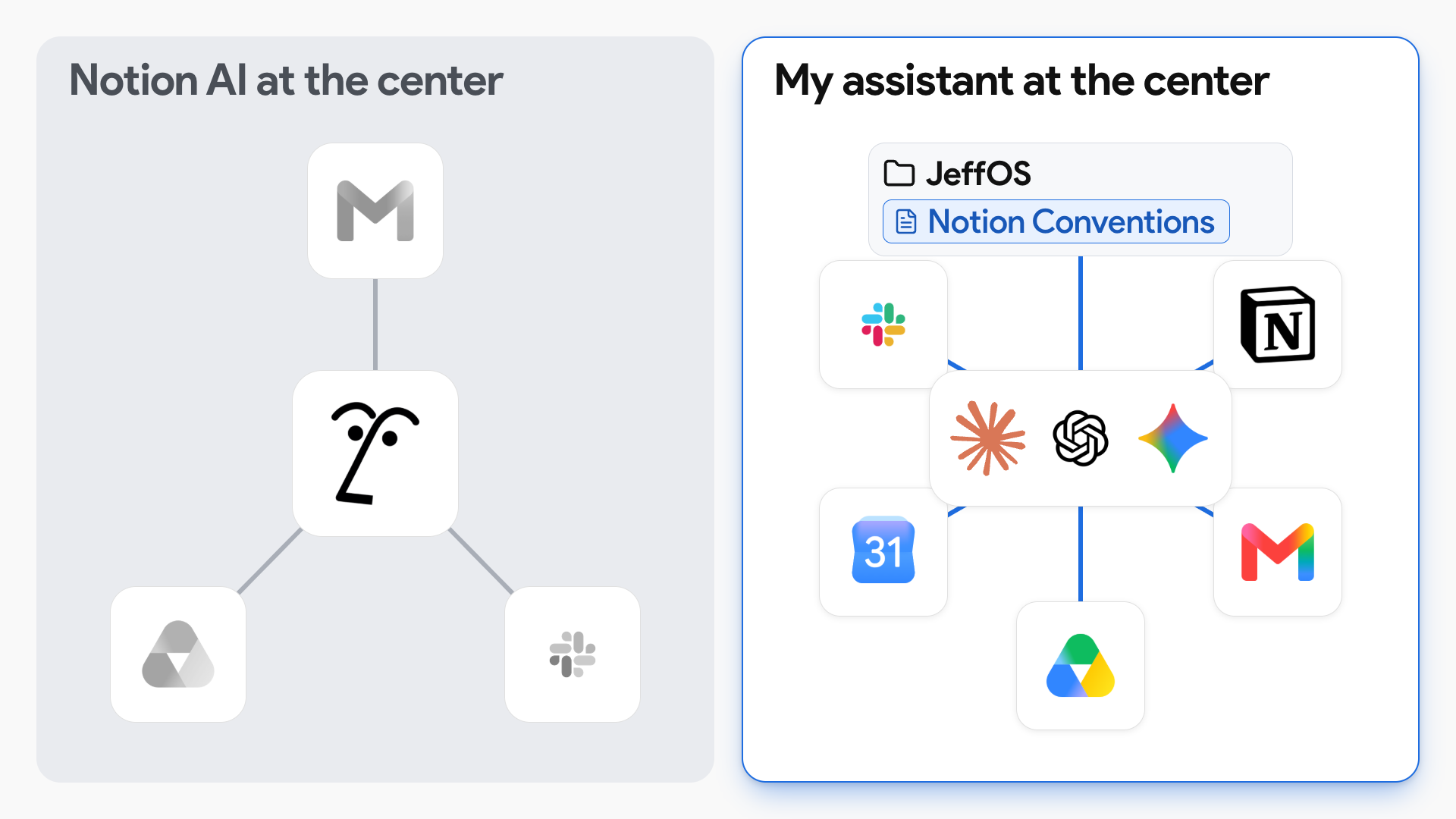
I still use Notion AI for tasks inside Notion, like reviewing copy and bulk database updates. But my work goes beyond Notion, so having a main AI assistant manage the other tools I use makes more sense for me.
Manage Notion Projects with AI
Once your file includes workflows connecting multiple databases, the assistant can prepare entire projects according to your preferences.
For a live question-and-answer workshop, my saved workflow tells Claude to:
- Fill out the project's properties, North Star, and Win Conditions.
- Create the notes thread and five workshop deliverables.
- Create the tasks and link everything back to the project.
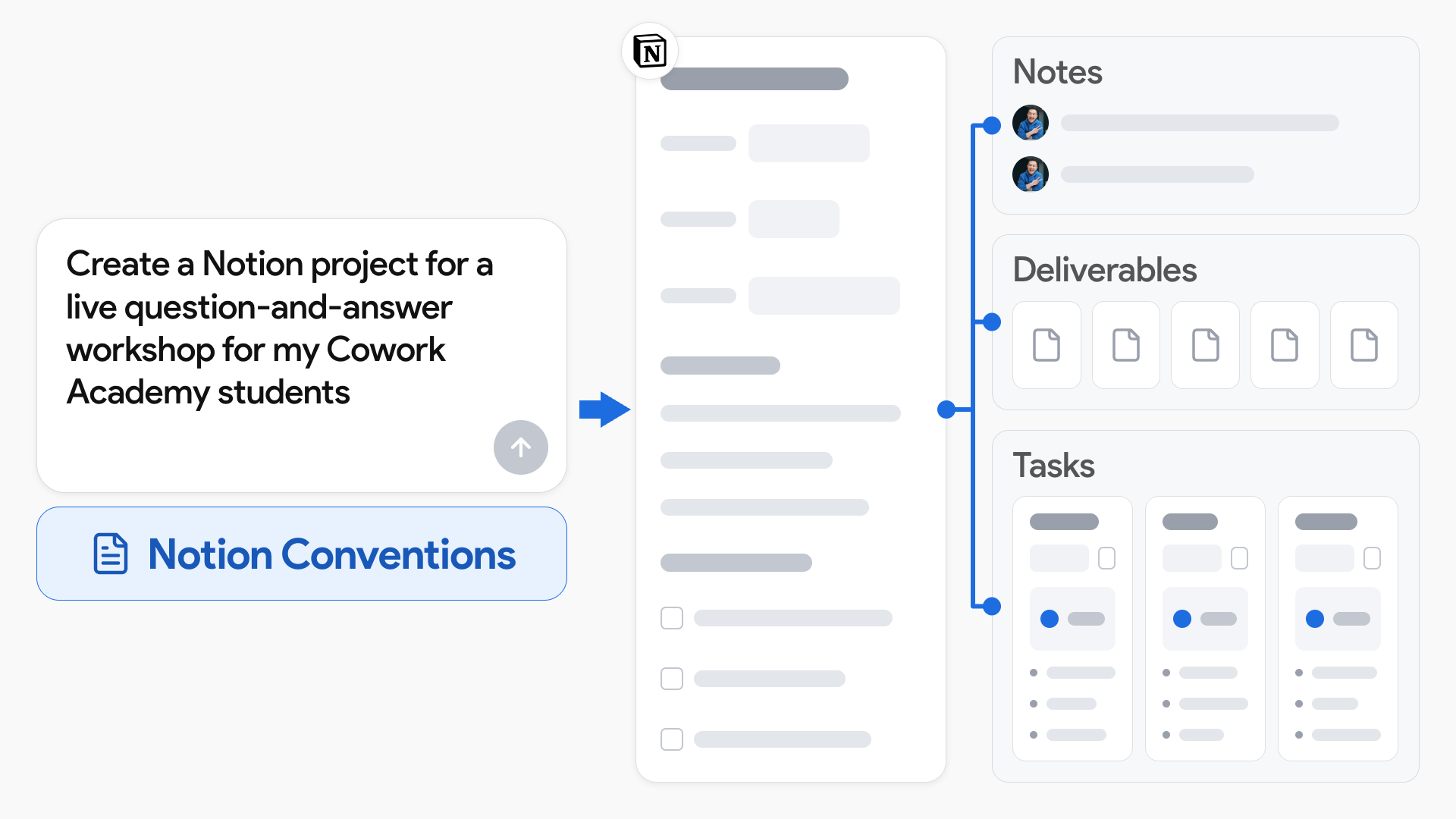
The tasks still follow the preferences taught earlier. The project request can be short because the conventions file already holds the setup decisions, so I don't have to create and organize each supporting page myself.
If you enjoyed this...
You might also like: Personal AI Agents Explained: Which Setup Is Right for You?