|
AI
AI File Management Guide: Let AI Organize Your Files
On a daily basis, my inbox folder fills up with files I want to keep (reports, spreadsheets, screenshots, receipts), and instead of organizing them myself, my AI reads each file, gives it a descriptive name, and moves it to the right folder, every day, without fail.
Now, if that sounds too good to be true, there is a catch: you need to spend 15 minutes upfront creating a rulebook that teaches your AI how to organize files according to YOUR preferences. And the best part? It works across ChatGPT, Claude, and Gemini, and across all the major storage platforms!
Watch it in action
Resources
- AI File Management Starter Kit (the free Starter Rulebook, setup steps, and ready-to-copy prompts)
- My free AI Essentials newsletter (one insanely actionable AI tip you can apply in under 2 minutes every week)
- Try Dropbox in ChatGPT (organize your team's Dropbox files right from ChatGPT)
- The Cowork Academy (an AI Command Center that's 90% built the moment you download it)
The File Management Problem
Say your doctor emails you a health report and the PDF lands in your Downloads folder. You know you should name it something like "2035 Annual Health Report" and file it under Health > Resources > Annual Health Reports, but that's a lot of work, so you tell yourself you'll do it later, and it just sits there.
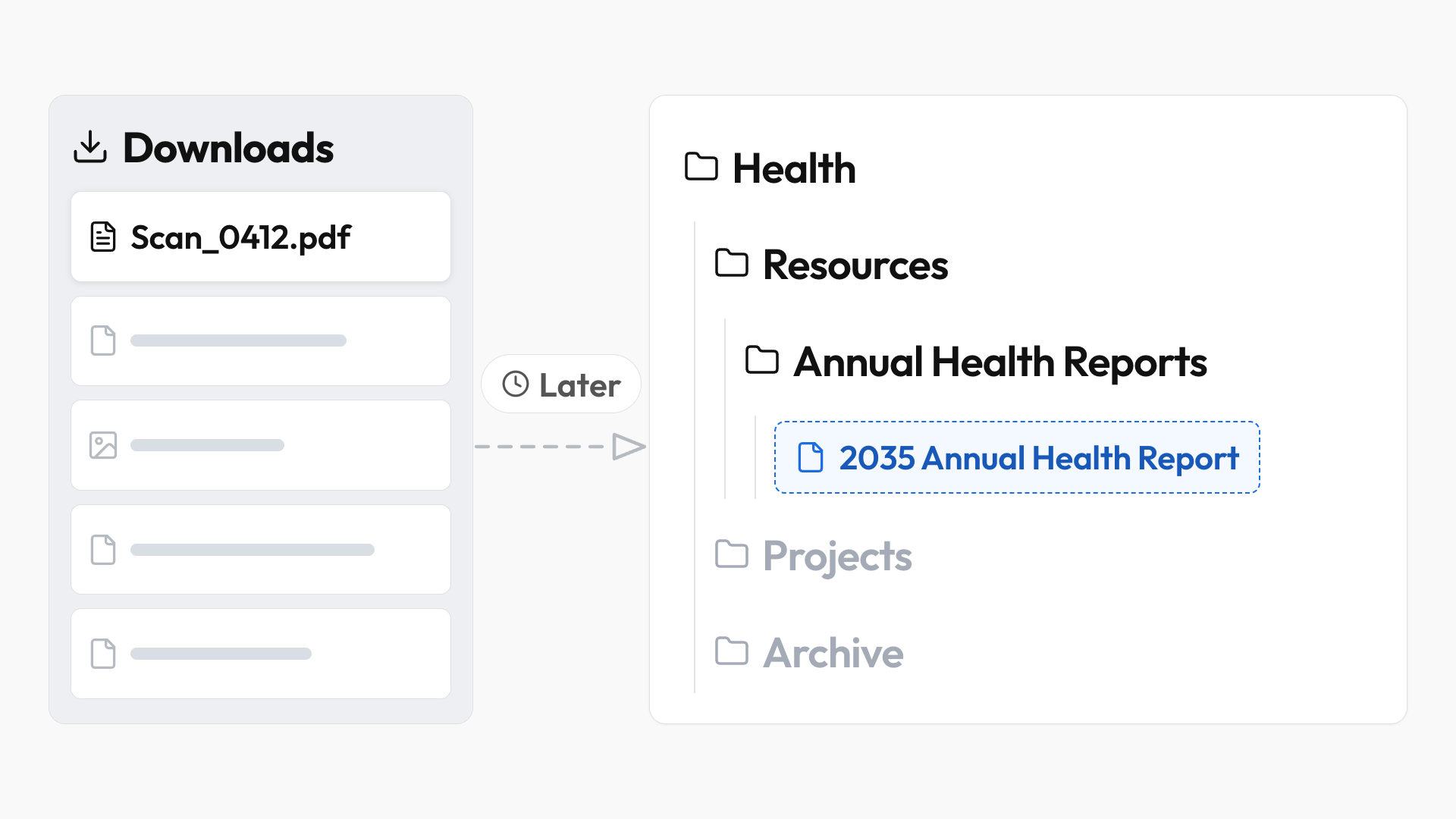
So the problem isn't that we don't know we should organize our files (we all have a rough idea of how we want to do it), the problem is having to do that tedious work every time a new file comes in. Wouldn't it be great if we could just set the rules and have the AI do the grunt work of renaming and filing for us?
Your AI File Management Rulebook
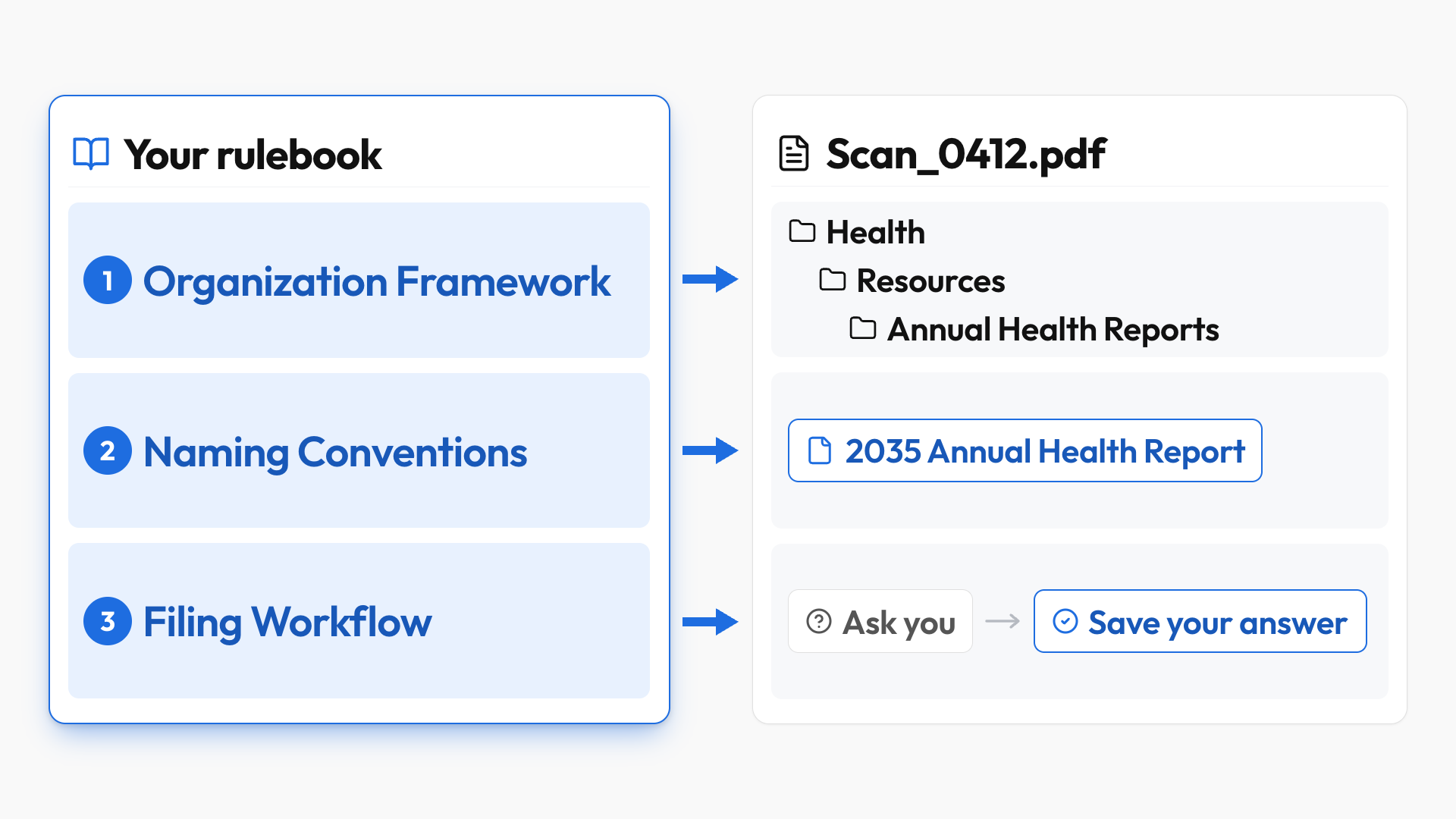
Your rulebook needs three essential things:
#1: Organization Framework
The organization framework tells the AI where a file belongs and why. My version of Tiago Forte's PARA framework is the Area-First PARA Framework, which I think fits more naturally with how we look for files. You start with an Area, meaning an ongoing part of your life or work like Health, and give it three subfolders:
- Resources holds material you'll keep referring to, like annual health reports.
- Projects holds active work with a clear end point, like planning LASIK eye surgery.
- Archive holds completed projects or outdated records, like insurance coverage from previous years.
Work areas follow the exact same structure, so a Product Marketing Area's Resources folder might hold your Brand Kit.
#2: Naming Conventions
Use a consistent naming pattern based on the details you'll look for later. For example:
- Standalone documents: keep the name short and descriptive, like "Email Subject Line Best Practices," so you know what's inside without opening it.
- Project folders: put the year and quarter first, like "30Q3 Trip to Seattle," so you can tell when the project started and what it's about.
- Receipts and invoices: include the full date, as in "helpscout-invoice-2030-06-09.pdf," so you can find the exact record you need.
#3: Filing Workflow
The filing workflow tells the AI when to ask for clarification, like when it runs into something the rulebook doesn't cover, and how to save your preferences so it knows what to do next time.
AI File Management: A Simple Example
To set this up:
- Create an empty folder on your computer (I call mine "JS Root Folder") with six subfolders: "00 Inbox," "01 Reference," "Personal Finances," "Business Finances," "Health," and "Travel."
- Download the Starter File Management Rulebook as Markdown (File > Download > Markdown) and move it into "01 Reference," so the AI has a plain-text rulebook it can read and update.
- Give the desktop app for ChatGPT, Claude, or Gemini access to your root folder.
- Move a few files you want to keep into the Inbox, then ask: "Read my rulebook in the 01 Reference folder and help me organize the files in the inbox folder."
One thing to know: this will NOT work in a normal web chat, since the AI needs direct access to the files on your computer.
Here's what happened when I tried it with four files:
- The AI proposed a plan first. It listed each file's new name and location without moving anything.
- It asked about what it couldn't tell. It wasn't sure whether two purchases were personal or business, so I replied: "My personal credit card ends in 8888, and my business card ends in 9090. Go ahead with all four files and remember the card rule."
- It filed everything and saved the card rule. Now the AI knows how to process receipts next time WITHOUT asking me.
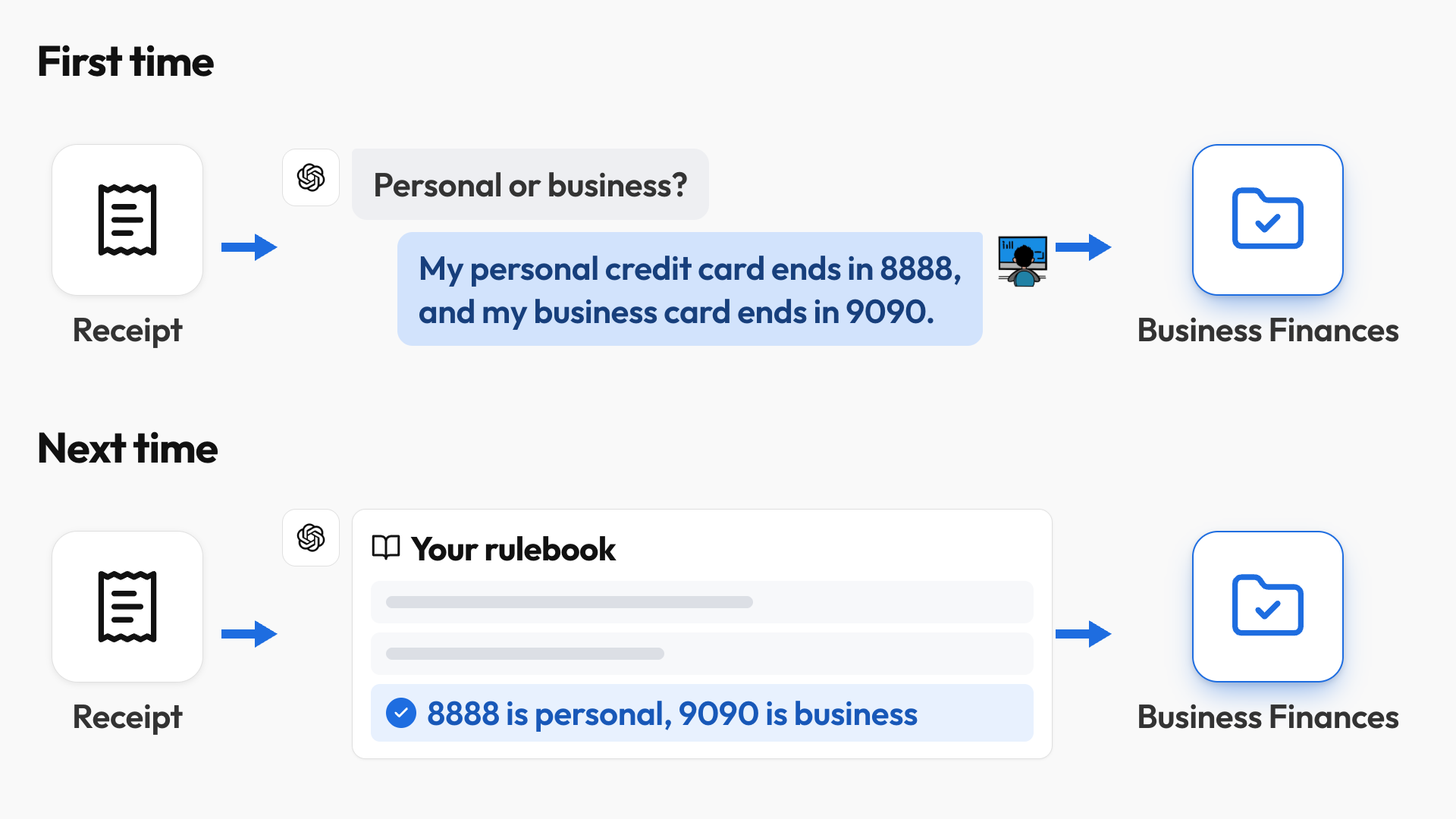
It's the exact same process as your folders grow: the AI uses the rulebook, your folder names, and each file's contents to work out where a new file belongs.
💡
Pro tip: You can even ask the AI to analyze your folders and recommend new subfolders. Claude created the four subfolders in my own Business Records folder in Google Drive, then grouped and moved my files into them.
Put simply, the rulebook gives the AI the organizing principles, and your folder structure and saved preferences tell it how to apply them.
Organize Your Existing Cloud Files With AI
To set this up:
- Install Google Drive for desktop and sign in, so your Drive folders show up in Finder or File Explorer, where the AI can access them, and any changes sync back to Google Drive.
- This also works with the Dropbox, OneDrive, and iCloud Drive apps.
- With your rulebook folder still connected, give the AI access to your root My Drive folder (in Claude, you can simply mount multiple folders to the chat).
- No need to make your Drive available offline, since the AI only looks at folder and file names.
Before moving anything, ask the AI for two snapshots:
- Current State: how your files are organized now.
- Future State: how your files could be organized using your rulebook.
Grab the prompt from the Starter Kit: it maps both snapshots as readable folder trees without changing anything, so you can see what needs to move and where.
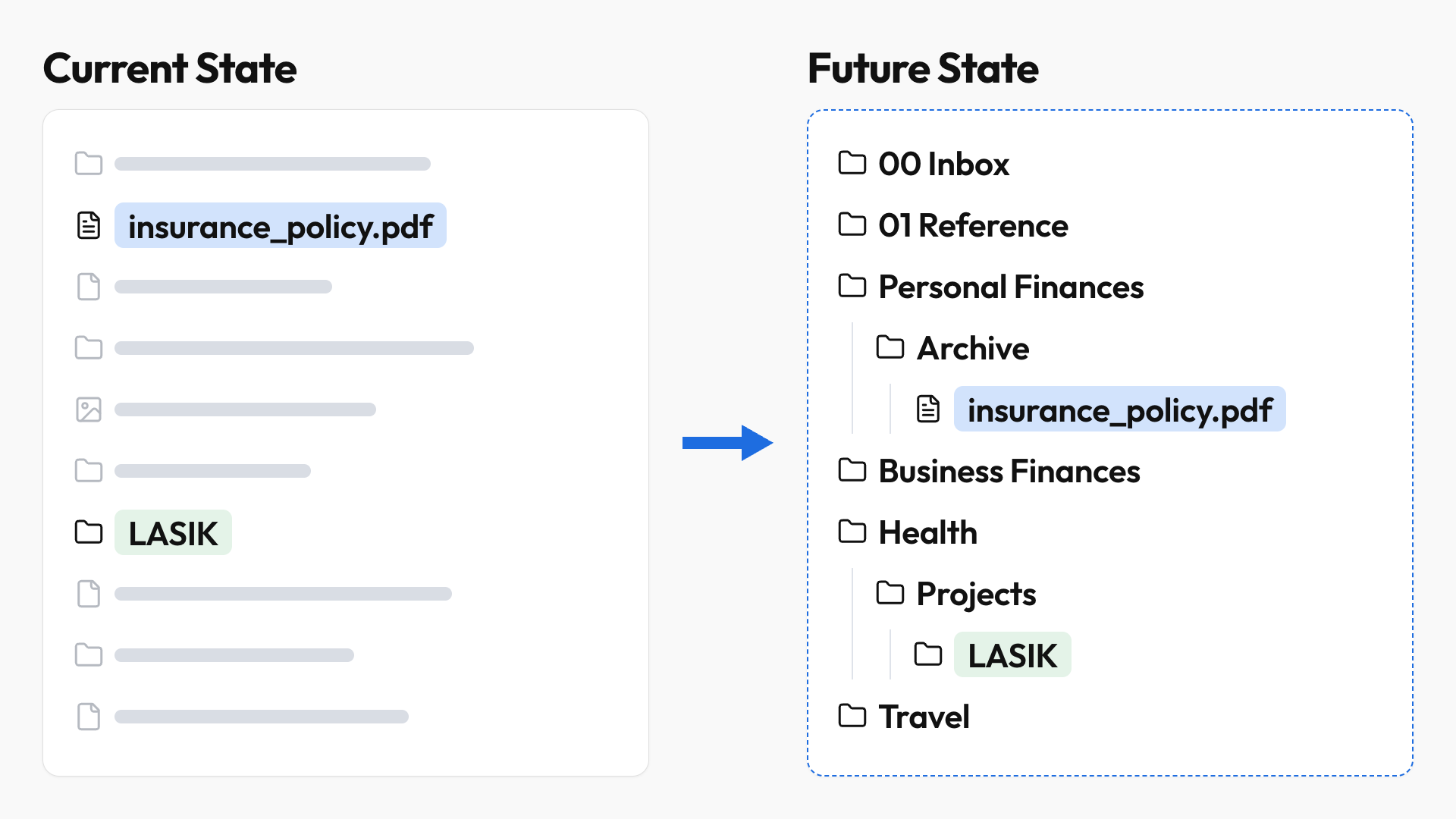
The AI will also flag structural problems and ask clarifying questions, like whether my accounting records belong in Business Finances or Business Operations. Actually answer these so the AI learns your preferences.
And there's no "right" or "wrong" way to organize your files. The AI flagged my root-level "Quick Share" folder as breaking my own framework, but I share a lot of free templates, so I want to keep it there for convenience, and I'd write that exception into my rulebook.
Once you're happy with the proposal, ask the AI to walk you through the moves step by step:
- Start with the Area folders you use most.
- Move existing folders together where possible.
- Ignore filename changes for now, so this doesn't become a huge renaming project.
You could let the AI make the changes, but I recommend doing this first pass yourself, with the AI guiding you, so you get familiar with where everything lives.
💡
Pro tip: To start fresh, move all your unsorted files and folders into a Legacy folder at the root level. You can then build your new structure from an empty root folder and gradually bring over what you need.
Automate File Management With a Scheduled Task
Once your files are organized, a daily scheduled task helps keep them that way.
To set this up:
- Create a "00 Inbox" folder at the root of My Drive, and add it to Favorites in Finder or Quick access on Windows so it's easy to get to.
- Drop in a few files you'd realistically want to keep, ask the AI to organize them using your rulebook, and give it feedback until they're named and filed the way you want.
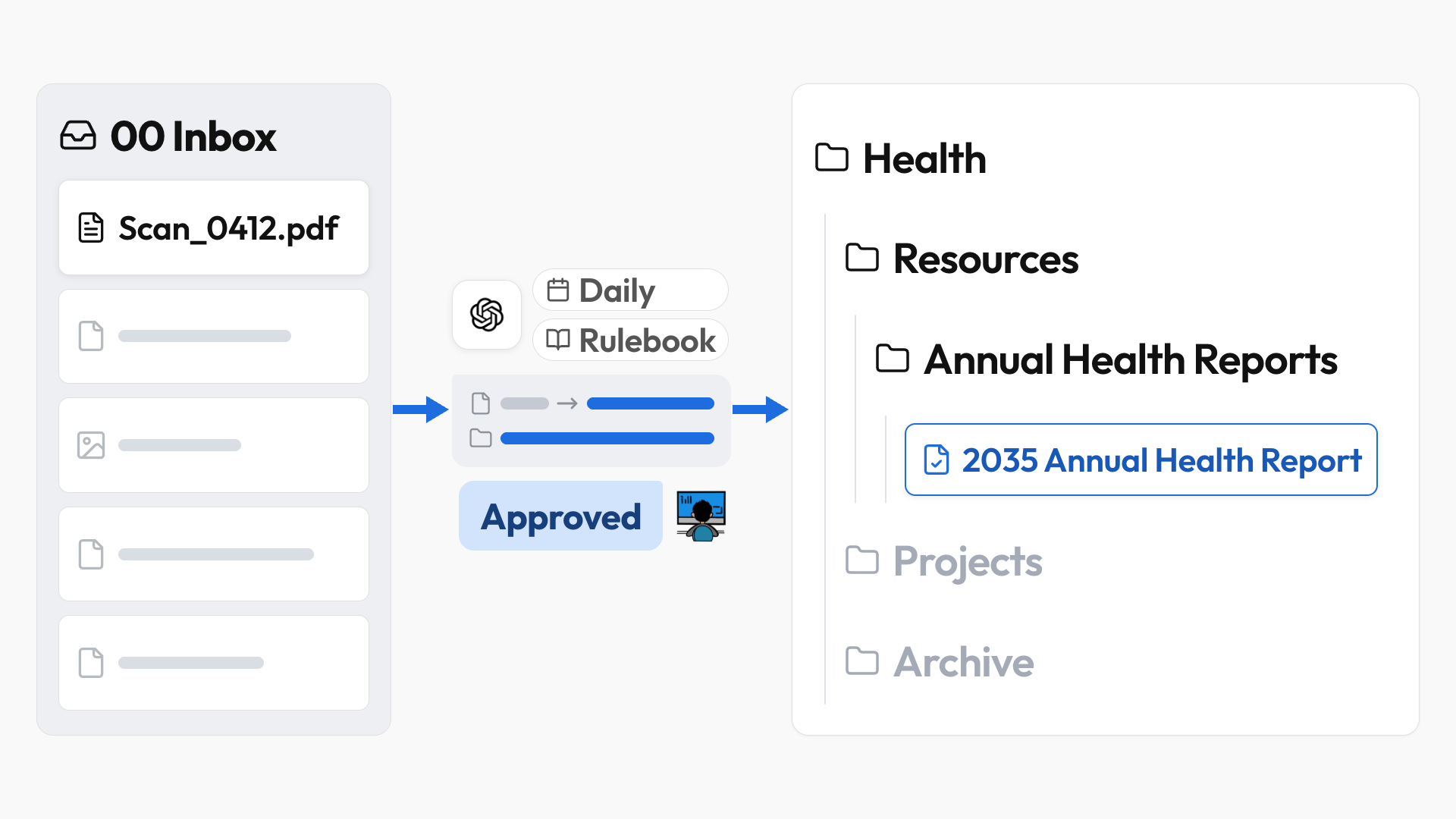
- In that same chat, ask the AI in plain English to create a daily scheduled task that checks your Inbox and proposes changes for you to review and approve.
💡
Pro tip: Make sure the scheduled task runs in the project folder containing your rulebook and has access to your Google Drive folder, so it can read your rules and find your files.
Expect to give more feedback in the first few days, but after two weeks, the reports should be 95% accurate with minimal input from you. At this point, my AI knows my preferences so well that I can just reply "Approved," and all the files get renamed and organized!
If you enjoyed this...
You might also like: ChatGPT Work Tutorial: A Complete Beginner's Guide