|
AI
Gemini Spark Tutorial: A Complete Beginner's Guide
Hey friends - Gemini Spark is the most beginner-friendly AI agent out there, so if you've heard of Claude Cowork, Codex, or OpenClaw but found them too intimidating, you're in the right place! 😁
Spark takes the Google Gemini you're (probably) already familiar with and turns it from something that answers your questions into something that actually does your work.
Watch it in action
Resources
- My inbox-zero Skill & Report Template (download these directly)
- My free Cowork Toolkit (templates and prompts for building your own AI system)
- Try Wispr Flow free for a month (the voice-to-text tool I use, and this video's sponsor)
Gemini Chat vs. Gemini Spark
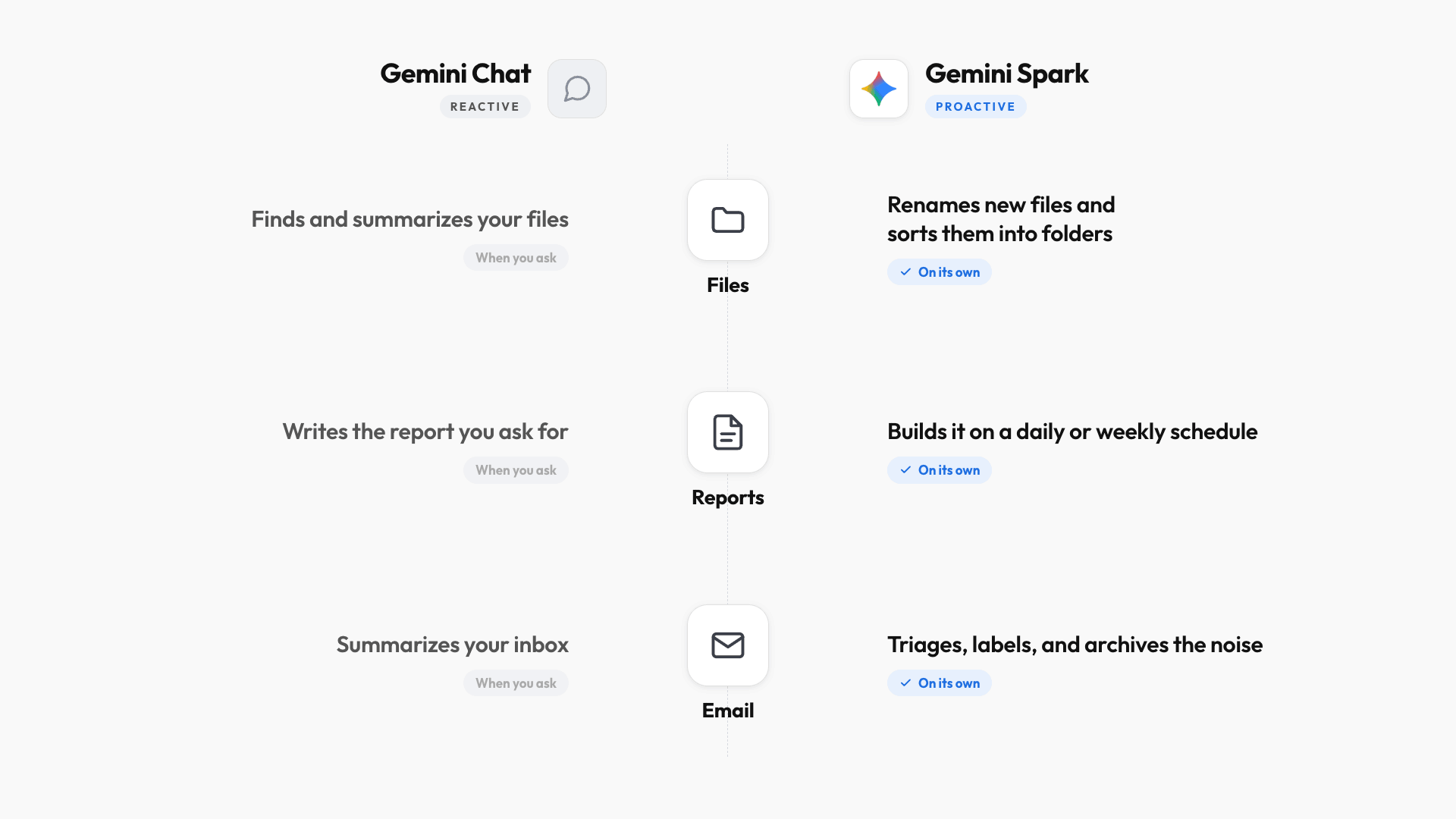
In a nutshell, the normal Gemini Chat app is reactive: it answers when you ask. Gemini Spark is proactive: it goes and does the work.
Here are three quick examples to illustrate their differences:
- File management. Gemini Chat can find and summarize files in your Google Drive, but it can't rename them or move them to the right folders. Spark detects when a new file lands in a folder, renames it based on what's inside, and files it correctly, so your Drive basically cleans itself.
- Reports. Gemini Chat writes a solid report in Google Docs, but you have to ask every time. Spark builds the same report on its own, on a daily or weekly schedule.
- Email. Chat can summarize your inbox with the @Gmail command, but it formats things differently every time and can't archive or label. Spark runs a triage workflow on its own, formats every summary the way you like, proposes labels, and archives the noise.
Gemini Spark: Essential Settings
When Spark becomes available to you, there are two quick setup steps.
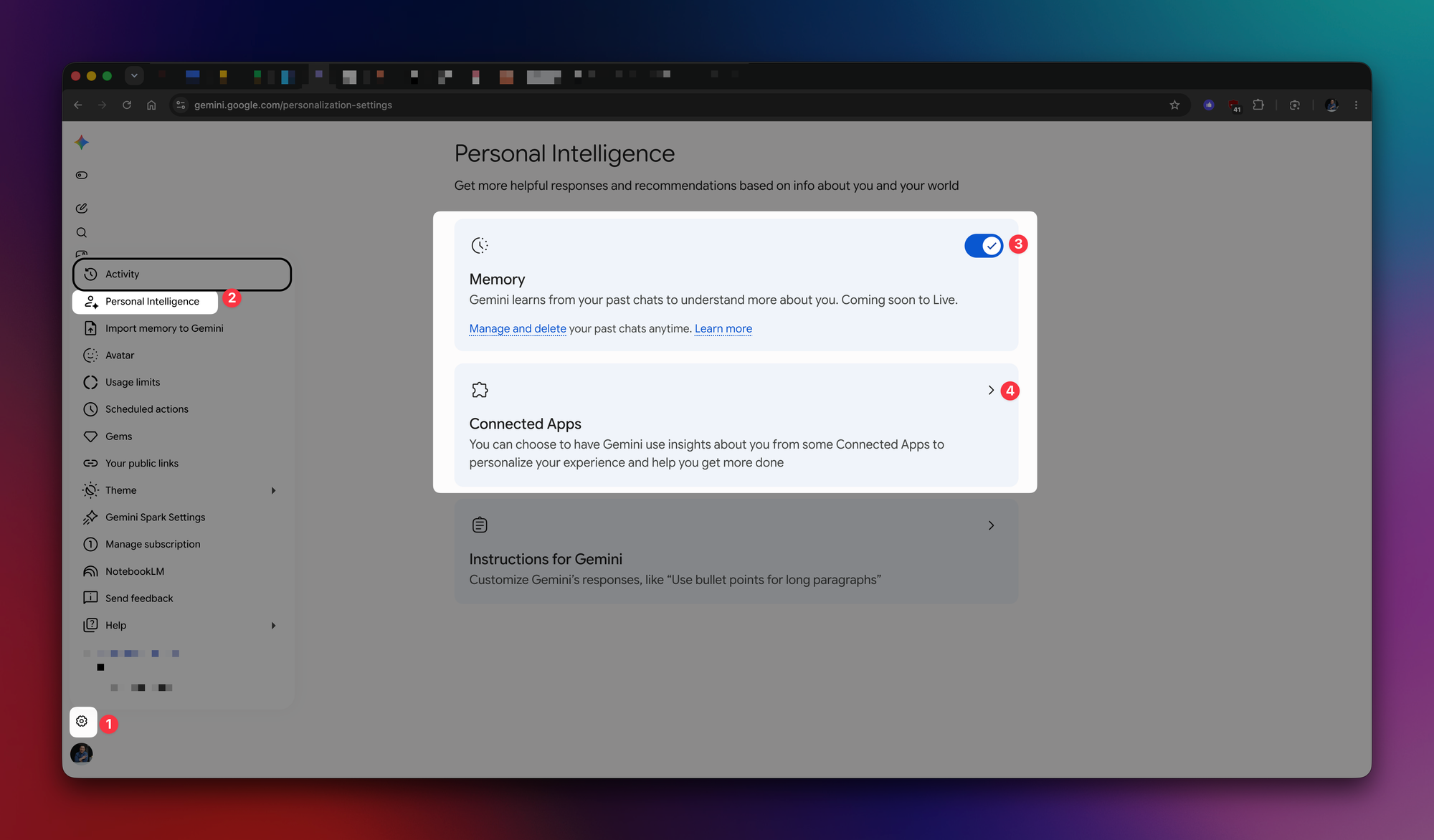
- Turn on Memory and connect Workspace. From your personal Google account, go to Gemini Settings > Personal Intelligence and turn on Memory so Spark can save your preferences and learn how you work.
- While you're there, open Connected Apps and switch on Google Workspace to give Spark access to Gmail, Drive, and Calendar.
- Create a "SparkOS" folder in the root of your Google Drive. You'll see why later.
Capability #1: Connect the Dots
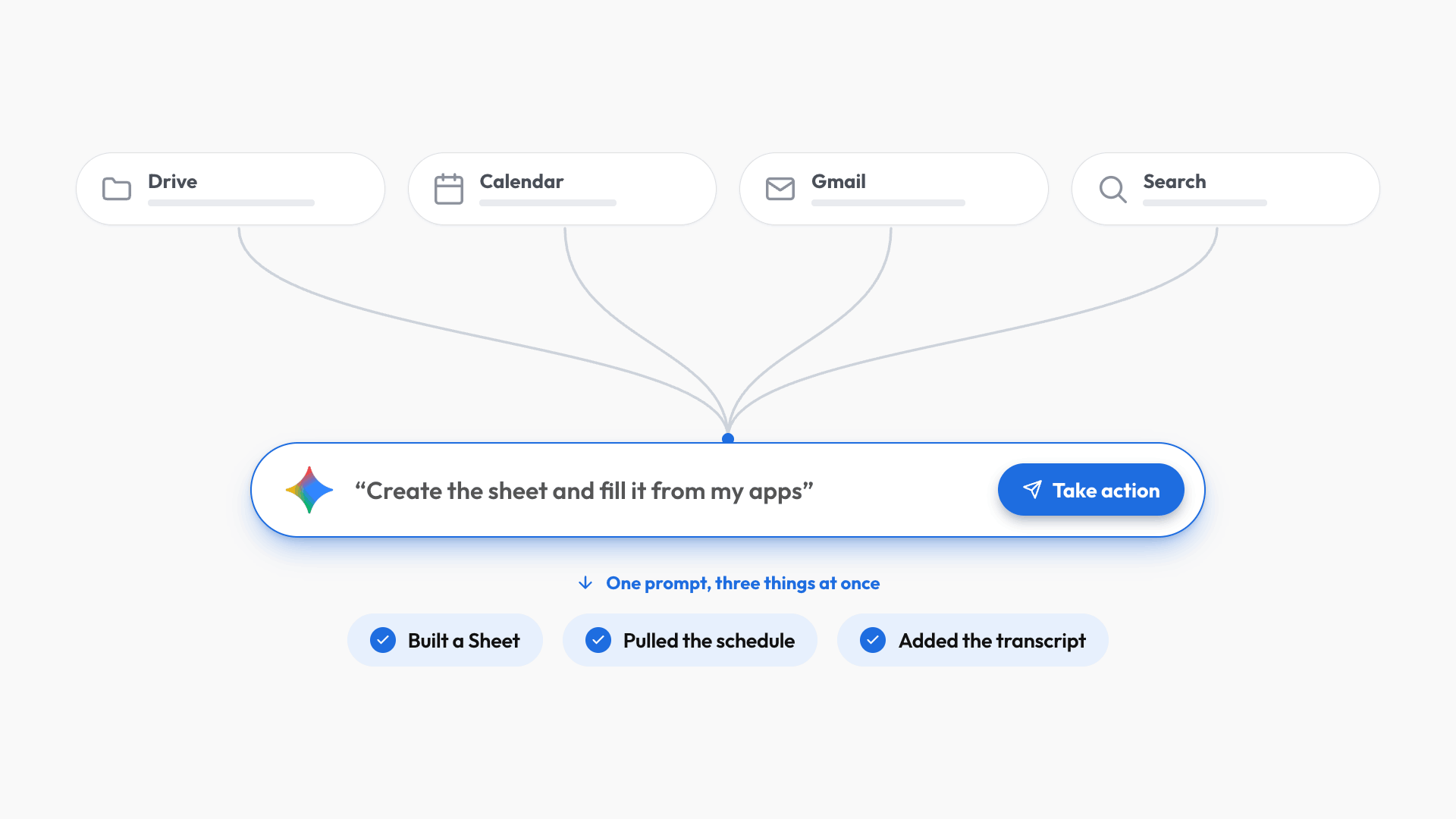
Spark's first capability is pulling context from across your Google apps and acting on it.
Here's an example:
"Create a spreadsheet of every match in this year's World Cup with the date and both teams. Then pull the transcript from my recent meeting with Elon Husky and Satya Nutella and add their predicted winners."
That one prompt does three things at once: "create a spreadsheet" makes a Google Sheet in my Drive, "this year's World Cup" sends it to the web for the schedule, and "pull the transcript" makes it search my Calendar for the meeting. Then it stitches everything into one sheet without me opening a single app.
The easiest way to picture it: imagine the search bars from Drive, Calendar, Gmail, and Google Search merged into one, with an assistant behind that bar who can take action for you. That's the Spark input field.
Here's a work example:
"Review my latest email thread with Austin, then create a calendar invite for a catch-up on October 1st in the same time slot as our last meeting." I never gave Austin's full name, but Spark searched Gmail, found the right Austin, read the thread, reused the time slot from our last meeting, and drafted the invite for my approval.
Capability #2: Follow Your Templates
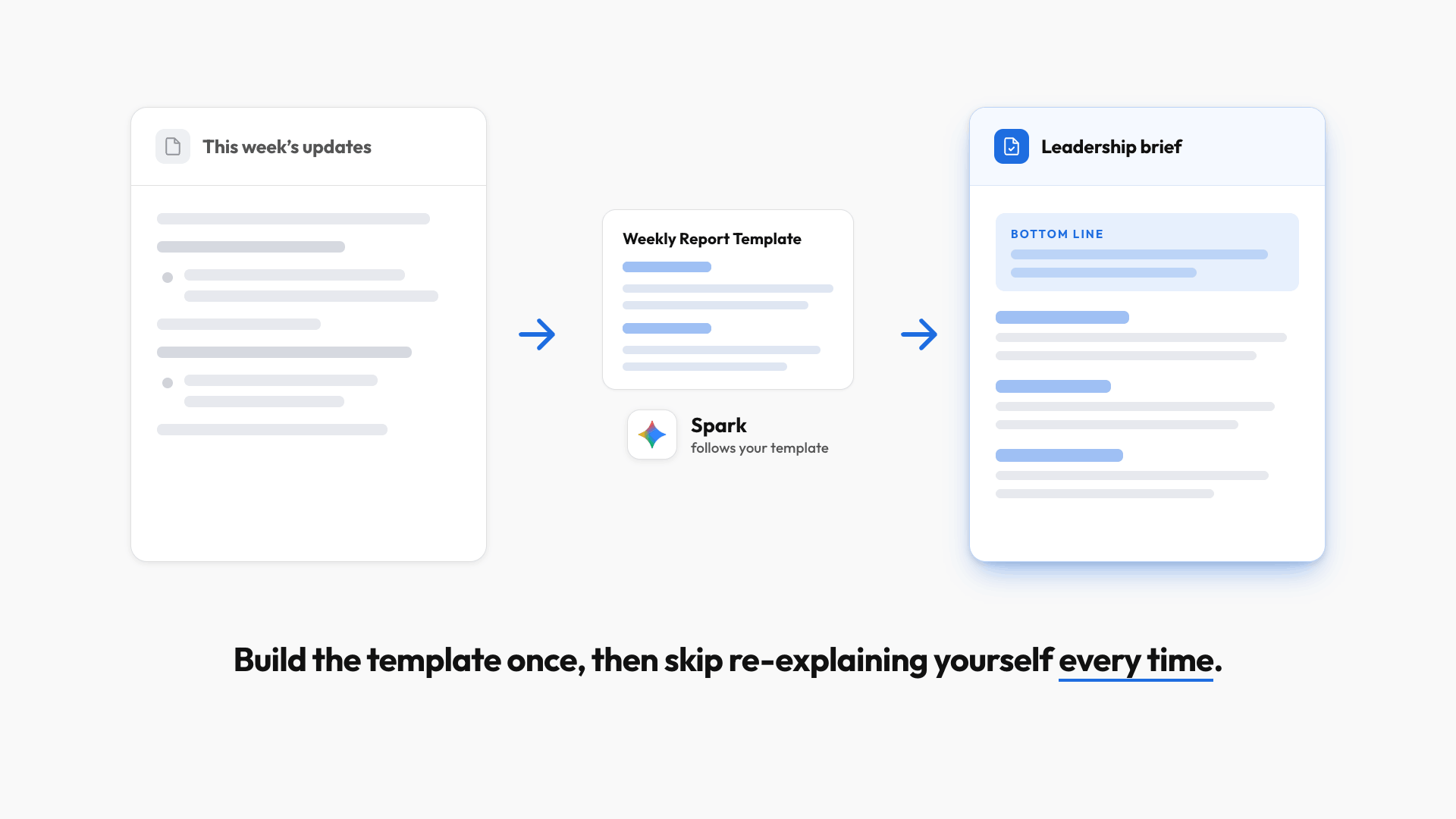
Spark can produce a consistent deliverable every time by following a template you build once.
Inside your SparkOS folder, add a "Spark Templates" folder and drop in a Google Doc with a weekly report template.
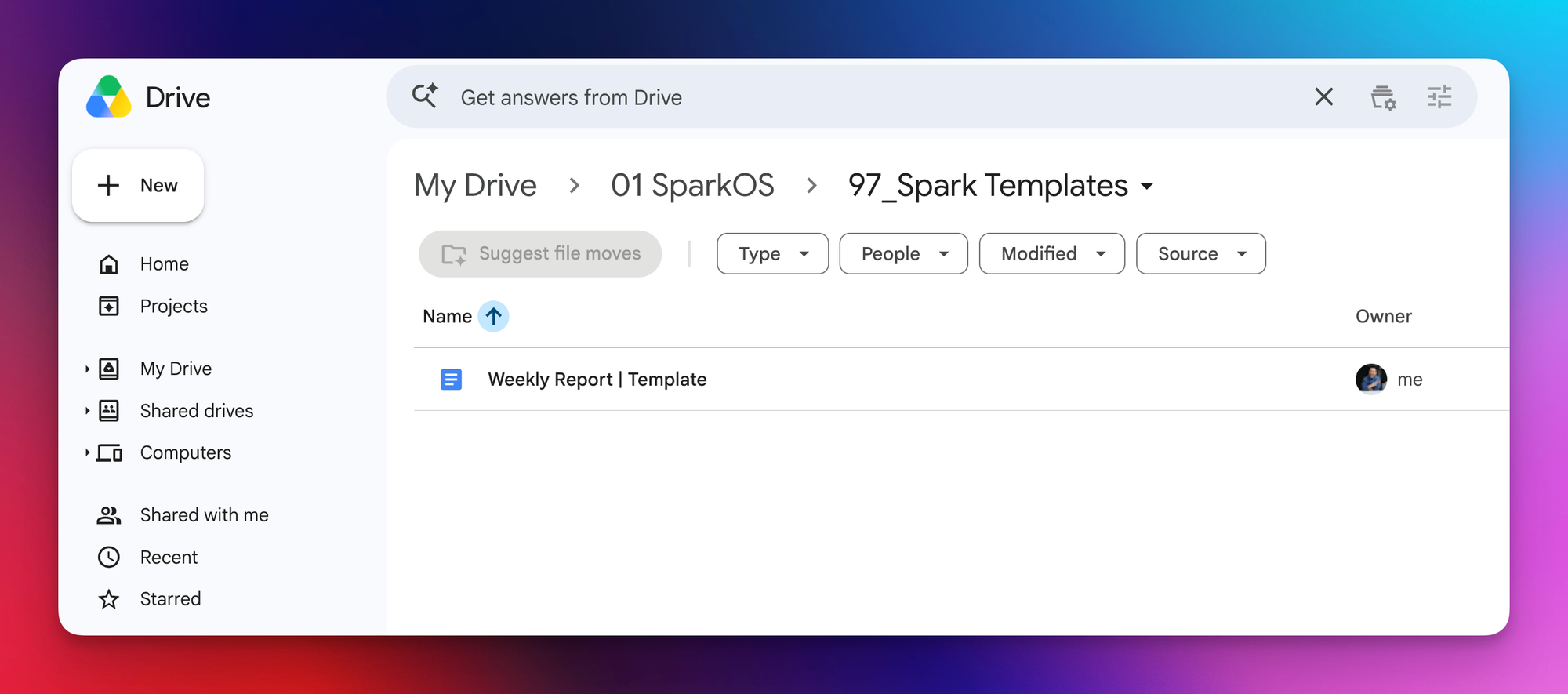
Then point Spark at a messy intake doc: "I just received this week's updates from the sales teams. Turn them into a leadership brief that follows the Weekly Report Template in the Spark Templates folder."
A few minutes later, Spark has pulled the raw updates and distilled them into a clean leadership brief.
The bigger takeaway: find the work you do over and over, build a template for it once, and keep it in your Templates folder. After that, you point Spark at the template and skip re-explaining yourself every time.
Capability #3: Create Repeating Playbooks
The Skills feature turns a one-time workflow into a reusable playbook.
Take the weekly report from above. In the same chat, I tell Spark:
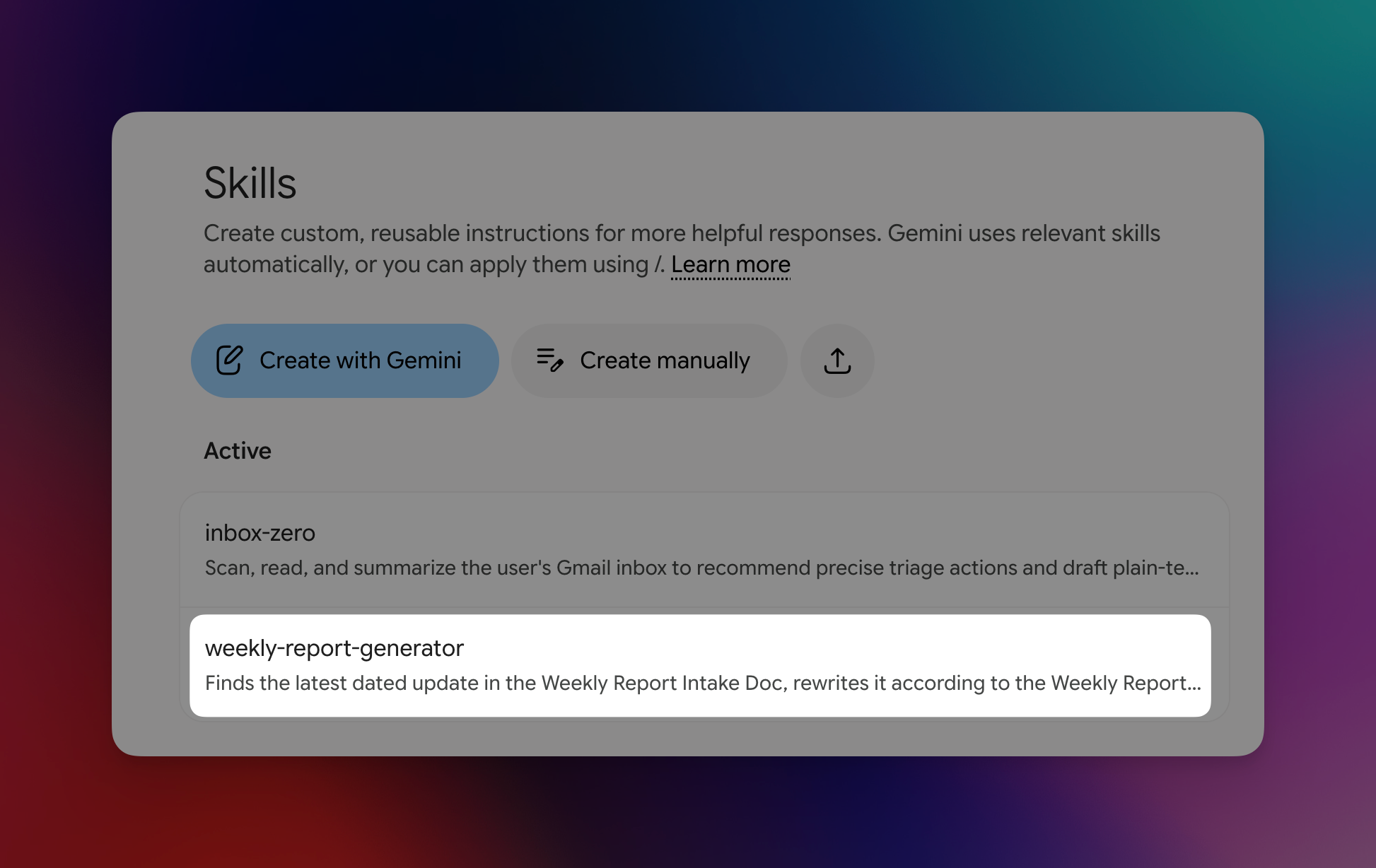
"Create a weekly report Skill that finds the latest dated update in my Intake Doc and rewrites it to match the Weekly Report Template, and always save the output in the 99_temp folder. Before you save the Skill, restate my goal and show me the steps so I can approve them first."
Spark restates the goal, proposes a plan, and after I approve, saves a Skill under the Skills tab. Next time the intake doc updates, I open a new chat, type a forward slash, pick the Skill, and get a new report in the same structure.
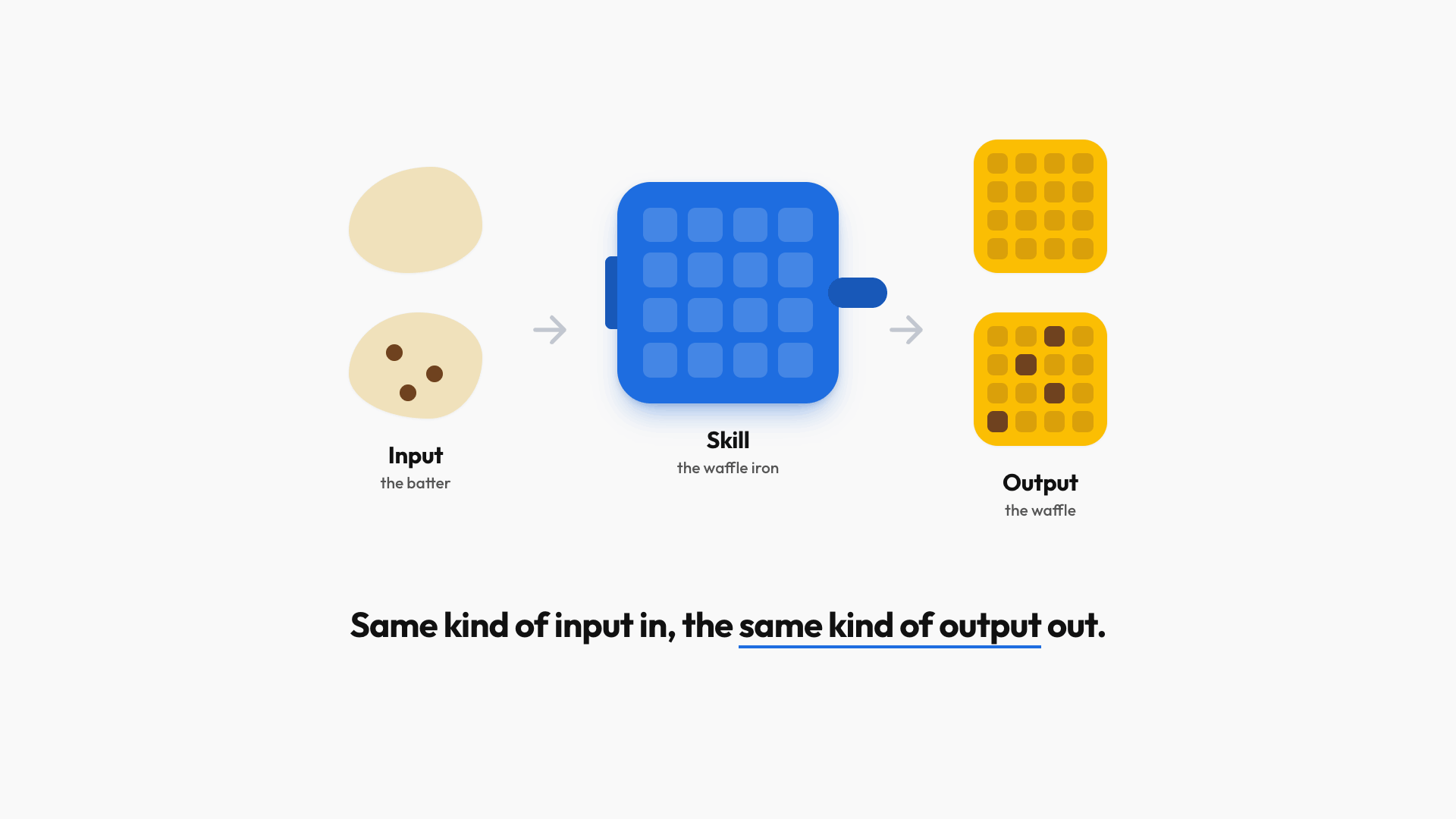
A Skill is a fixed set of instructions that turns the same kind of input into the same kind of output, where only the content changes.
Think of a waffle iron: whatever batter you pour in, you get the same waffle out (chocolate is obviously better, but you get the point). Your input is the batter, the Skill is the iron, the output is the waffle.
To tweak a Skill, just say "Edit the weekly report skill so it shows the Bottom Line in chat for me to review," and Spark updates it directly.
Try this yourself: I've linked my exact inbox-zero Skill in the Resources section above. Download the zip, unzip it to get the SKILL.md file, then in Spark under the Skills tab click "Upload a skill," select the file, and click "Create."
Run it once and you'll see it follows my formatting and label preferences, which is the point: the fastest way to learn is to tailor an existing Skill to your own workflow.
💡
Pro tip: to hand a Skill to a teammate, go to the Skills tab, download the file, and they upload it the same way.
Capability #4: Automate Your Routines
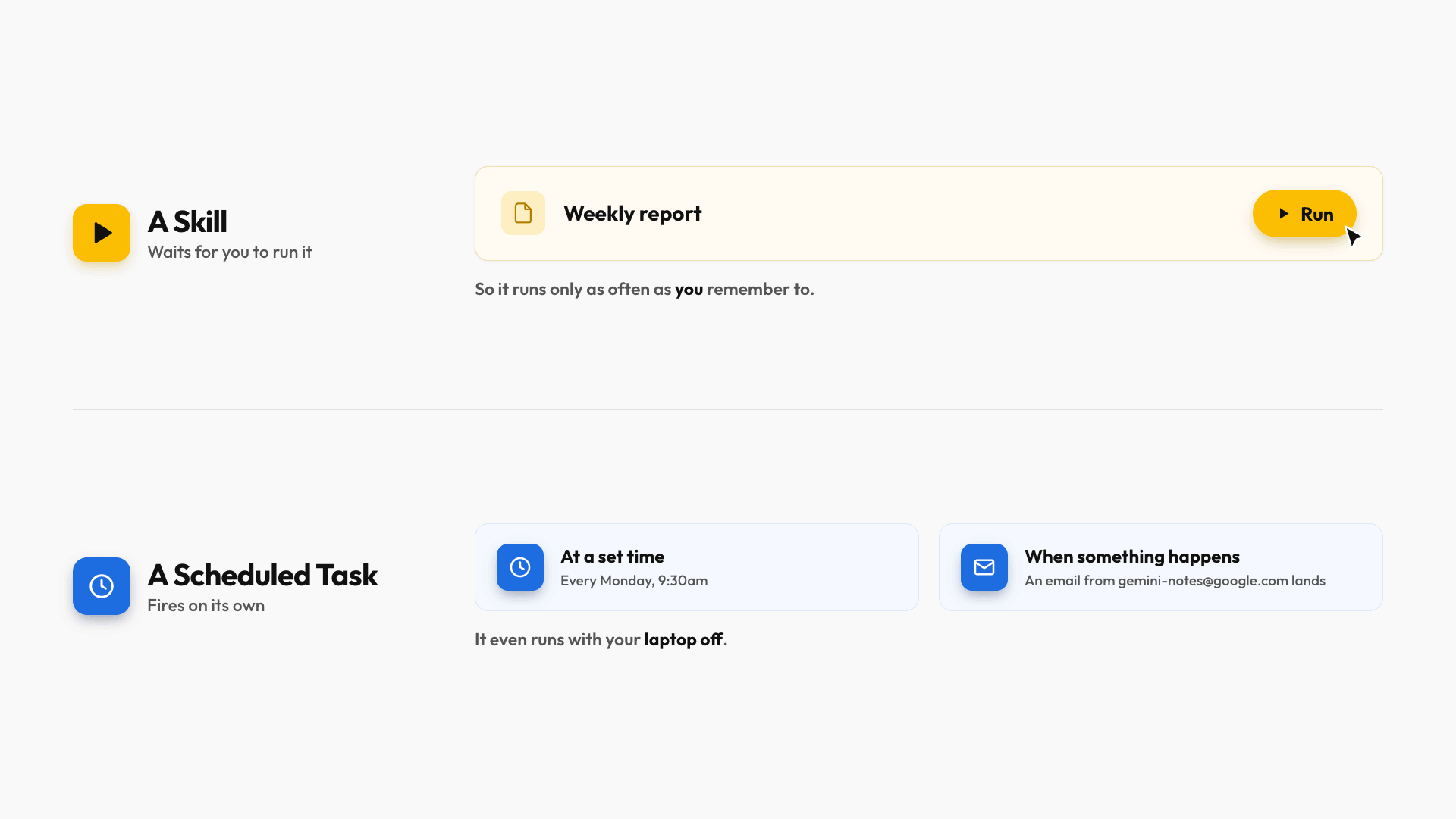
Scheduled Tasks are the difference between a playbook you run and one that runs itself. A Skill waits for you to trigger it; a Scheduled Task fires on its own, either at a set time or when something happens.
Time-based example
The sales teams always update the intake doc by Friday, so I tell Spark: "Create a scheduled task that runs the weekly-report Skill every Monday at 9:30am." It confirms, and the task shows up under the Schedules tab. You can test it anytime by clicking the three dots and hitting run.
Event-based example
I get an auto-generated transcript from gemini-notes@google.com after every meeting, so I tell Spark: "Whenever I receive an email from gemini-notes@google.com, analyze the transcript, brief me using the Bottom Line Up Front format, and draft a recap email to the attendees if one's warranted."
Now Spark watches for that email, and the moment it lands, it reads the notes, briefs me, and drafts the recap.
One thing to know: these runs are approximate, not instant, so Spark may fire a little after the email arrives. Event triggers are set up by talking to Spark directly, not through the manual schedule builder, which only does time-based runs.
Spark vs. Cowork vs. Codex
So how does Spark stack up against its peers?
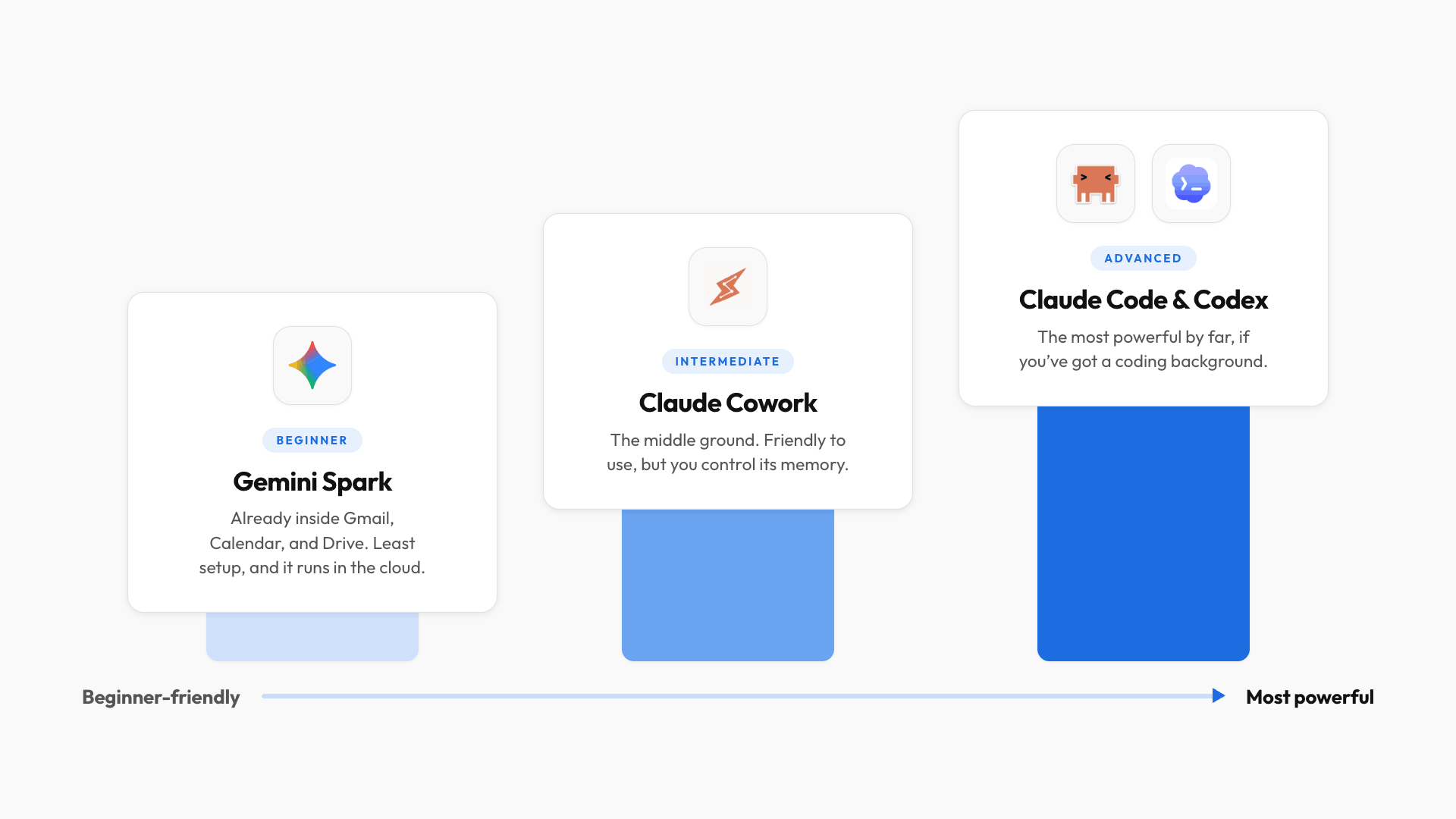
- Gemini Spark is the most beginner-friendly, since it's already embedded in Gmail, Calendar, and Drive and needs the least setup. Its big advantage: it runs entirely in the cloud, so scheduled tasks fire even when your laptop is off, which isn't possible in Cowork, Claude Code, or Codex.
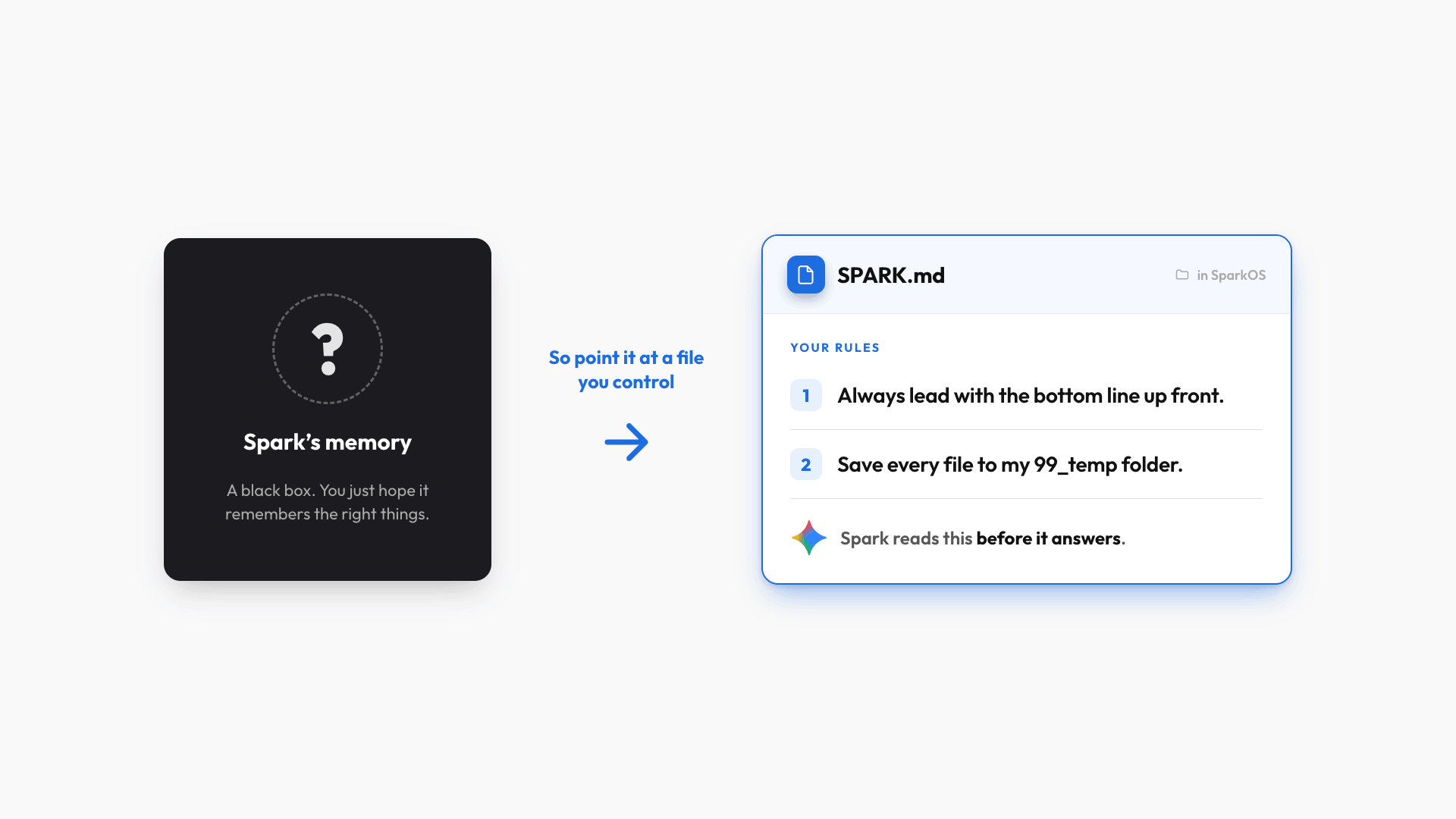
- Claude Cowork is the intermediate option: friendly to non-technical users but still gives you real control. It keeps a MEMORY.md file I can edit, so I decide exactly what it knows about me. Spark is more of a black box, so you have to trust it's remembering the right things.
- Claude Code and Codex are the most powerful by far, but you'll want a coding background to get the most out of them.
Two honest weaknesses for Spark
- There aren't many external tools it can connect to yet, which is a real limit when an agent's whole job is taking action in your tools.
- And since you can't pick the model it uses, output quality is sometimes inconsistent (sorry Google, I love you guys, but I have to be fair).
No matter which one you pick, these agents only work as well as your workspace architecture, meaning how your files and folders are organized. My whole system lives in one folder organized by area of my life, so it finds the right context quickly, which means better answers and far fewer tokens.
Create Your Gemini Spark System
Once you're comfortable, here's how to start building a system you control.
- Start a new chat: "Create a Google Doc called SPARK.md in my SparkOS folder to store my Spark workspace rules. Add two rules: always lead with the bottom line up front, and save every file you generate to my 99_temp folder by default." A minute later the doc shows up with both rules written in.
- Now I tell Spark: "Compare Google's AI strategy against Microsoft's, and read SPARK.md before responding." The answer comes back bottom-line-first, because Spark followed the rules in the doc.
The broader principle: if you don't want to rely on Spark's black-box memory, you can force it to follow your preferences by pointing it at a file you control, which is exactly how Cowork, Claude Code, and Codex work.
If you enjoyed this...
You might also like: How I'd Learn AI From Scratch in 2026 (skip the useless 80%)