|
AI
Top 5 Claude Cowork Tips I Wish I Knew from Day One
Hey friends - If you clicked on this article then you already know Claude Cowork is insanely powerful.
But there's a problem: There's currently no "gold standard" yet for setting it up, meaning if you get the foundation wrong, and you'll keep running into avoidable issues for months. 🥲
So, after three months of using Cowork to run every part of my life, here are 5 essential things to get right from day one.
Watch it in action
Resources
- Templates and prompts from this video (Archive and Migration Prompt templates)
- My Free Cowork Toolkit (CLAUDE.md and MEMORY.md templates)
- The Claude Cowork Stack (12 free Cowork prompts)
- The Cowork Academy (full course)
Tip #1: The Markdown Translator
Cowork's instructions and memory live in .md (Markdown) files. You can edit them directly, but reading through all the hashtags and asterisks is a pain, and editing that way is worse.
The fix: install the free app Obsidian, choose "Open folder as vault," and point it at your Cowork workspace folder. Every .md file instantly renders with proper headings, bold text, and bullet points, formatted the way you'd actually want to read and write them.
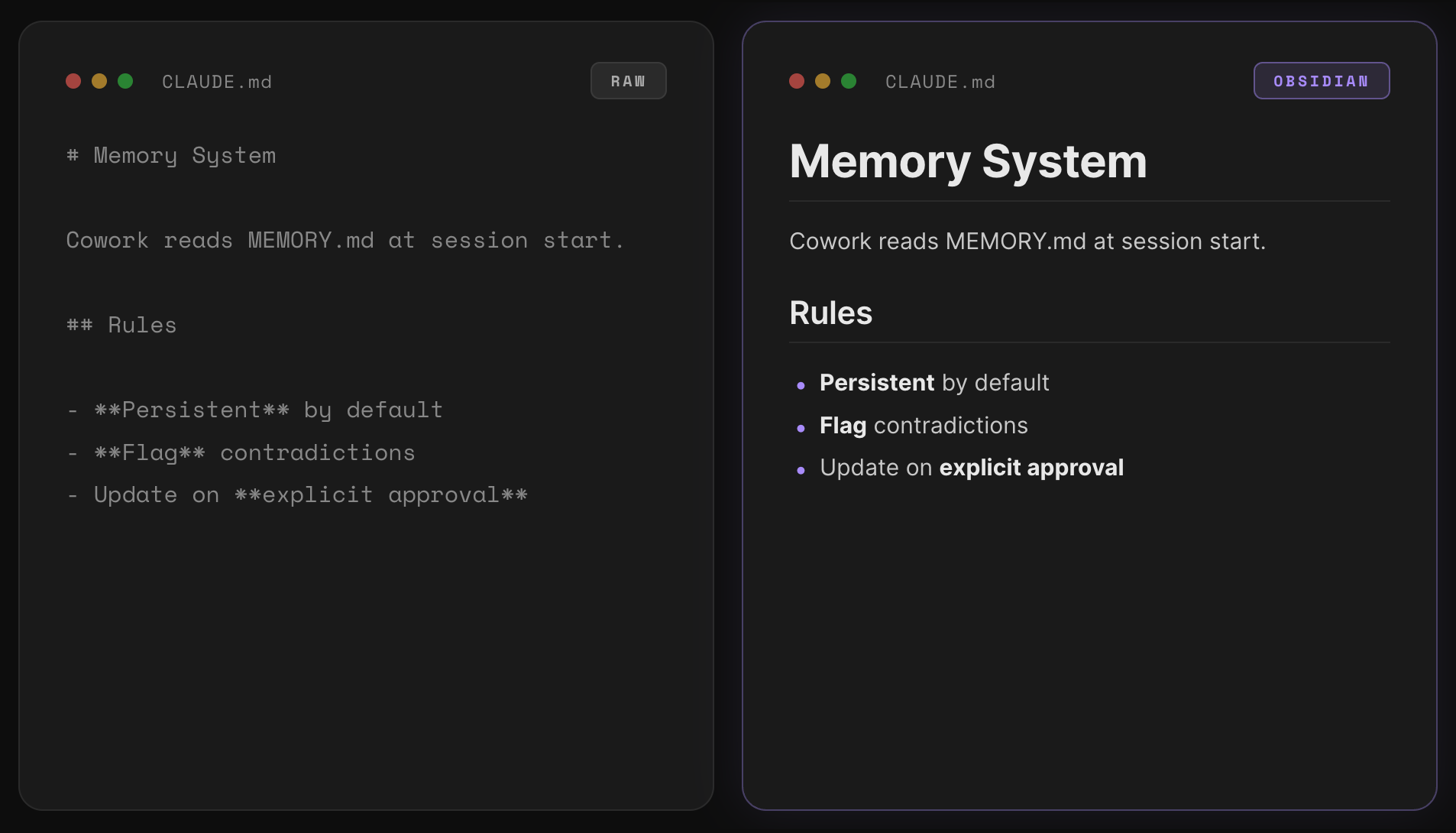
You don't need to learn Obsidian or use any of its other features. It's just a lens for reading and editing your Cowork files.
💡
Pro tip: Go to Settings > Files & Links and toggle on "Show all file types." Now you can see non-.md files (PDFs, images, spreadsheets) in the sidebar too.
Tip #2: The 300-Line Rule
Your root CLAUDE.md loads every single session, so a bloated file wastes a lot of tokens. When I cut mine from over 600 lines to around 250, my token usage dropped by roughly 25%.
Here are three tactics to keep it lean:
1. Group similar instructions together
My root CLAUDE.md template has 6 sections:
- Memory System tells Cowork to read MEMORY.md at session start so it knows what we did before.
- Preferences is how I want Cowork to communicate: tone, length, format.
- Rules are behavioral guardrails. Anything "always do this" or "never do that" belongs here.
- Routing Map is the table Cowork checks to figure out which workstation to load. If I'm writing an email, it loads Email HQ. If I'm working on Chinese projects, it loads China Desk. If I'm brainstorming, it loads Clarity Partner.
- References are one-line pointers to files Cowork loads on demand. The full files don't load every session, just these pointers.
- Creating New Workstations tells Cowork how to scaffold new workstations in your workspace.
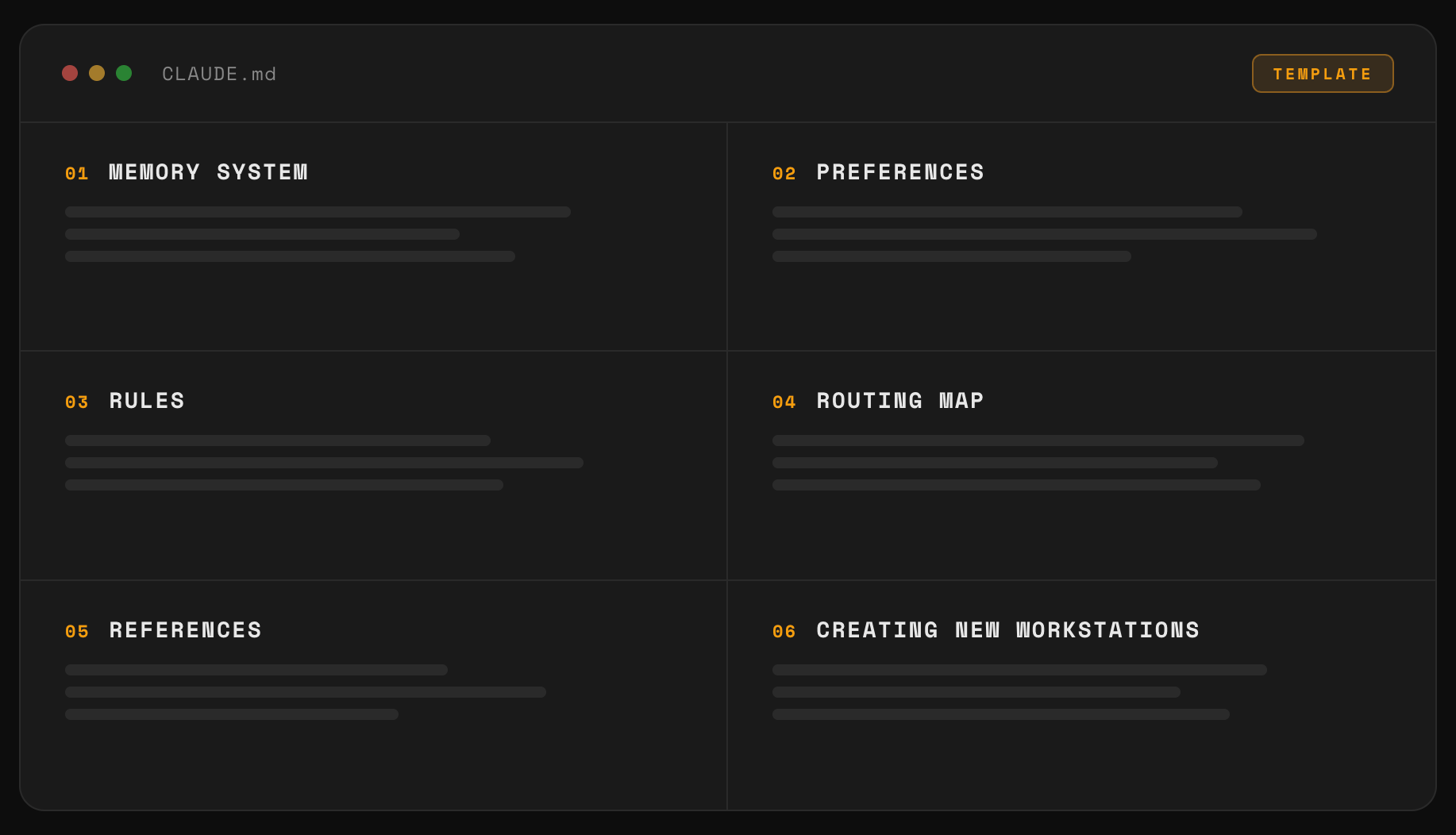
You can grab this exact template from my free Cowork Toolkit linked above. The rule of thumb is to keep your root CLAUDE.md between 200-300 lines.
2. Ask Cowork to relocate non-essential rules
The test: does Cowork need this every session, or only when a specific task comes up?
In my CLAUDE.md, the Governance section controls how all rules are organized. Cowork needs that every session, so it stays at the root.
File Creation Rules only apply when I'm creating a new file, which doesn't happen every session. So instead of all 21 rules living in CLAUDE.md, I have a single pointer: "Read File Creation Rules when creating any new file."
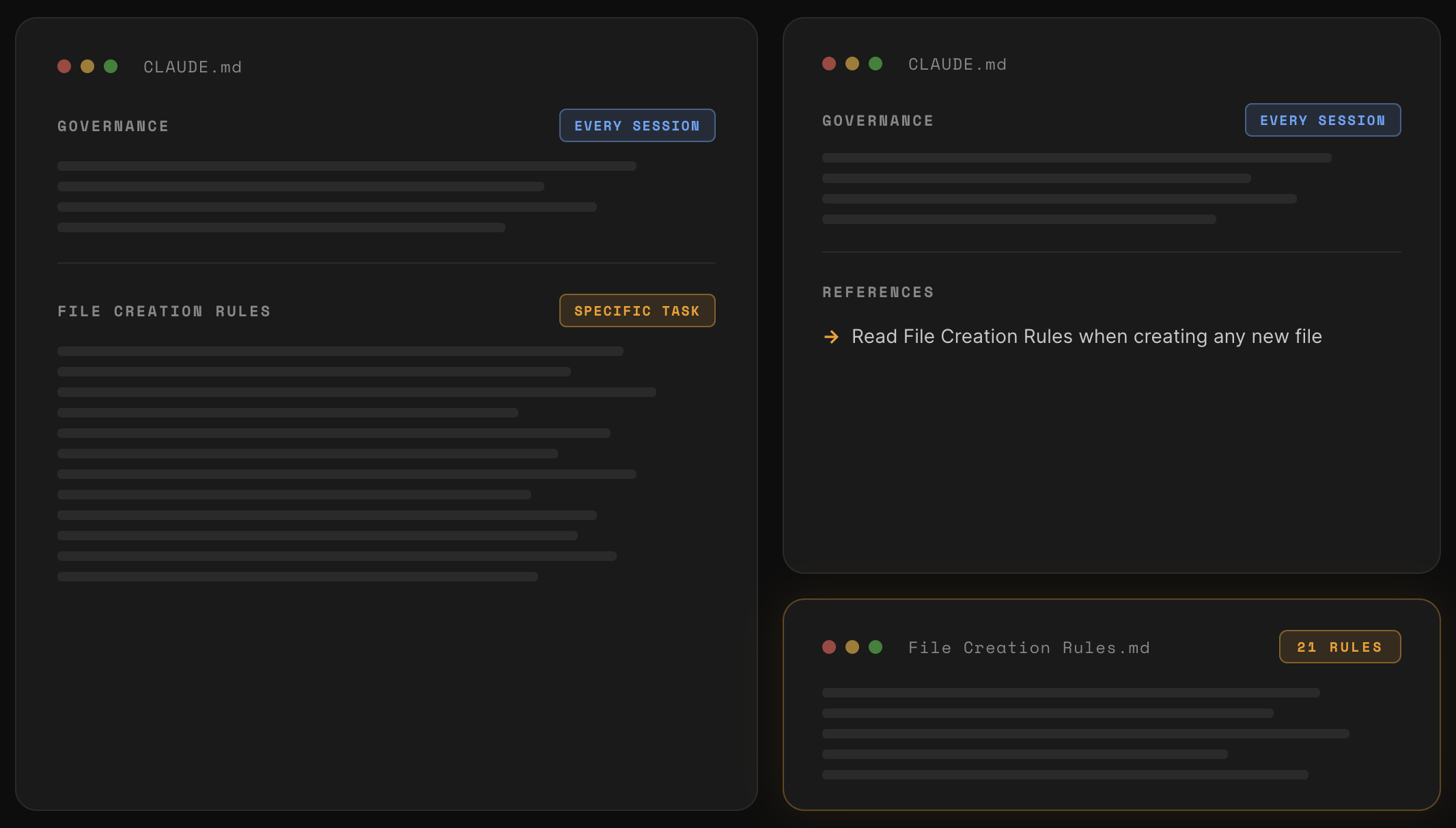
Try this yourself: tell Cowork "Move the Creating New Workstations section out of my root CLAUDE.md into a new reference file, and replace it with a one-line pointer in my References table." Cowork creates the file, removes the section, adds the pointer, and your CLAUDE.md just got shorter without losing anything.
3. Put the right files in the right place
Most Cowork users mix up what goes in CLAUDE.md versus MEMORY.md. When the wrong information is in the wrong file, output quality drops.
Add this rule under CLAUDE.md's Memory System section:
- Test 1: If the entry is prescriptive and contains words like "always" or "never," it belongs in CLAUDE.md.
- Test 2: If it describes a fact that could change, it goes in MEMORY.md.
A prescriptive example: "Before drafting a new email, check if a related thread already exists with that recipient." That's a "before doing X, do Y" rule, so it belongs in CLAUDE.md.
A fact example: "My company uses Google Workspace." That could change tomorrow, so it goes in MEMORY.md.
Try this yourself: paste this prompt into Cowork.
Review my root CLAUDE.md and MEMORY.md. In CLAUDE.md, flag any entry whose primary purpose is recording a fact or status rather than prescribing how you should behave. In MEMORY.md, flag any entry whose primary purpose is telling you how to behave rather than recording a fact. Recommend where each flagged entry should move.
I'm willing to bet 90% of you will need to make some changes.
Tip #3: The Memory Diet
Your root MEMORY.md also loads every single session, so an unstructured memory file wastes tokens AND makes Cowork's output worse.
Similar to above, here are three tactics:
1. Give your MEMORY.md a clear structure
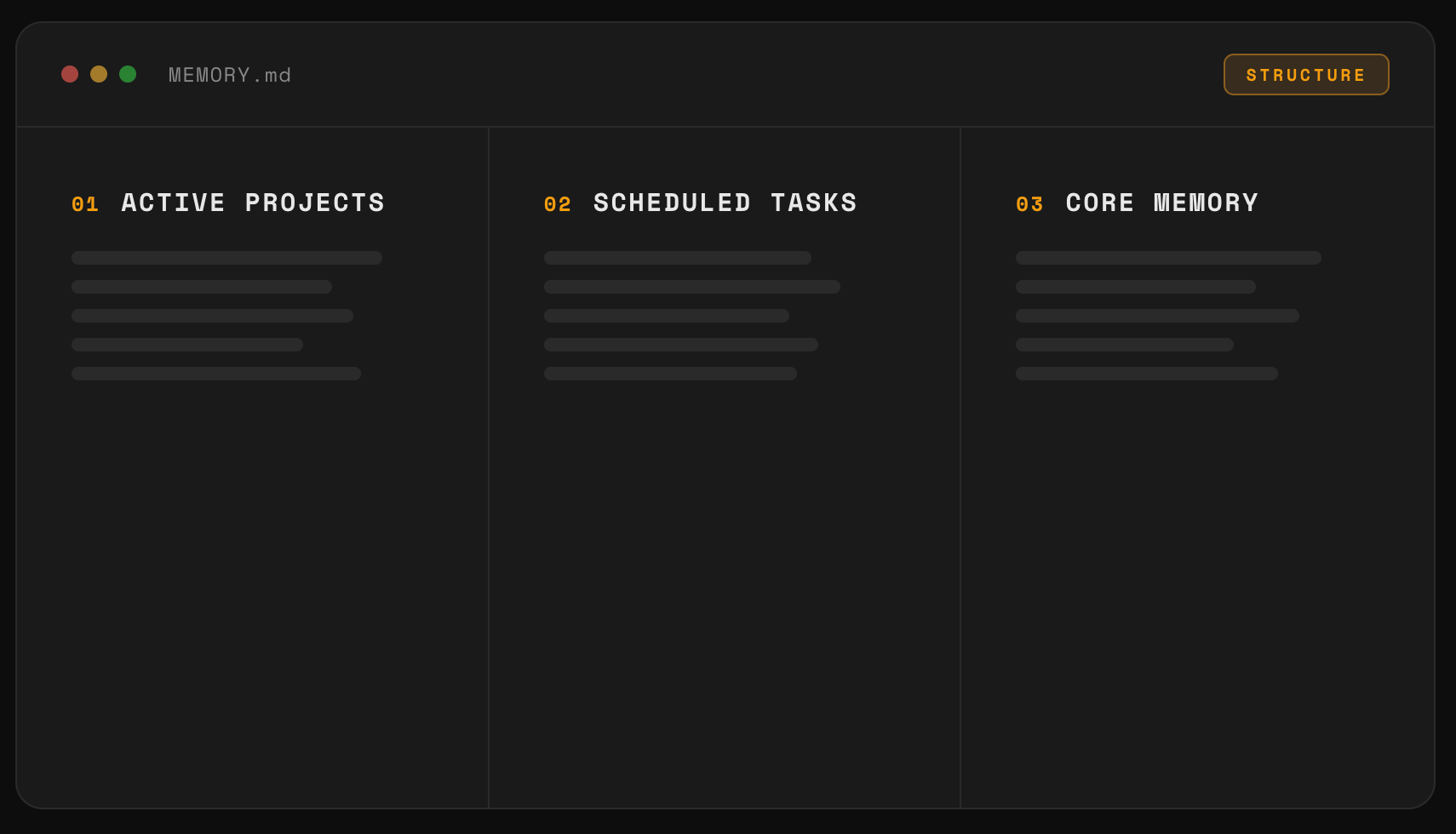
My root MEMORY.md has three sections:
- Active Projects lists everything I'm currently working on with a short status. Cowork knows what's on my plate the second it loads.
- Scheduled Tasks tracks automated recurring jobs so Cowork doesn't accidentally create duplicates or miss that a task already exists.
- Core Memory stores persistent facts about me: my career before YouTube, my LinkedIn URL, business address.
2. Set a hard ceiling
My root CLAUDE.md Memory System section points to a full set of memory rules. Two matter most:
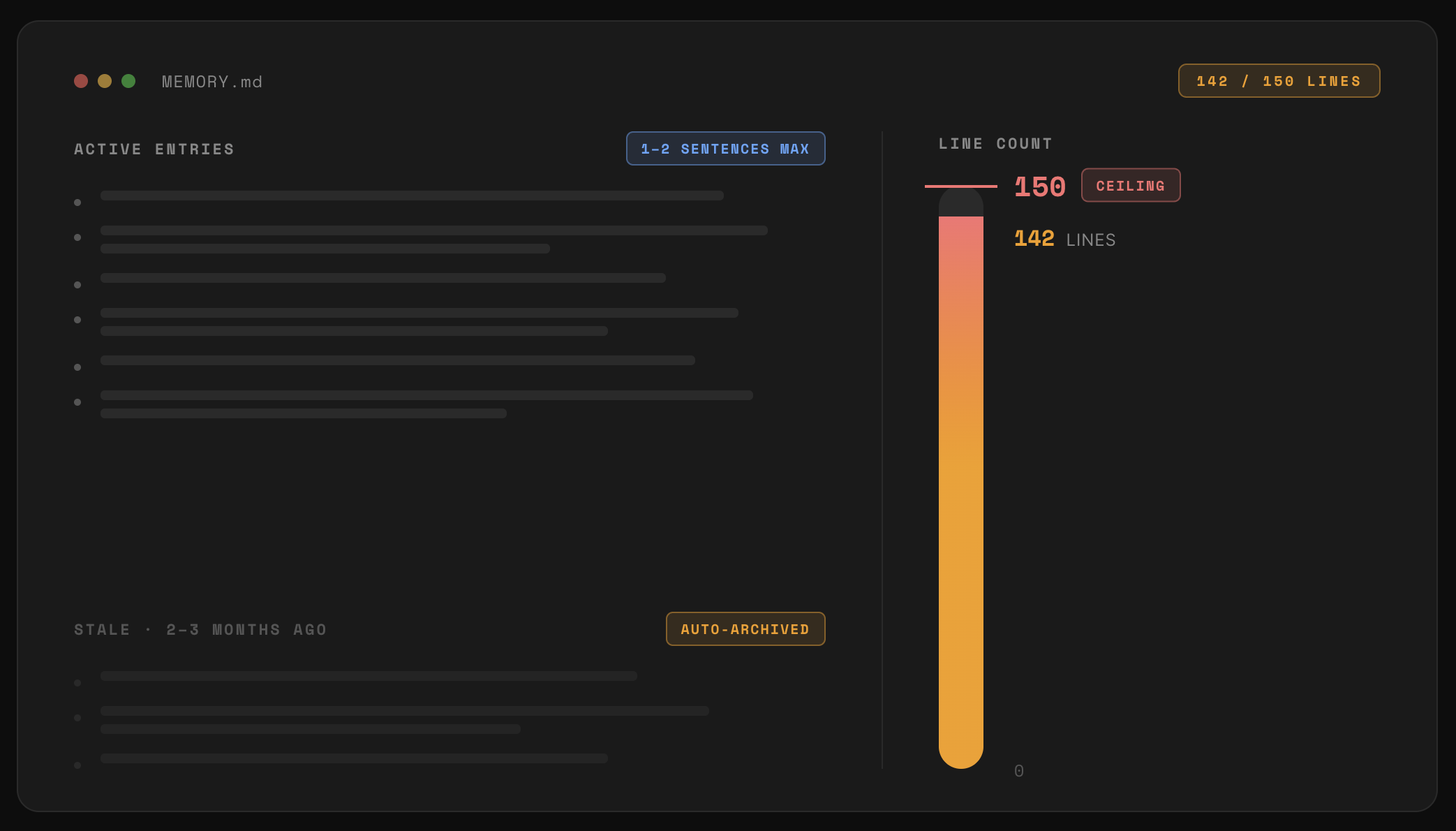
- One to two sentences max for every memory entry. Cowork writes tight entries from day one instead of dumping paragraphs into your memory file.
- Root MEMORY.md: 150-line ceiling. The fix is always compression and archiving, never raising the ceiling.
When you inevitably reach 150 lines, Cowork automatically archives information that's no longer current, like things that happened 2 or 3 months ago.
3. Create an ARCHIVE.md
Here's the analogy: your MEMORY.md is a whiteboard that holds the active projects and key facts you need every day. Your ARCHIVE.md is the filing cabinet, the complete record of everything you've done.
The key insight: Cowork does NOT read ARCHIVE.md every session. But when you ask "what happened with the E list 3 months ago?" it checks the archive and the answer is right there. Because ARCHIVE.md isn't loaded at session start, it has no size ceiling. You can preserve everything without paying any token cost.
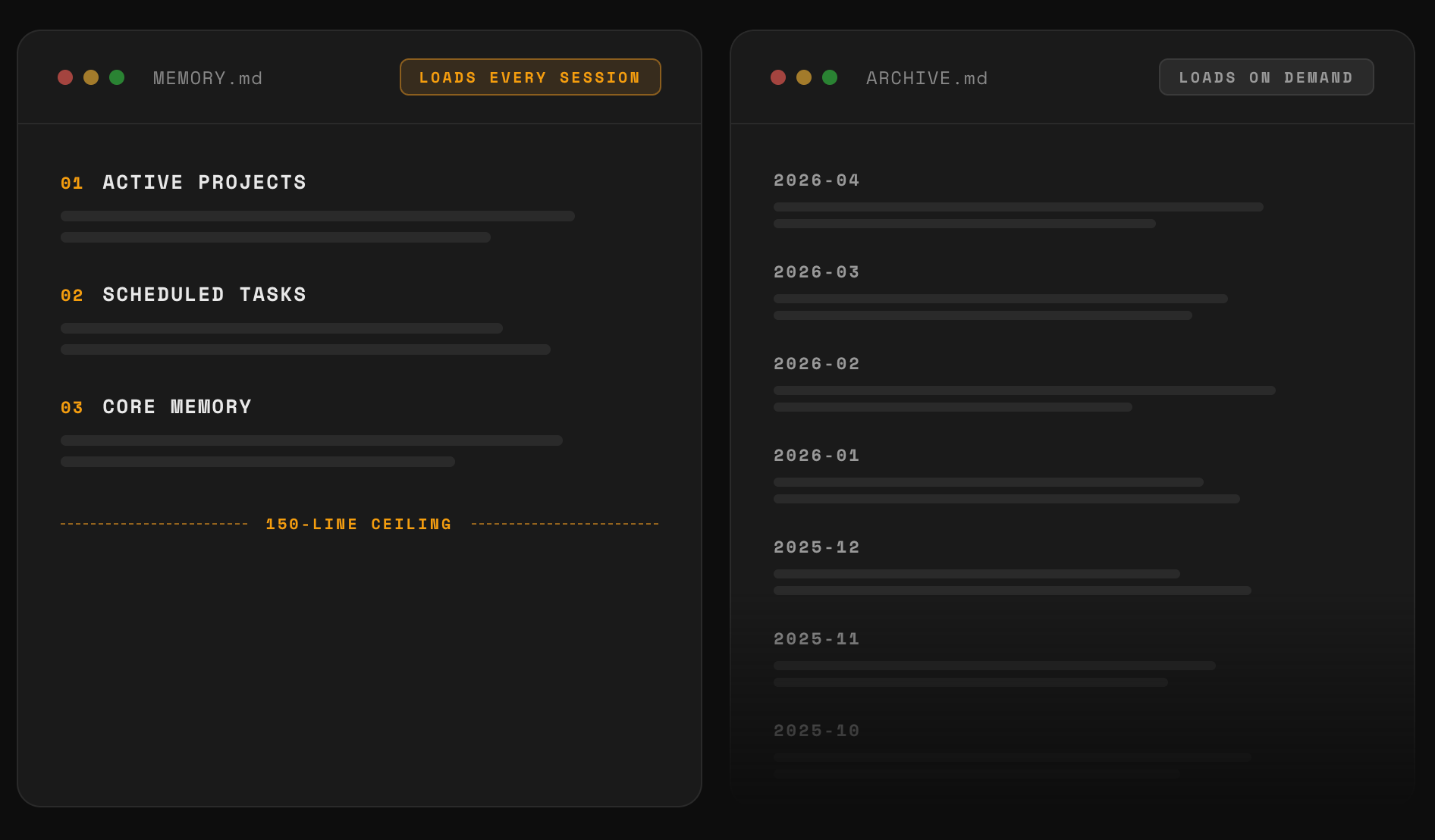
To set this up: grab the ARCHIVE.md prompt from the templates link above and paste it into Cowork. It creates your ARCHIVE.md file, adds the memory rules to your CLAUDE.md, and tells Cowork when to keep entries in MEMORY.md versus when to move them to the archive.
💡
Pro tip: your root MEMORY.md stays lean because each workstation and each project has its own MEMORY.md file.
Tip #4: The Project Transplant
A lot of you asked about the relationship between Claude Projects and Cowork. Long story short, you want to migrate all your Claude Projects into Cowork because Cowork doesn't face the same limitations.
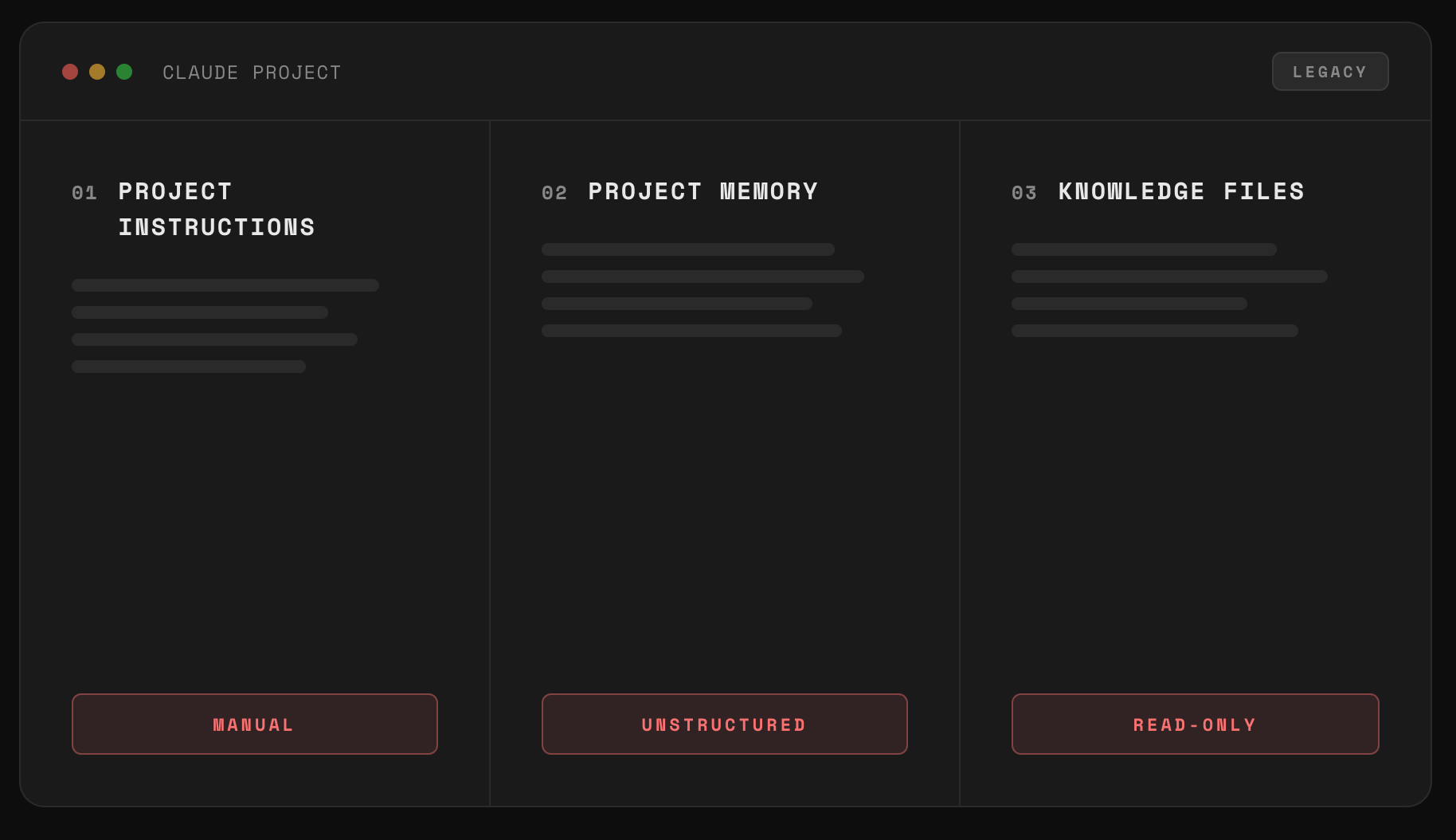
For example, I used to rely on a Claude Project to write my weekly newsletter. The Project had project instructions, a knowledge file, and project memory. Three problems with that setup:
- To update a project instruction, I had to manually click in and type it out.
- Project memory was an AI-generated paragraph I couldn't structure or edit directly.
- I could link a Google Doc of past editions as a knowledge file, but Claude couldn't write to that doc. I had to open it and paste in the content myself.
Migrating to Cowork is simple. The mapping:
- Project Instructions → workstation
CLAUDE.md - Project Memory → workstation
MEMORY.md - Knowledge Files → workstation
Resources/folder
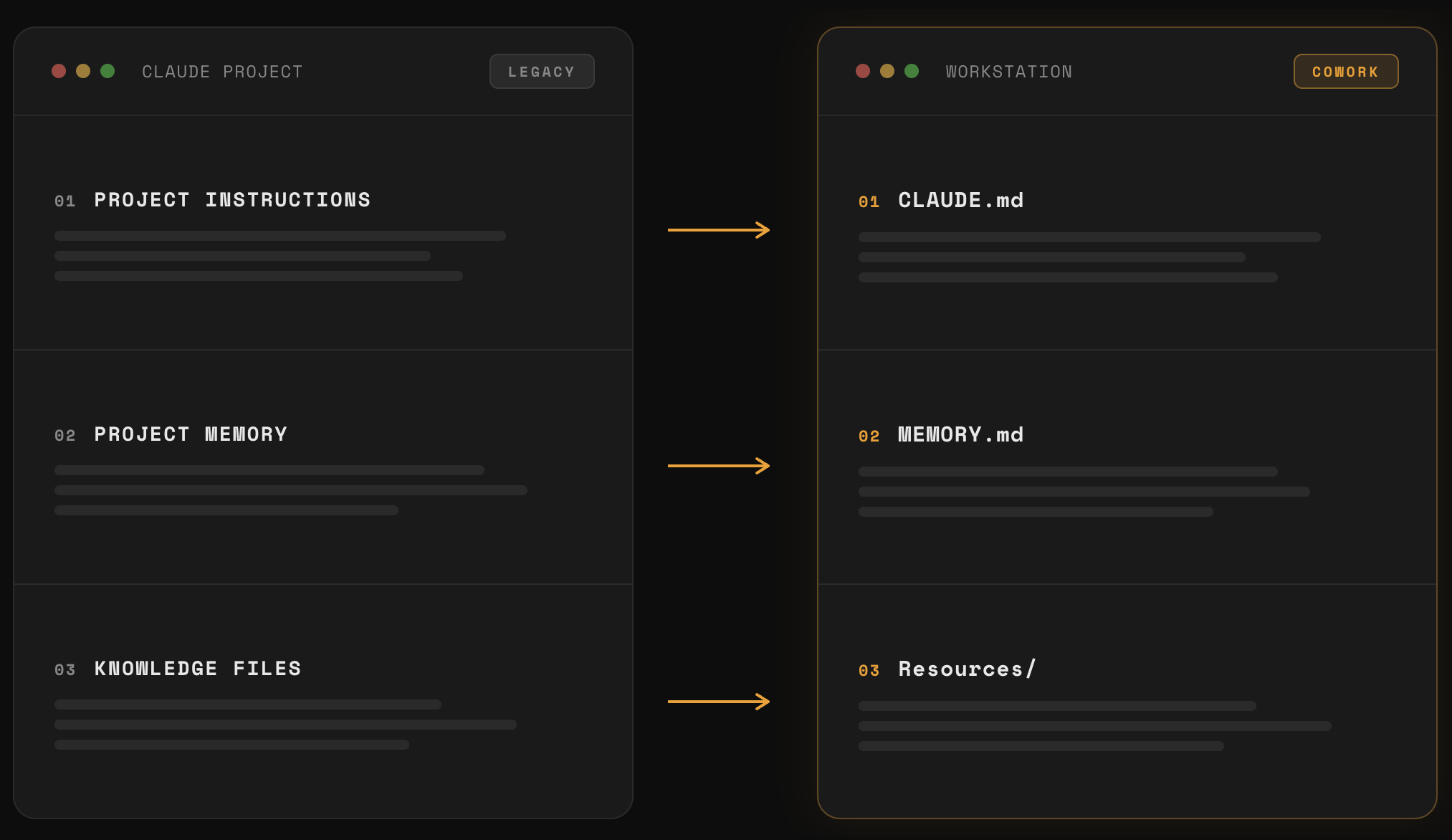
In practice: open a blank document, paste in the project instructions, then the project memory, save it as a .md file, download the Google Doc knowledge file as Markdown, share all of these with Cowork, and run the migration prompt linked above.
Cowork analyzes the reference material, splits it into separate files based on the types of information it finds, and creates three things:
- A workstation CLAUDE.md with the same workflow as the original project instructions.
- A structured MEMORY.md with labeled sections you can actually read and edit.
- A Resources/ folder with the knowledge split into separate, focused files. In my case: one for brand positioning, one for template structure, and one with example editions as voice and style principles.
Tip #5: The Skill Check
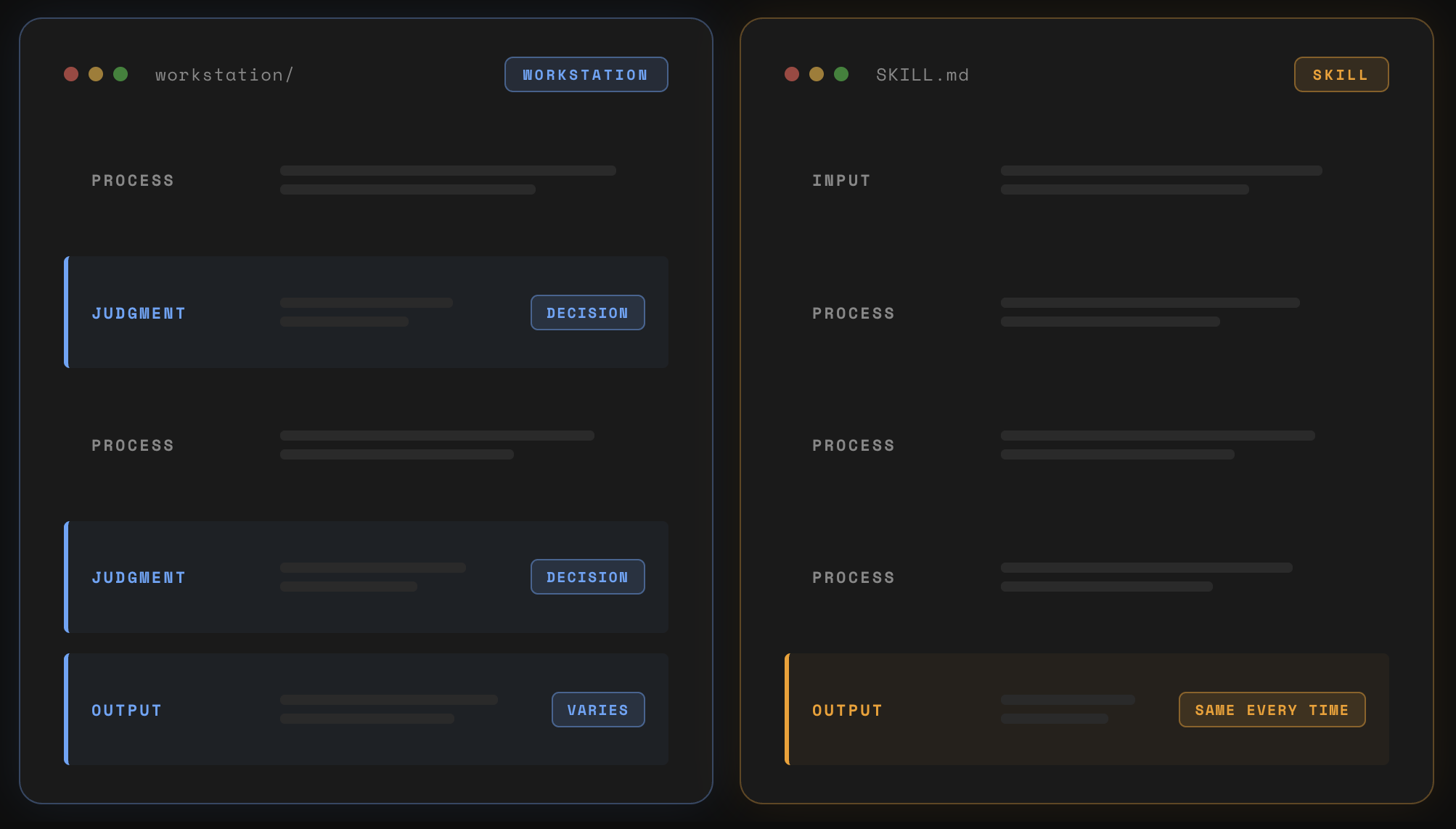
A lot of you asked about the difference between skills and workstations after my last video, so here's the answer in a nutshell:
- If the process requires your judgment along the way, that's a workstation.
- If you already know exactly what the output should look like and you just need Cowork to execute, that's a skill.
If you enjoyed this...
You might also like: Claude Cowork for Beginners: Build Your Own Jarvis