|
AI
Your AI Presentations Look Great (but say nothing)
Hey friends - Your typical AI-generated presentation nowadays looks like this: polished and clean, but pause on any single slide and you realize the content sucks.
Today let’s go through a real workflow that helps you develop analytically sharp slides that’s ALSO visually polished. Let’s get started!
Watch it in action
Resources
- Presentation Outline and Prompts: The full outline and all stakeholder prompts used in this walkthrough, free to copy.
- AI Systems Academy: Join the waitlist for my course on AI workflows and systems thinking.
- Gamma: The AI presentation tool used in this walkthrough.
The Real Problem with AI Presentations
Most AI presentation videos focus on generating the first draft. But anyone who has worked in a corporate environment knows the initial draft is never the hard part.
It’s the multiple rounds of revision, implementing feedback from your manager and stakeholders, that consume eighty percent of your time.
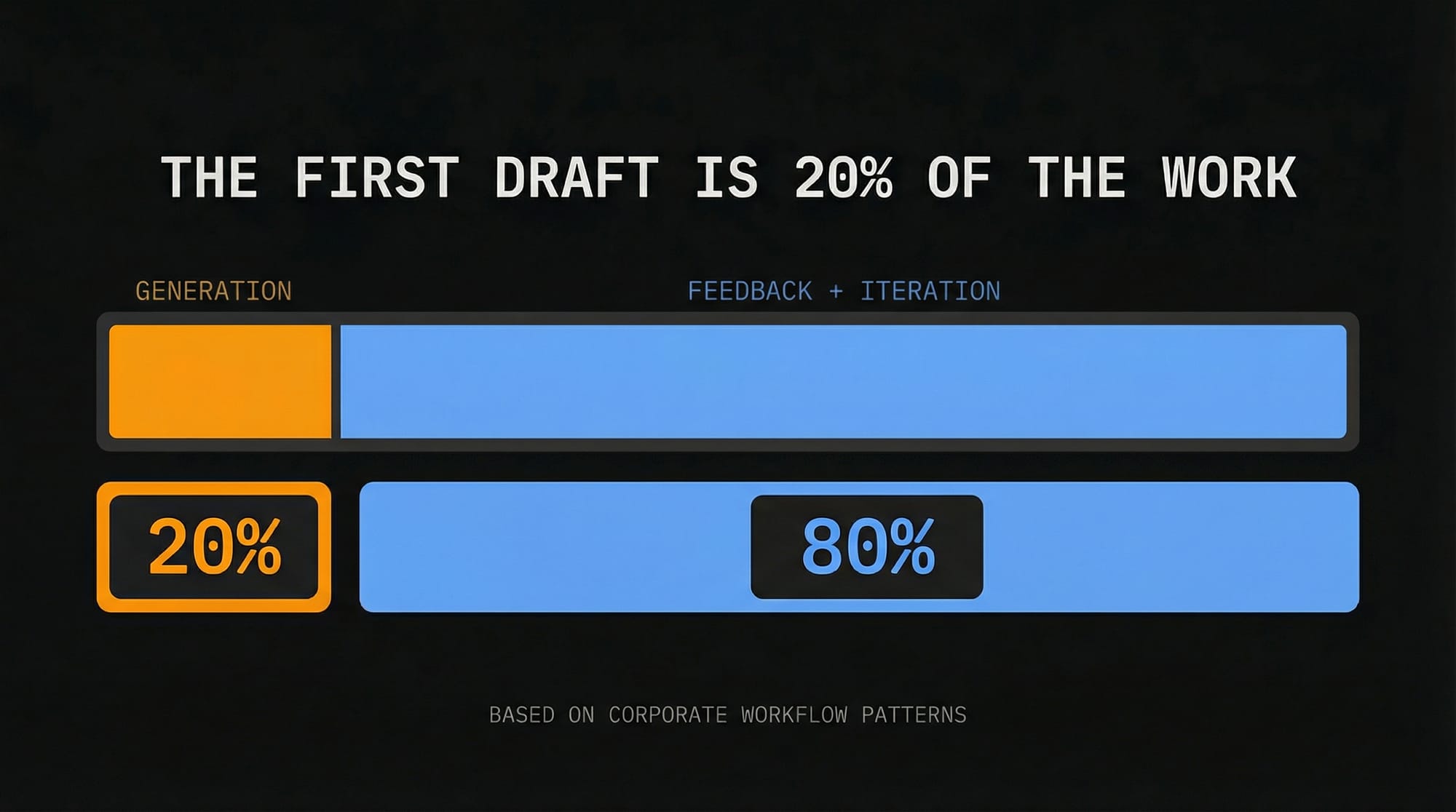
So today we’re going to only lightly touch on generating the first draft and spend most of our time making changes based on realistic stakeholder feedback.
Generating the First Draft
In the interest of time, I have already prepared a presentation outline where we pitch the CEO of Google on partnering with Apple to power Siri with Gemini.
- Note: The scenario is (obviously) fictional but the structure mirrors how corporate strategy decks actually work: executive summary, competitive context, deal structure, financial impact, risk assessment, and next steps.
You will notice the outline has two versions: the original and a Gamma-optimized version. The difference is the Gamma-optimized version uses three dashes to separate each slide, which Gamma recommends. That is the version you want to paste in.
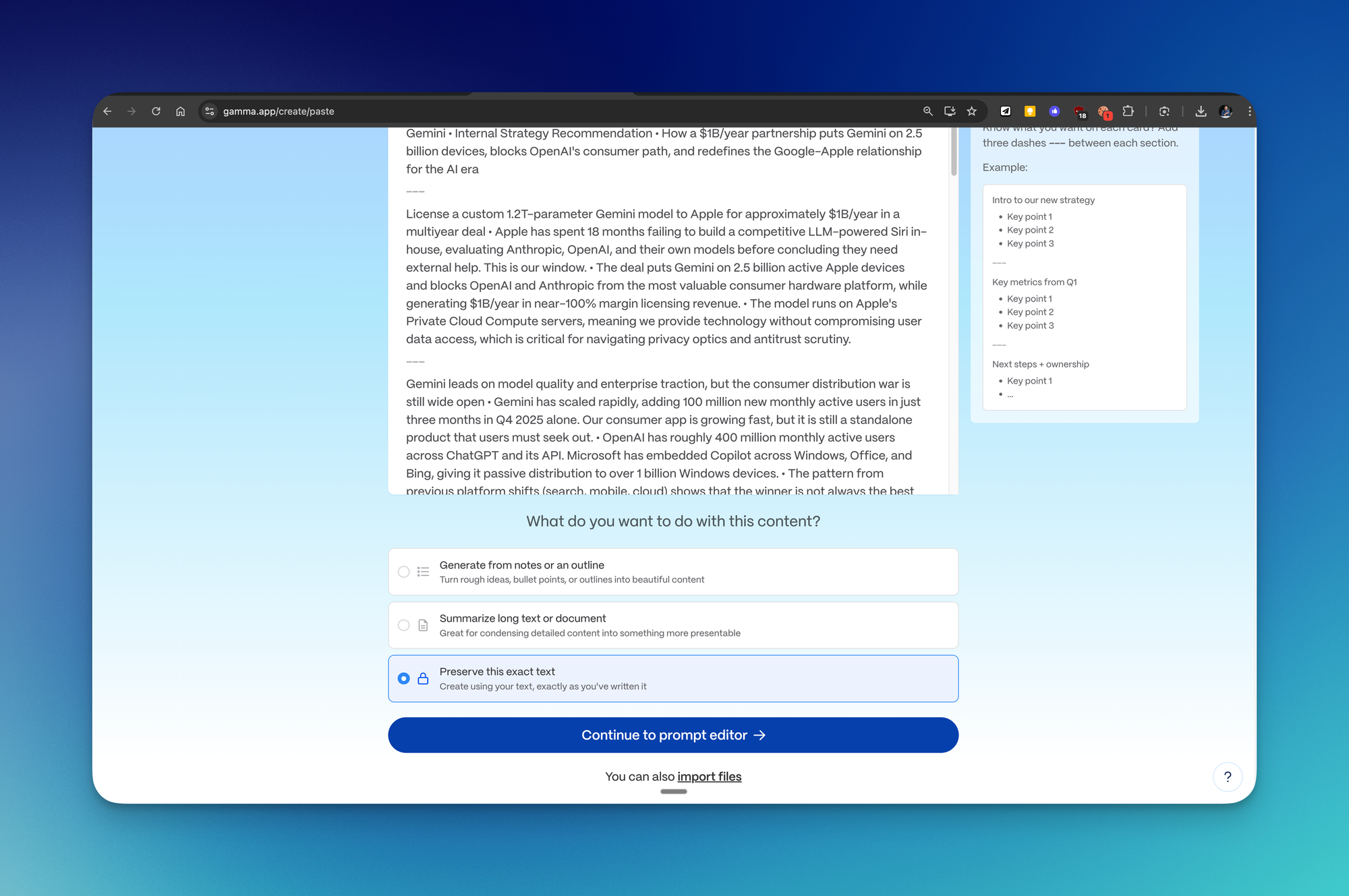
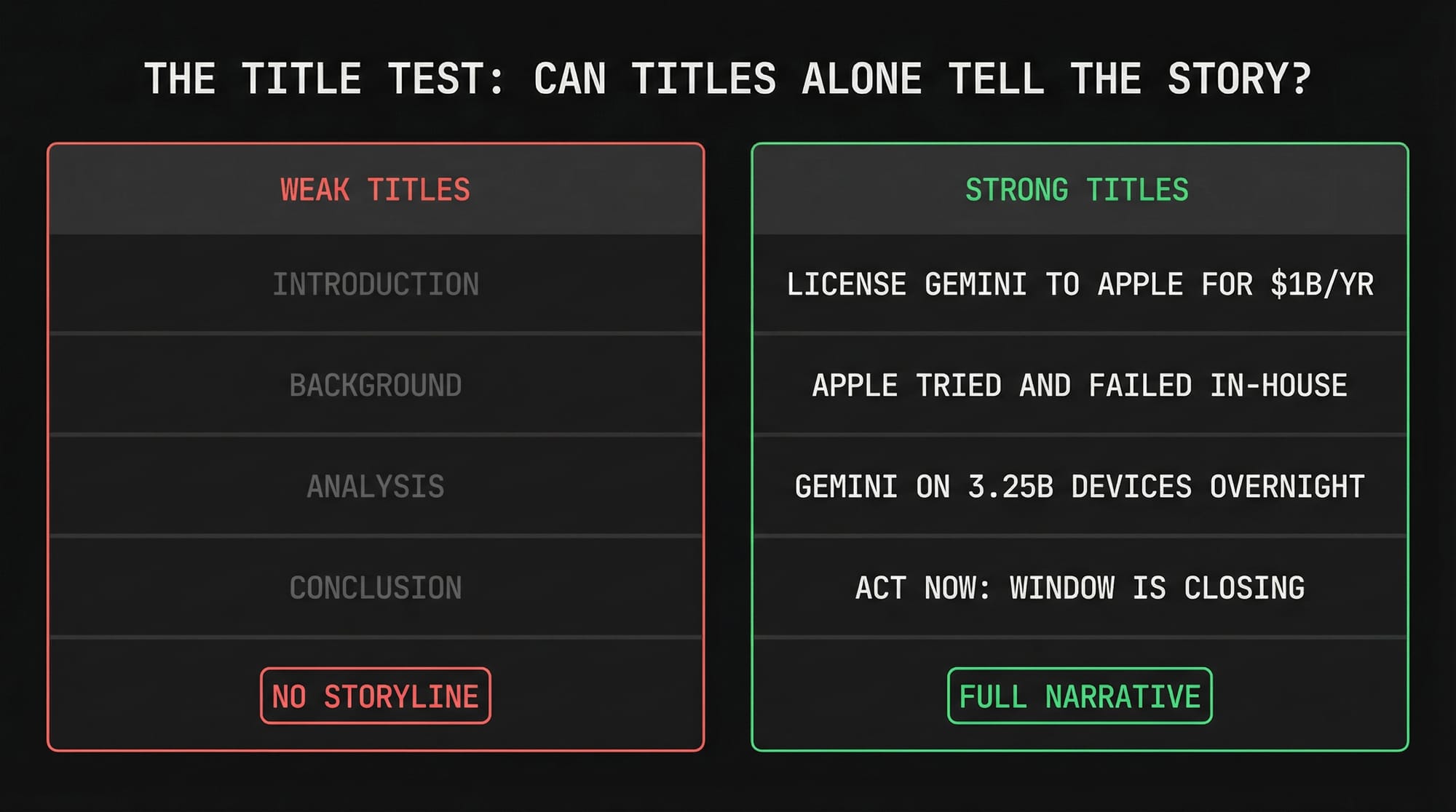
At the bottom, select "Preserve this exact text," which keeps your slide titles unchanged. We chose the Preserve option because we wrote strong titles in the outline, and this option keeps them intact. We can always trim the body text using the Gamma Agent later.
💡
Pro tip: You know your slide titles are good when someone can read through every title in sequence, without the body text, and still understand the full storyline with zero context.
For image source, in a real corporate setting I would select placeholders so I can add internal visuals later, but for this walkthrough we used AI images with the latest Flux Pro model.
Because we selected the Preserve option, the body text on every slide tends to be dense. So that’s why I always like to start with a content cleanup:
- Open the Gamma Agent and prompt it to trim the fat for the body text on all slides.
After every single change the Agent makes, you can choose to keep the modified version or revert back to the original. This gives you a safety net for every edit.
Editing Based on Stakeholder Feedback
This is where things get interesting.
In real corporate environments, multiple stakeholders review a deck before it can be finalized, right? And annoyingly, each person has different concerns, and each request tests a different capability of your AI presentation tool (the audacity of some people 🙄).
Here are seven realistic scenarios based on different stakeholder roles (all prompts are available in the Google Doc linked above).
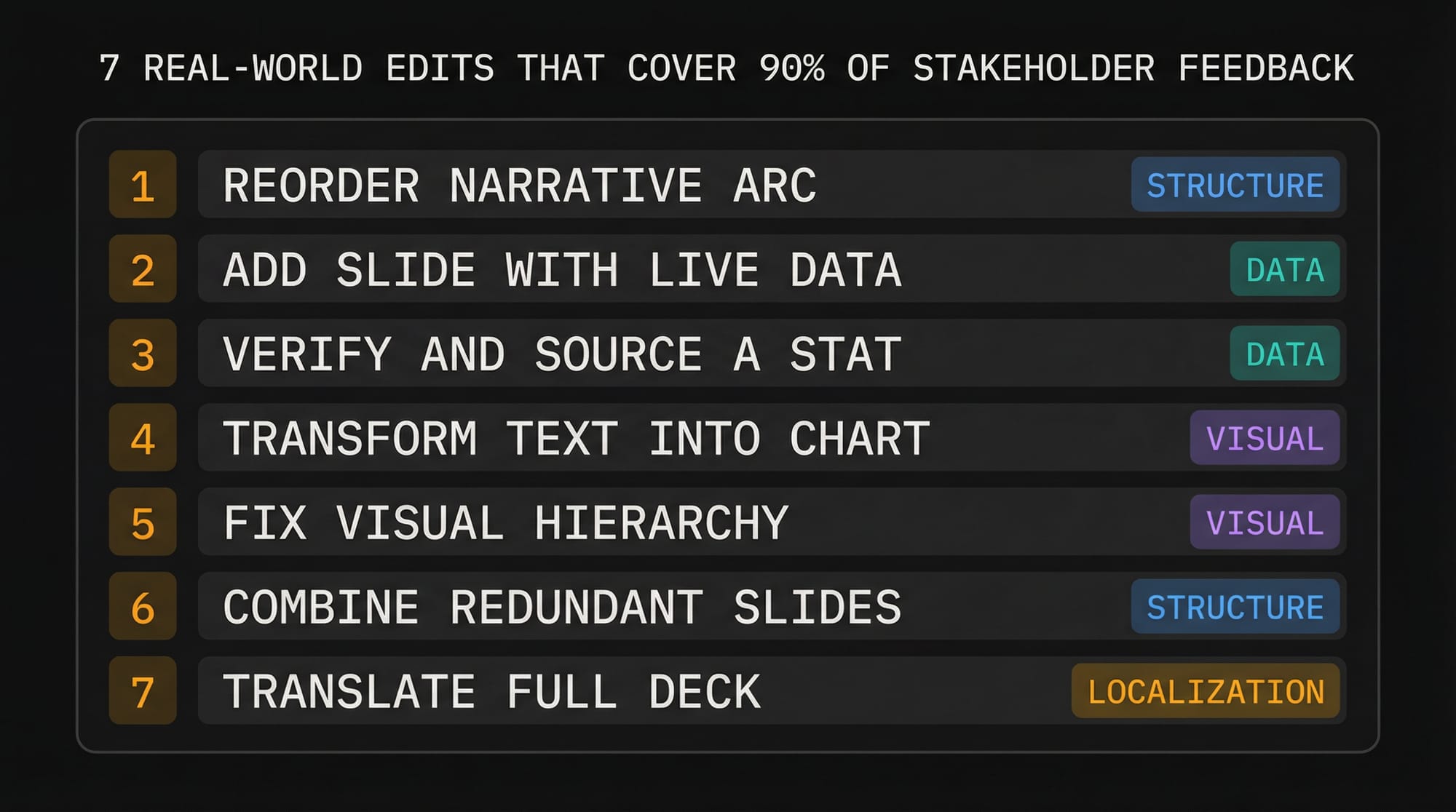
Scenario 1: Reorder the Narrative Arc
The feedback: The General Counsel looks at the deck and says the risk mitigation slide needs to move right after the executive summary. If the regulatory and antitrust hurdles cannot be overcome, the rest of the presentation is pointless.
The fix: Navigate to the risk mitigants slide, open the Gamma Agent, and prompt it to move this slide to right after the executive summary because the audience needs to see risk mitigation immediately after hearing the proposal.
After a few seconds, the slide gets moved. And I totally get that manually moving this slide would have been easier and faster but I wanted to start off easy before moving onto...
Scenario 2: Add a Slide with Live Data
The feedback: The SVP of Platforms and Ecosystems says the deck claims the distribution war is "wide open" but never shows where each player actually stands. We need a new slide with the latest market share breakdown for the frontier AI models so the audience can see the competitive landscape at a glance.
The fix: In the Gamma Agent, tell it to add a new slide after the current one, search the web for the latest market share or monthly active user breakdown of the top five to six frontier AI models (Gemini, ChatGPT, Claude, Copilot, etc.), and present it as a data table.
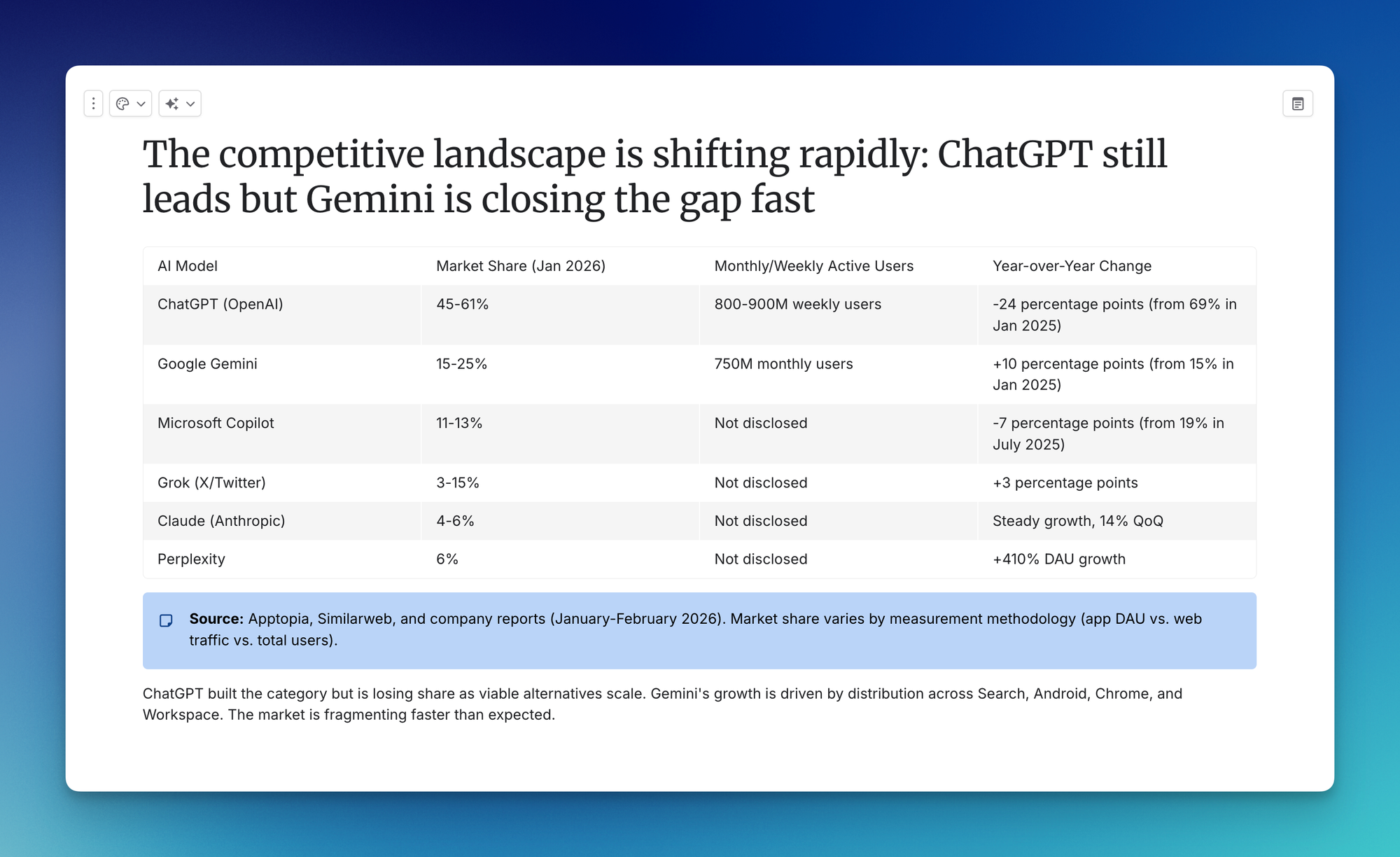
After a few seconds, the Agent searches the web, pulls the breakdown, and adds it as a brand new slide. From there, you can access the Gamma Agent from within the new slide and ask it to add another slide that visualizes this data as a bar chart. A few seconds later, you get a visual chart.
Scenario 3: Verify and Source a Statistic
The feedback: The CFO flags that the "400 million monthly active users" figure for OpenAI is not sourced. Before Sundar quotes this in a board meeting, we need to verify it and add the source as a footnote.
The fix: Select the text directly on the slide. It automatically appears as context in the Agent window, so the Agent knows exactly what you are referring to.
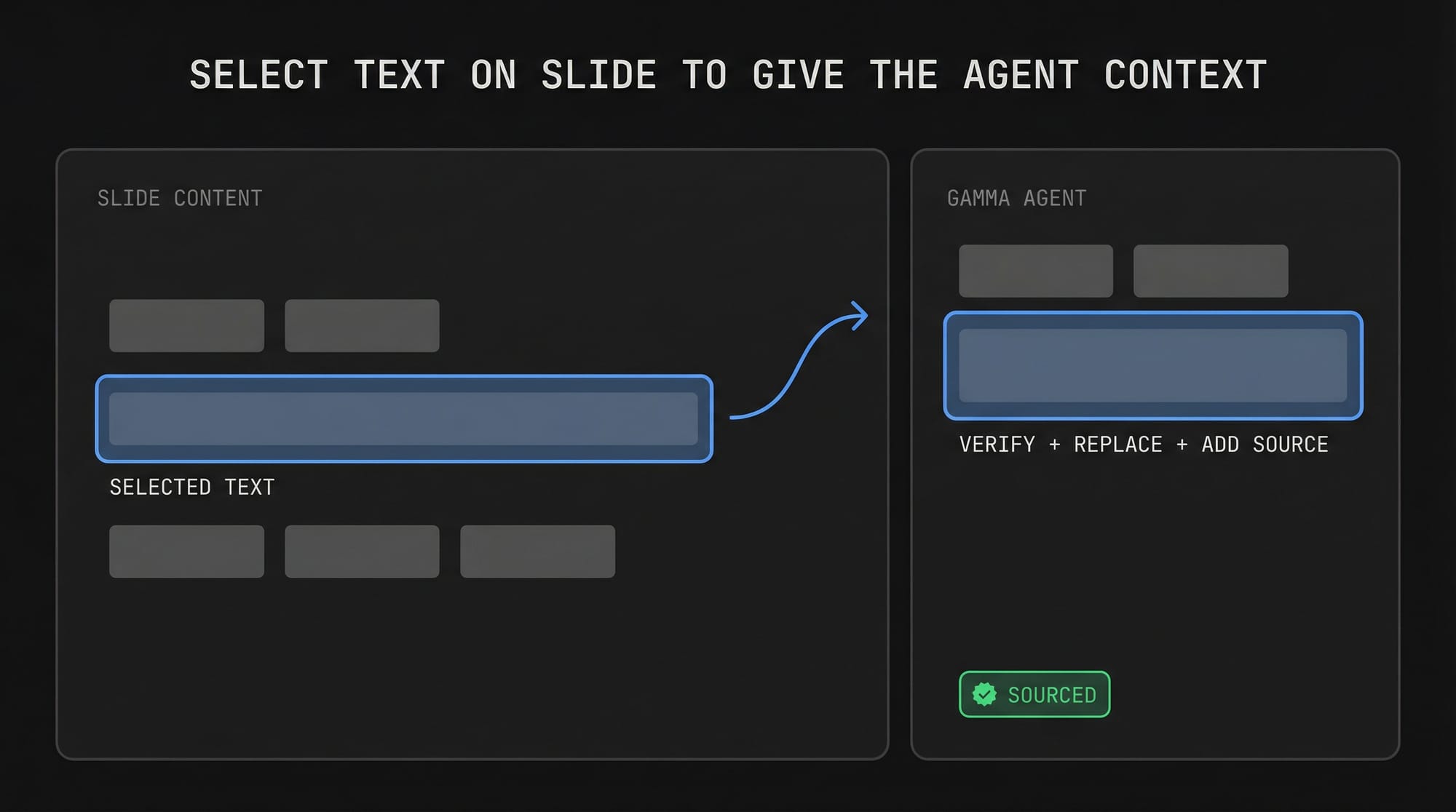
Then tell it to search online for OpenAI's latest officially reported user count, replace the current figure with the correct and sourced number, and add the hyperlinked source as a small footnote.
The Agent updates the number to reflect the latest reported figure and adds the source citation. The slide is now citable.
Scenario 4: Transform Text into a Chart
The feedback: The Chief Business Officer says the distribution impact slide makes a quantitative argument using bullet points. The audience should see the numbers, not read them. Convert it into a chart.
The fix: Tell the Gamma Agent to convert the slide content into a waterfall chart showing Android devices (1.6 billion), iPhone devices (1.65 billion), and the aggregate total showing Gemini will be on approximately 3.25 billion smartphone devices.
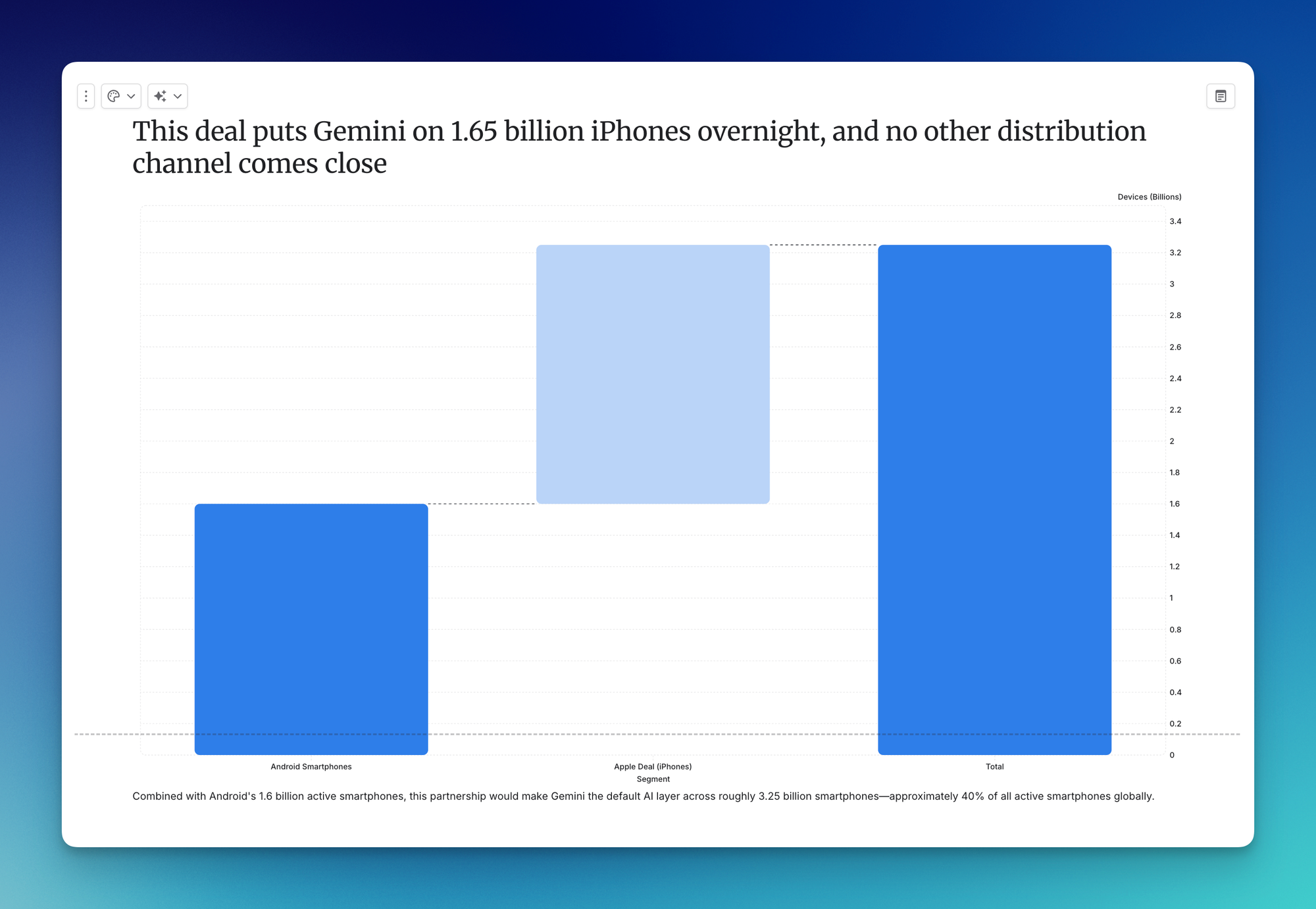
Here is an important caveat: the Agent generated an incorrect total in the chart. It added the numbers wrong. This highlights a real limitation. Gamma's Agent is not great at producing complex visuals with accurate calculations. But it is not a dealbreaker. You can double-click to edit the chart manually and fix the error in seconds.
💡
Rule of thumb: Gamma Agent is designed for speed, not reasoning. It excels at structural edits like reordering slides and adding data, but always double-check calculations and data accuracy in generated charts
Scenario 5: Fix Visual Hierarchy
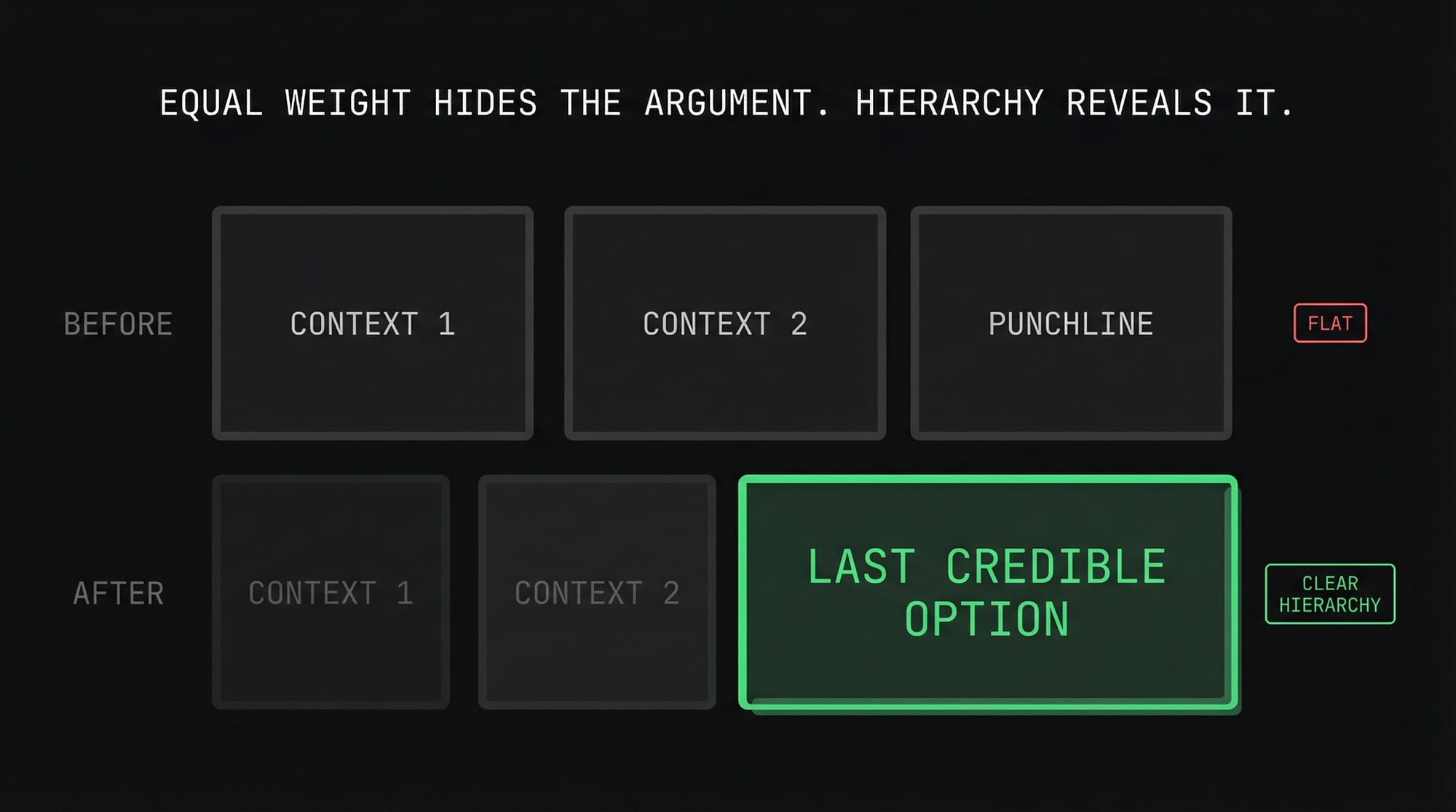
The feedback: The VP of Corporate Development says the "Apple Can't Build This Alone" slide has three columns with equal visual weight, but the argument has a clear hierarchy. Columns 1 and 2 are context. Column 3 is the punchline: competitors are eliminated and Google is the last partner standing. The visual needs to make that obvious.
The fix: Tell the Gamma Agent to make Column 3 visually dominant compared to Columns 1 and 2, so the audience immediately sees that Google is the last credible option. Use color, size, or visual emphasis to create a clear hierarchy.
After a few seconds, the Agent restructures the layout and Column 3 pops compared to the other two.
Scenario 6: Combine Two Slides into One
The feedback: The Chief of Staff to the CEO looks at Slides 11 and 12 and says they are both trying to do the same thing: get the audience to act now. Combine them into one slide with three talking points maximum.
The fix: So this scenario demonstrates why precision matters, let’s break it down step by step:
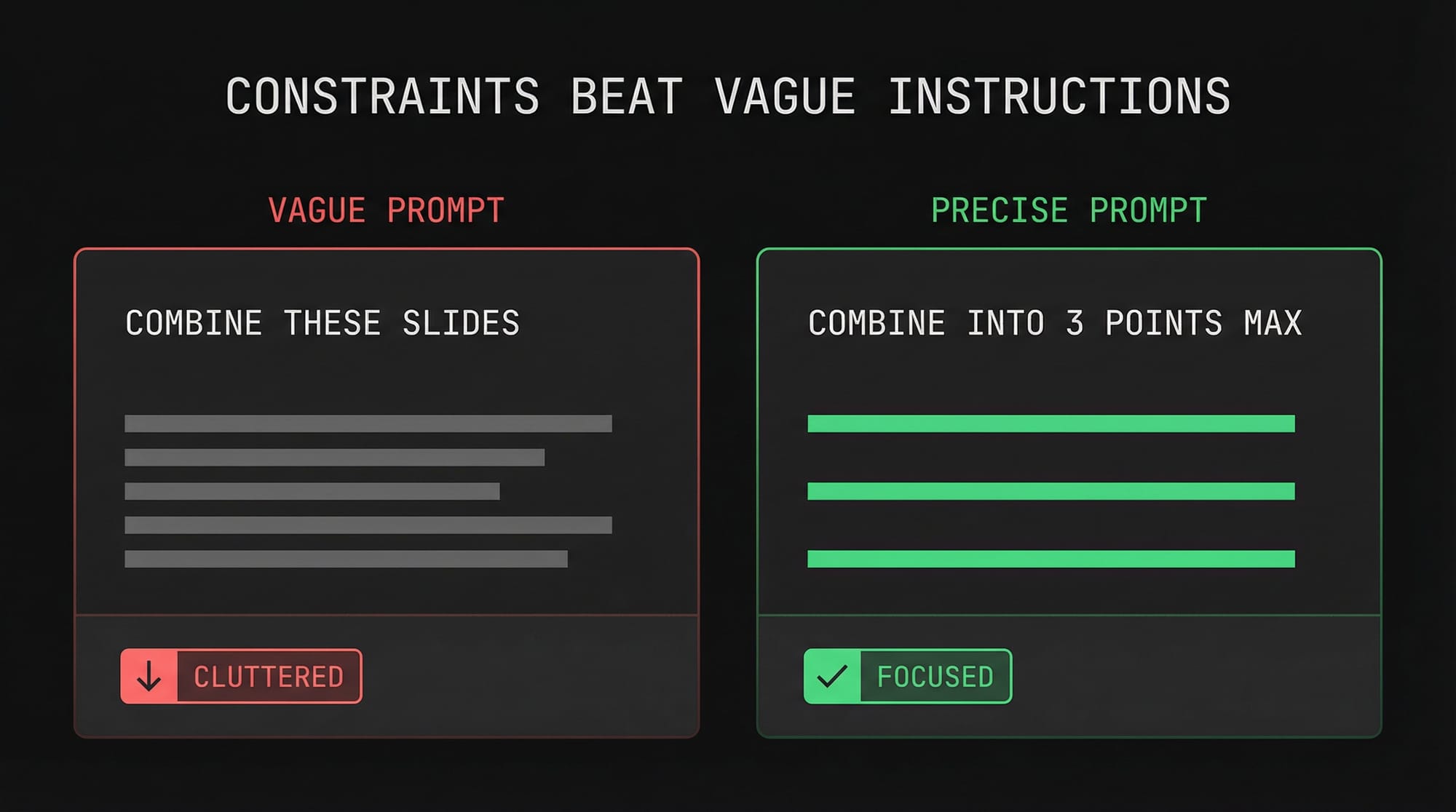
- The first attempt used a simple prompt: "Combine the below slides, since they're both trying to do the same thing." The result was a mess. The Agent crammed everything together without applying any judgment about what to keep and what to cut.
- After reverting to the original, I added one constraint: "Stick with three talking points maximum." The second attempt was significantly better. The Agent combined the content and prioritized the strongest points.
- But the image was still cluttering the slide, so I followed up with: "The combined slide is too dense. Remove the image and optimize spacing." The final result was clean and focused.
💡
Rule of thumb: Give the Agent constraints as well as instructions. "Combine these slides" produces garbage. "Combine these slides into three talking points maximum" is much more effective!
Scenario 7: Translate the Full Deck
The feedback: The head of Google Greater China needs a Simplified Chinese version of the deck for a leadership pre-read. It doesn’t need to be perfect, just clean enough for internal use.
The fix: Gamma has a built-in translation feature in the dropdown menu. Select Translate, choose Simplified Chinese, and after a couple of minutes the entire deck is translated.
Two pro tips:
- Duplicate first. If you translate without duplicating, Gamma overwrites your original deck. Always click the three dots, duplicate the deck, and translate the duplicated deck.
- Polish with a second tool. The translation quality is definitely not perfect so to improve it, download both the English and translated versions as PDFs, upload them into Gemini, and ask it to act as an expert bilingual translator and recommend changes so the translation sounds more natural and coherent.
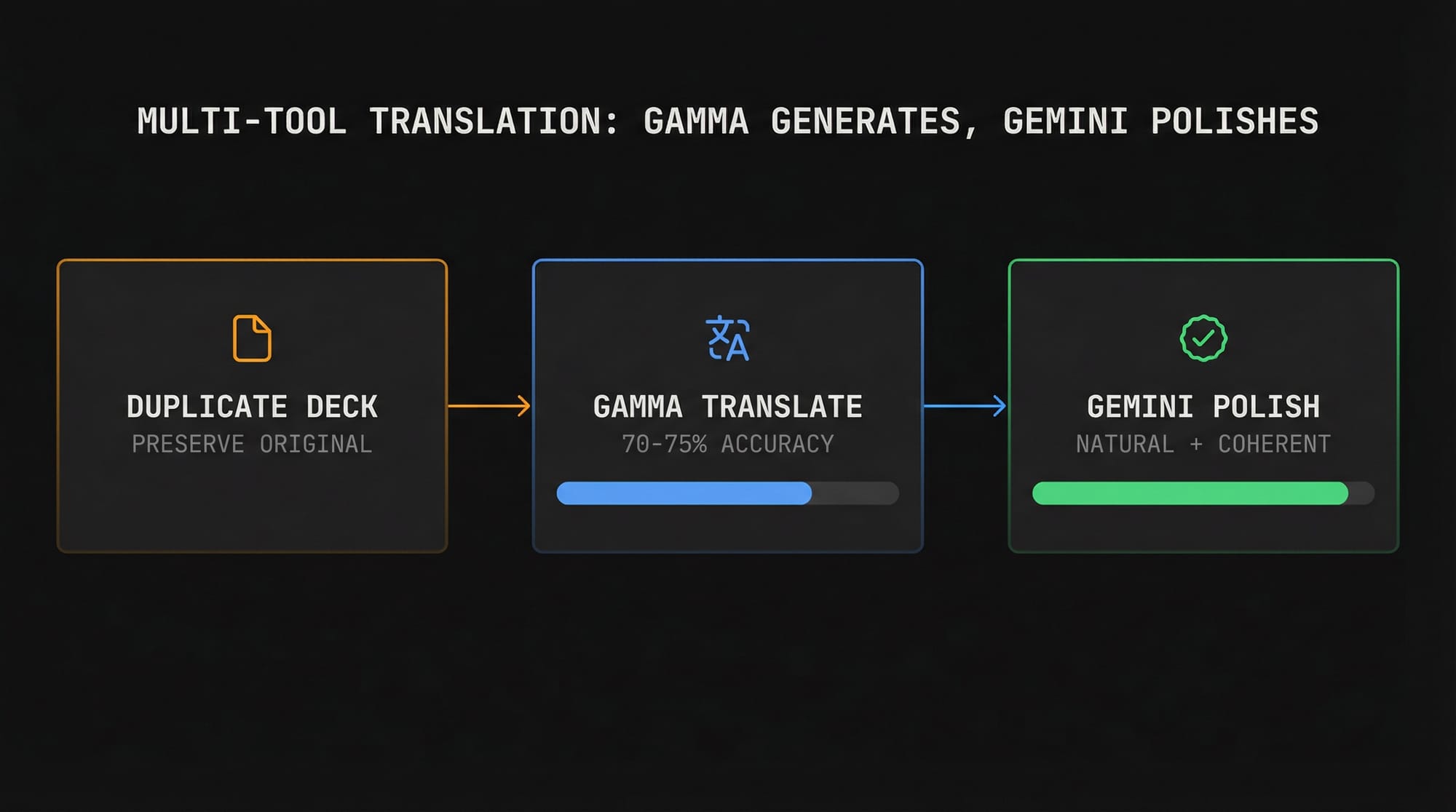
This kind of multi-tool workflow, using the right tool at each step, is the core of effective AI systems thinking.
Pro Tips
#1: Use Gamma for asynchronous sharing
While Gamma is mostly used for presentations, the scroll format works particularly well for pre-reads and debriefs.
- For example: Before a meeting, paste your talking points into Gamma, generate a "presentation," and send the link to your colleagues as a pre-read.
#2: Refine the visual design with a second tool
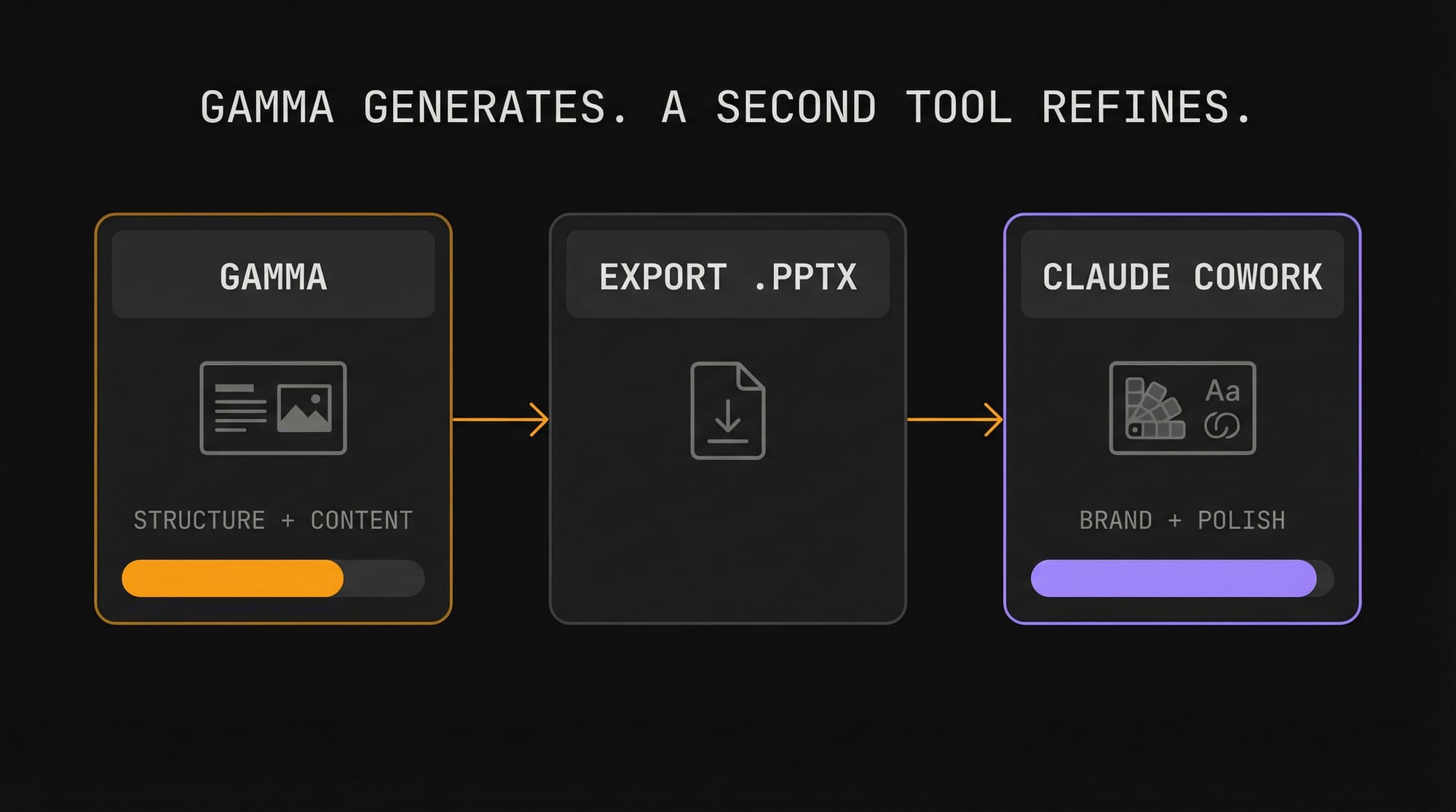
After downloading your Gamma presentation as a PowerPoint, you can use Claude Cowork to visually refine the deck using your own brand guidelines saved locally through the Skills feature. This is out of scope for this walkthrough (let me know if you want a tutorial on this), but it is the natural next step for anyone who needs brand-consistent output.
If you enjoyed this...
You might also like: The 4 Skills I'm Learning that AI Can't Replace