|
Gemini
| #242
Gemini: Turn any PDF into a spreadsheet in 10 seconds
Want to see these tips early? Subscribe to the newsletter!
Hey friends - If you've ever had to manually pull data out of a PDF and into a spreadsheet, you know how tedious it can be.
You basically copy one cell, paste, switch back to the PDF, scroll down, copy the next one... today's tip makes all of that suffering manual work disappear.
Heads up: While this is for paid Gemini users, I’ve included a free workaround at the end.
Extract PDF Data Using Gemini in Google Sheets
Let's say you receive a text-heavy PDF (an invoice, a quarterly report, a vendor contract) and you need the key data in a spreadsheet so you can actually work with it.
Here's how:
- Open a new or existing Google Sheet
- Open the Gemini side panel (look for the Gemini star icon on the right side)
- Prompt Gemini to reference a specific PDF in your Google Drive. Something like: "Create a table summarizing [file name] from my Drive"
- Gemini reads the entire PDF and outputs a structured table directly into your sheet, bucketing similar content together automatically
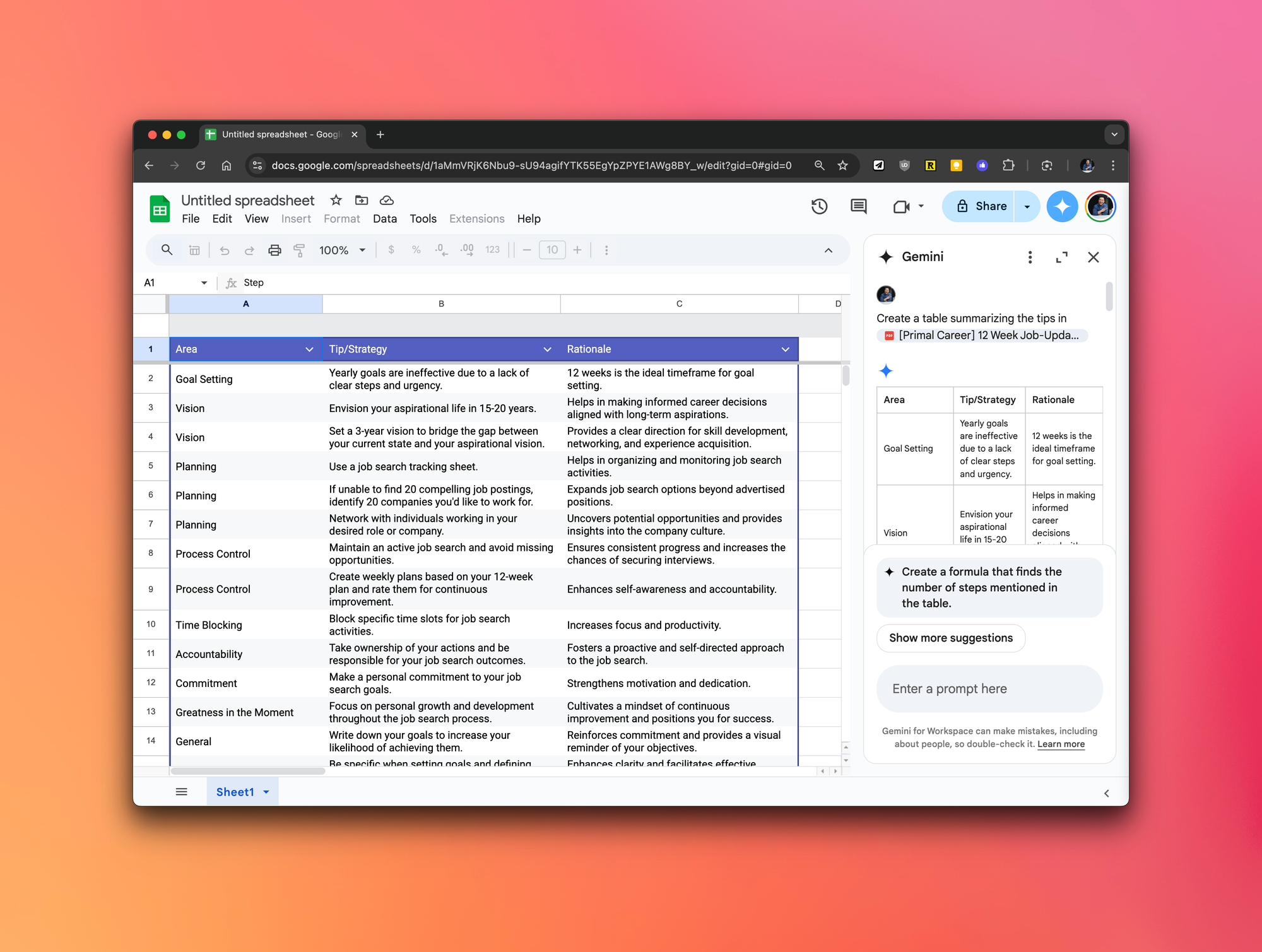
You get the highlights without slogging through a wall of text, and because it's now in Sheets, you can sort, filter, and build on top of it immediately. Try doing that with a PDF (pro tip: you can't).
💡
(Actual) Pro tip: This works with any file in your Google Drive, not just PDFs, so Google Docs, Slides, and even other spreadsheets in Google Sheets are fair game.
Free workaround
So unfortunately this tip requires a paid Google plan. But if you're on a free account, just upload the PDF to Gemini and click "Export to Sheets" to open the table in Google Sheets.
Try this one out this week and let me know how it goes! 😁
Whenever you're ready, here are some other ways I can help you:
💻 The Workspace Academy: Never lose a file, task, or note again with my CORE workflow for Google Workspace. Adopted by over 10,000 Googlers.
✅ Build Your Command Center in Notion: Plug-and-play dashboard that surfaces today’s priorities automatically and organizes your life in seconds. #1 rated Notion Course globally.