|
Google Docs
| #239
Google Docs: 2 features that go beyond writing
Want to see these tips early? Subscribe to the newsletter!
Hey friends - Today I'm sharing 2 Google Docs features that go way beyond writing. Let’s just get started! 😁
Tip #1: Draft Emails Directly in Google Docs
Ok give me five seconds to prove I’m not messing with you here: sometimes you need other people's input before you hit send. Maybe it's a sensitive message to a client, or an announcement that needs sign-off from your (control-freak) manager.
I’m definitely not talking about myself.
Instead of drafting in Gmail → Copying into a Doc or Slack for feedback → Then copying back into Gmail (we've all done this), you can draft the email inside Google Docs from the start.
- Open a Google Doc and type @email draft and press Enter
- A template appears with To, Cc/Bcc, Subject, and Body fields
- Write your email, get comments and suggestions from collaborators
- When it's ready, click the Gmail icon on the left side of the draft
- A Gmail compose window opens with everything pre-populated. Hit Send
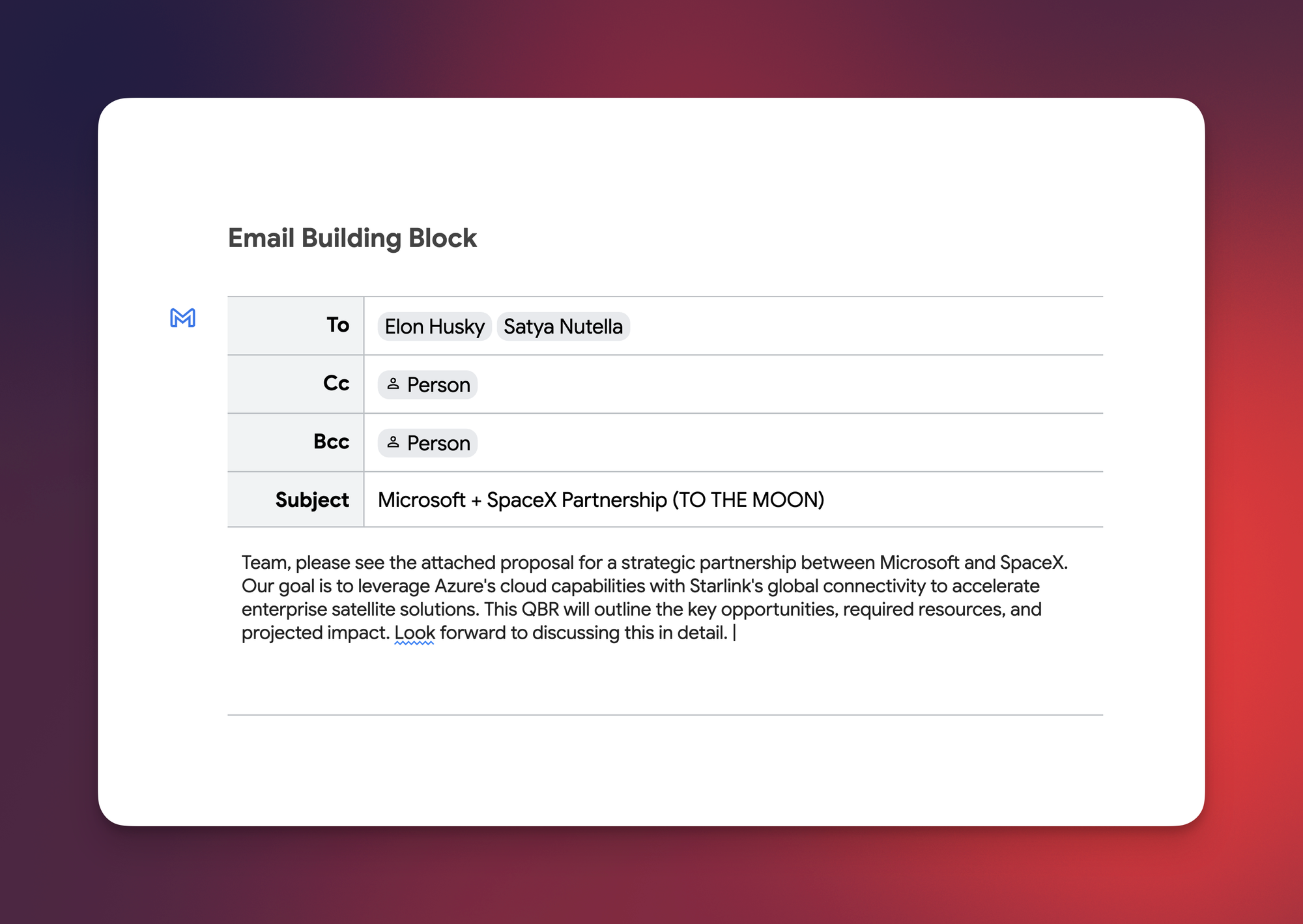
The whole point is that your collaborators can add comments, suggest edits, and review the message before it ever touches Gmail. Once everyone's happy, you port it over in one click!
Tip #2: Turn Off the Notifications
If you own or collaborate on a lot of Google Docs, you've probably noticed Gmail filling up with notifications every time someone adds a comment, even when it has nothing to do with you, like when someone starts talking sh* in a comment chain* (No? Just me? 😛), and you get the email.
No worries though, you can control this on a per-document basis!
From inside Google Docs:
- Click the comment history icon (top right, to the left of the Share button)
- Click the bell icon
- Under Comments, choose: All, Comments for you (only @mentions), or None
- Under Edits, choose whether to be notified when content is added or removed
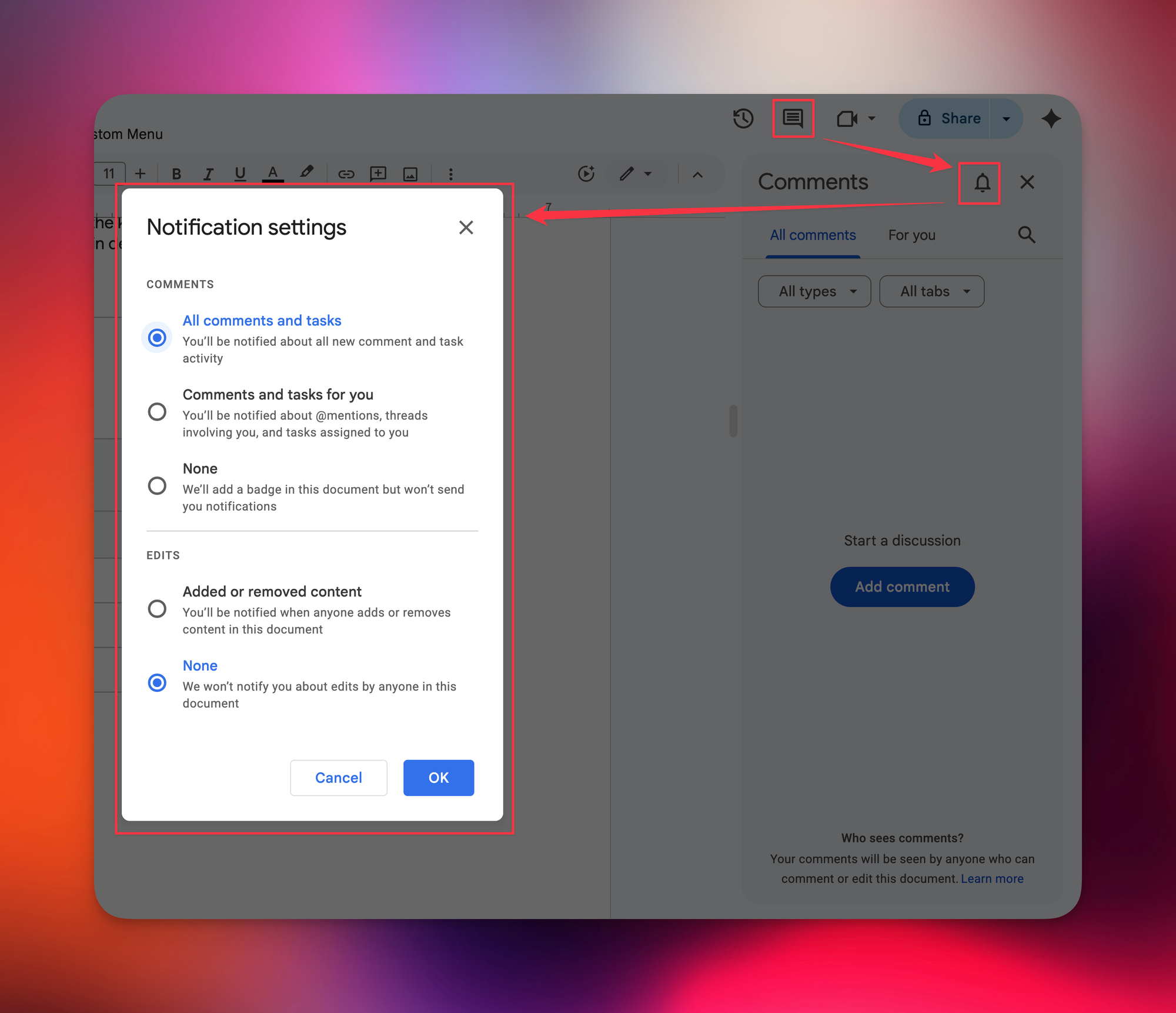
From Gmail (even faster): When you receive a Docs notification email, click the "Notification settings" link right inside that email and adjust from there.
💡
Pro tip: I recommend setting most shared Docs to "Comments for you" so you only hear about stuff that actually needs your attention.
Bonus: My favorite keyboard shortcuts
- CMD/CTRL + Shift + 8 = Insert a bullet point in Google Docs (and Gmail)
- CMD/CTRL + Shift + 9 = Insert a checklist in Google Docs (and Gmail)
- CMD/CTRL + OPT/ALT + Shift + A = Open the comments panel in Google Docs
Try one of these this week and let me know how it goes! 😁
Whenever you're ready, here are some other ways I can help you:
💻 The Workspace Academy: Never lose a file, task, or note again with my CORE workflow for Google Workspace. Adopted by over 10,000 Googlers.
✅ Build Your Command Center in Notion: Plug-and-play dashboard that surfaces today’s priorities automatically and organizes your life in seconds. #1 rated Notion Course globally.