|
Gmail
| #236
Gmail: 3 tricks that even Googlers didn't know
Want to see these tips early? Subscribe to the newsletter!
Hey friends, today I’m sharing 3 extremely underrated Gmail features the average user has probably never heard of (much less use regularly). Each one addresses a specific friction point you've probably just accepted as "how Gmail works." 🤔
⌨️ Quick note: The keyboard shortcuts below require Gmail's keyboard shortcuts to be enabled. So first go to Settings > See all settings > General, set Keyboard shortcuts to on, and hit Save Changes.
Tip 1: Customize Your Snooze Times
Gmail's Snooze presets default to 8AM, 1PM, and 6PM. If those don't match your schedule, they're basically useless. You'd think you could change them somewhere in Gmail's settings, but nope.
Here's what you didn't know: You can customize these times, but only from the Gmail mobile app (classic Google move).
- Open the Gmail app on your phone (iOS or Android)
- Tap the hamburger menu (top left) > Settings
- Tap Inbox Customizations > Snooze Settings
- Change the Morning, Afternoon, and Evening times to whatever works for you
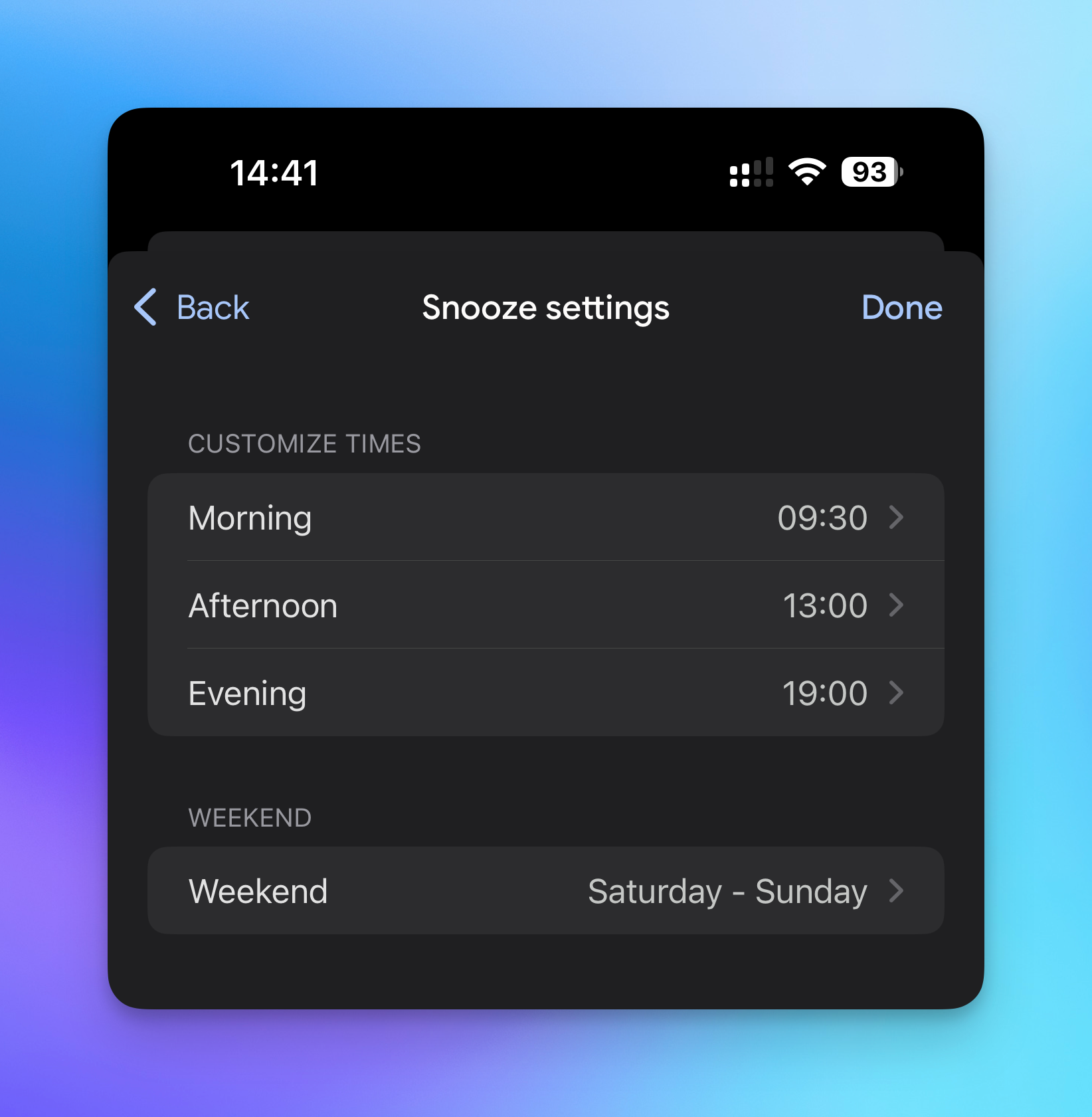
I have mine set to 9:30AM, 1:00PM, and 7PM because those align with when I actually sit down to process email. Once you save, these times sync to Gmail on the web too.
💡
Keyboard shortcut: Press B while viewing or selecting an email to open the Snooze menu instantly.
Tip 2: Set a Custom Status to Actually Stop Interruptions
You know about "Do Not Disturb" and "Away" in Gmail and Google Chat. But there's a third option most people scroll right past: custom statuses.
- In Gmail or Google Chat, find your status indicator (top right, next to your profile)
- Click the dropdown arrow
- Select "Add a status"
- Type your message and pick an emoji (I like 🎧 "Focused Work" or ☕ "Back at 2pm")
- Set an expiration time so you don't forget to clear it
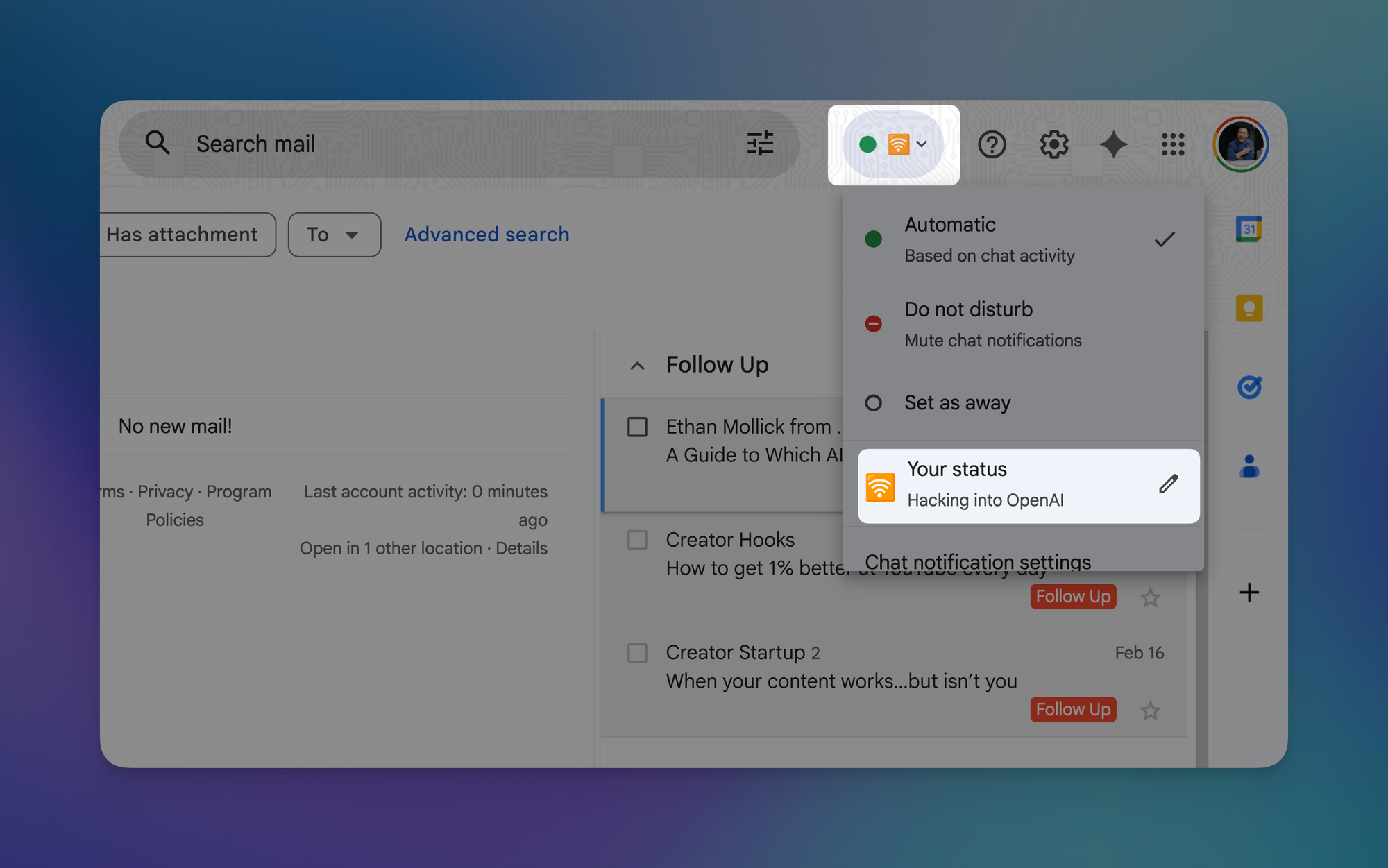
This does two things: it signals to coworkers that you're heads-down, and it gives them a timeline so they're not wondering if you fell off the earth.
💡
Pro tip: If your organization uses Google Workspace, your Calendar status (like "In a meeting" or "Out of office") now automatically syncs to your Chat status. So if you've already blocked focus time on your calendar, your colleagues will see it without you lifting a finger.
Tip 3: Mute Email Threads (and Find Them Later)
If you're anything like me, you sometimes get looped into long email threads where everyone loves hitting "Reply All." (If my former Google colleagues are reading this, I'm...clearly not talking about you ❤️)
Rather than letting these threads clutter your inbox until they die out, you can mute them:
- Open the thread (or select it from your inbox)
- Click the three dots menu > Mute (or just press the keyboard shortcut M)
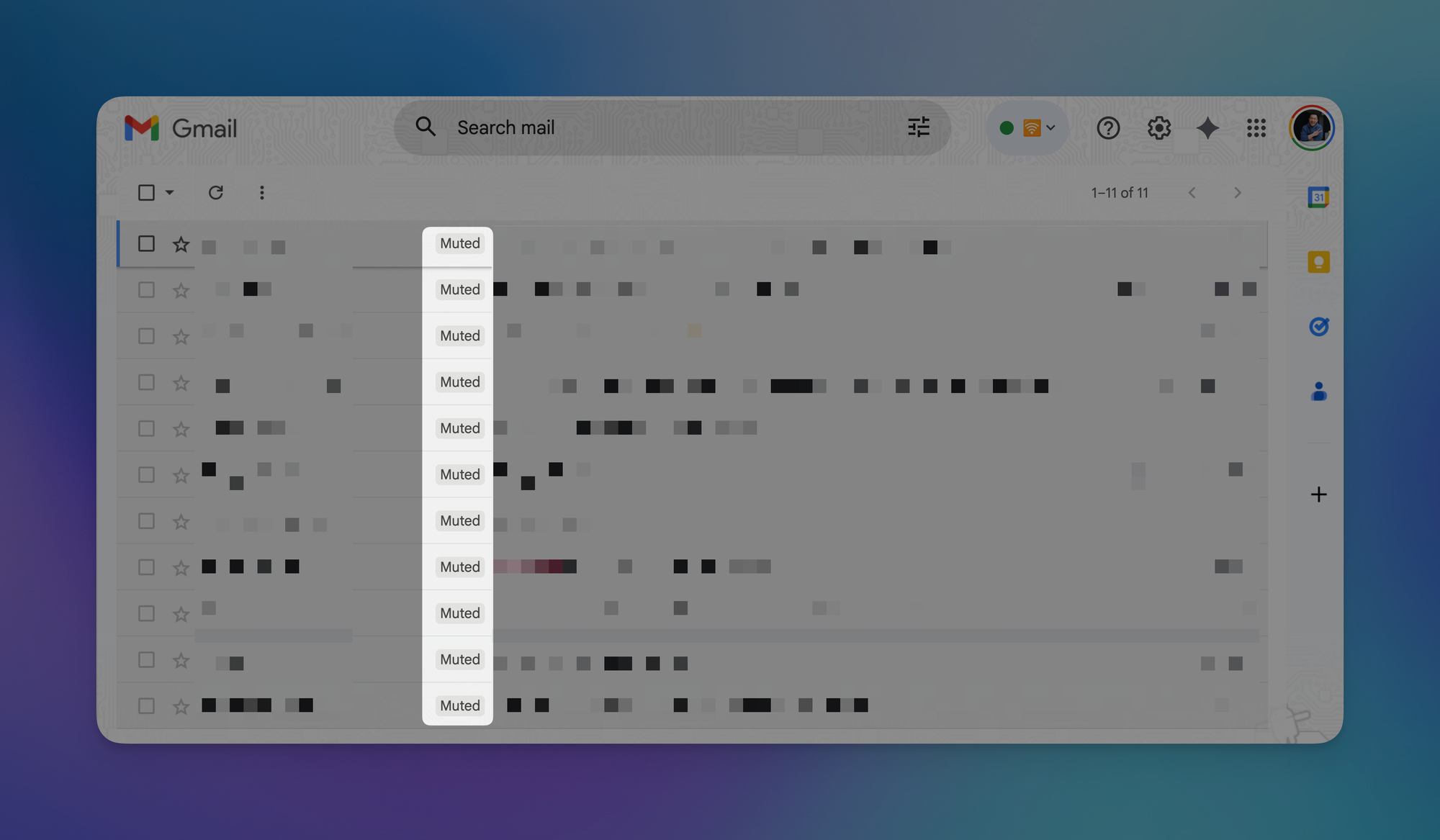
Muted threads disappear from your inbox. New replies get automatically archived unless your email address is moved directly to the To or Cc field, so you won't miss anything actually directed at you.
The part most people don't know: you can find all your muted threads anytime by typing is:muted in the Gmail search bar.
💡
Pro tip: To unmute a thread, find it via
is:muted, open it, and click the three dots > Unmute. Or just click the X on the "Muted" label.Try one this week and let me know how it goes! 😁
Whenever you're ready, here are some other ways I can help you:
💻 The Workspace Academy: Never lose a file, task, or note again with my CORE workflow for Google Workspace. Adopted by over 10,000 Googlers.
✅ Build Your Command Center in Notion: Plug-and-play dashboard that surfaces today’s priorities automatically and organizes your life in seconds. #1 rated Notion Course globally.