|
Chrome
| #235
Google Chrome: 3 tips that won me $100 in bets
Want to see these tips early? Subscribe to the newsletter!
Hey friends - Fun fact: When I was at Google, I actually won quite a few bets telling my colleagues I could share (useful) features they didn’t know existed in Chrome.
Today I'm sharing 3 Chrome features that won me a combined total of ~100 USD (hey that’s nothing to scoff at) that also addresses the three biggest browser frustrations: too many windows, lost pages, and buried history.
Feature 1: Name Your Chrome Windows
If you're anything like me, you have at least two Chrome windows open at all times. One is my "home base" with pinned tabs (Gmail, Calendar, Drive). The other is my focused work window with whatever I'm actively researching or writing.
Here’s what you (probably) didn’t know: You can name your Chrome windows, and the name sticks until you close them.
- Right-click any empty space on your tab bar
- Select "Name window..."
- Type a name like "Work" or "Research"
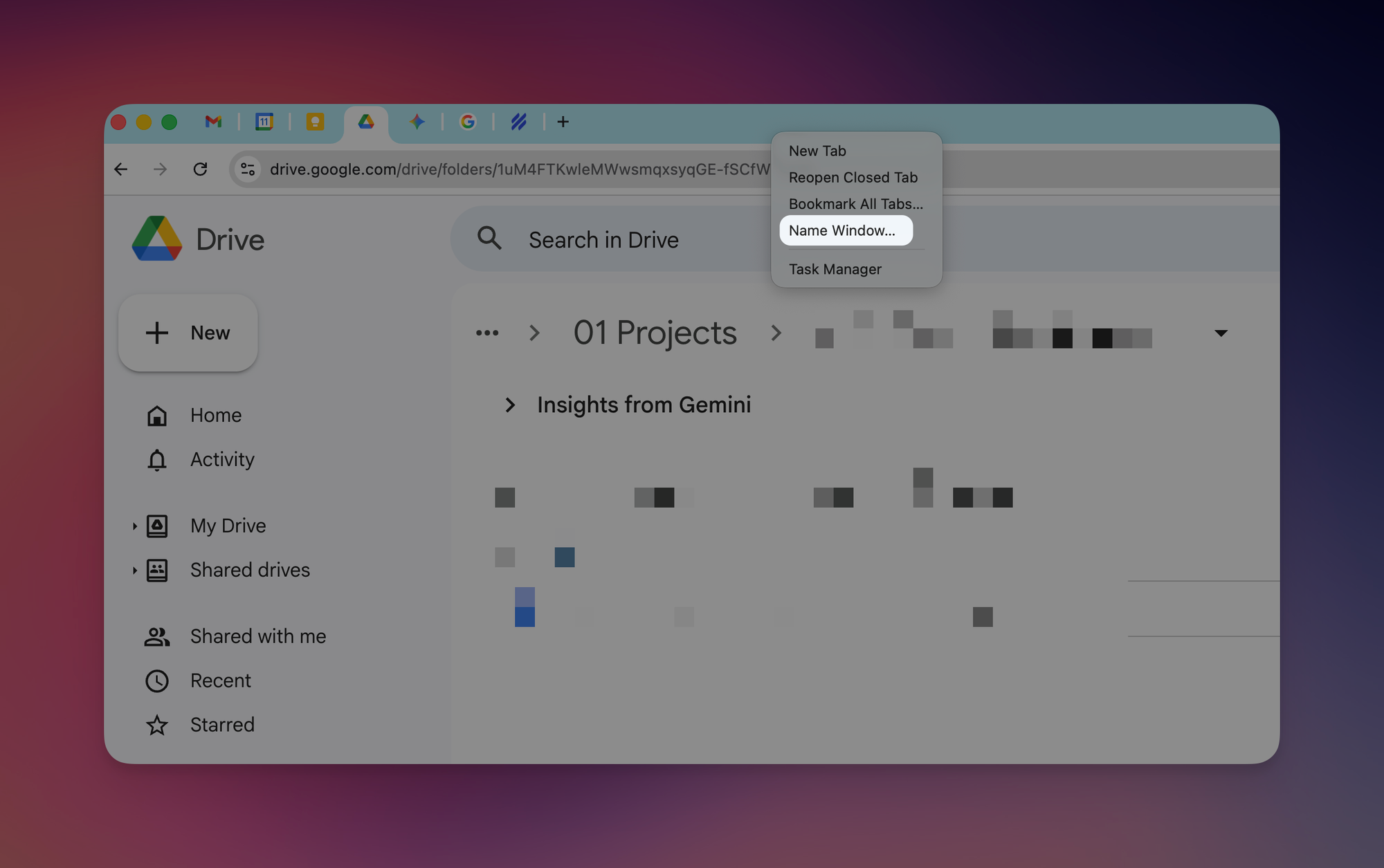
That's it. Now when you're switching between minimized windows or using ALT+TAB, you'll see your custom name instead of a random tab title. You can also right-click a tab and select "Move to another window" and your named windows will appear in the list, making it dead simple to reorganize tabs on the fly.
💡
Pro tip: This also works in Microsoft Edge and other Chromium-based browsers. If your team uses Edge, they can do the exact same thing.
Feature 2: Filter History by Website
Let’s say you visited an article on a specific site a few days ago, and now you can't find it. You remember the website, but not the page title. Scrolling through your full browser history is kinda annoying.
The fix: Chrome lets you filter your history by domain.
- Open Chrome History (Mac: CMD + Y / Windows: CTRL + H)
- Find any entry from the site you're looking for
- Click the three dots next to that entry
- Select "More from this site"
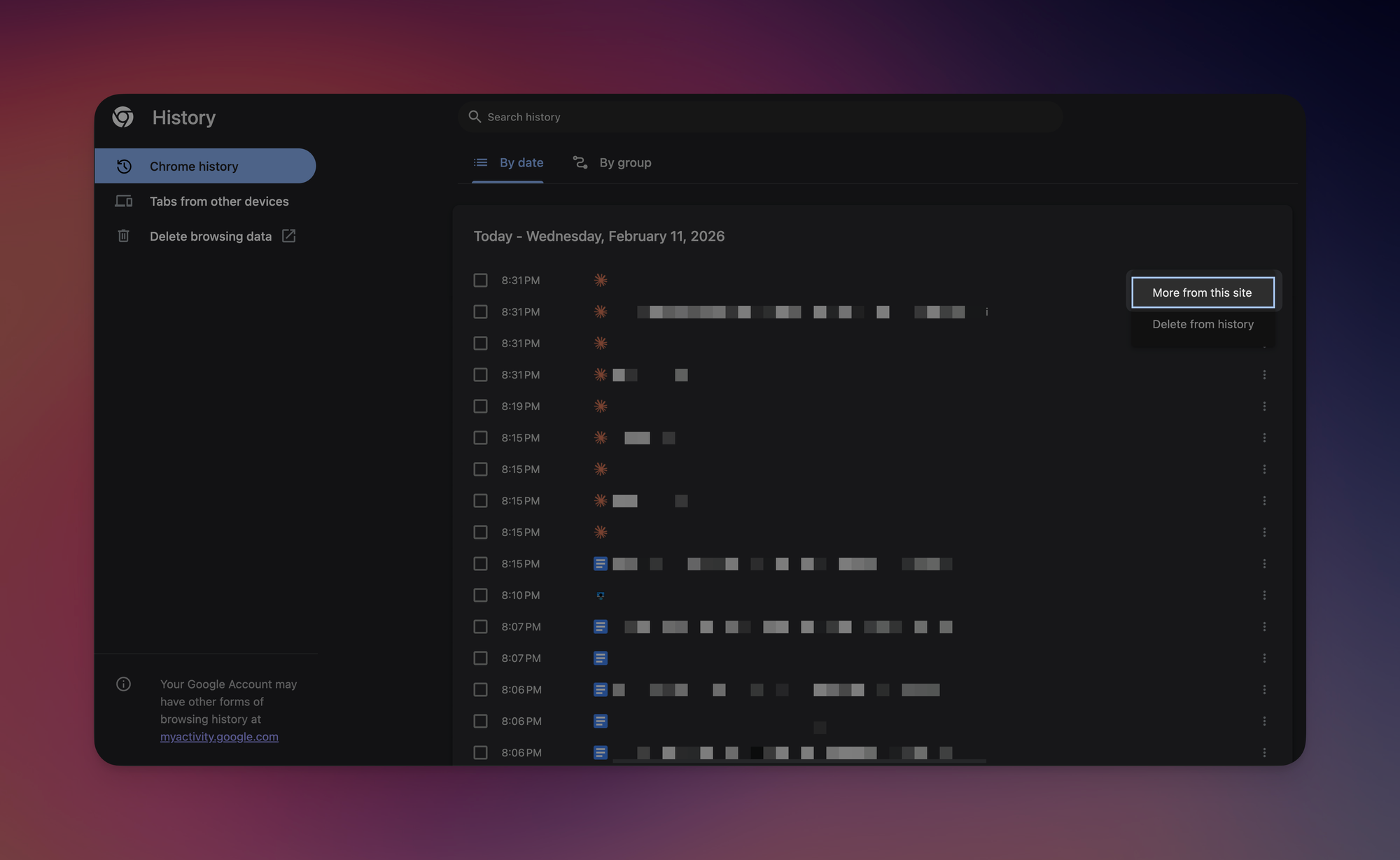
Chrome instantly filters your entire history to show only pages from that domain. This is incredibly useful when you remember where you read something but not what it was called.
💡
Pro tip: You can also type the domain name directly into the search bar at the top of the History page. But the "More from this site" shortcut is faster when you can already see one entry from that site in your recent history.
Feature 3: Open Links in New Tabs (Without Right-Clicking)
This one's quick but it eliminates a surprisingly annoying friction point. Whenever you click a link, Chrome opens it in your current tab by default. Most people right-click and select "Open in new tab" to avoid losing their place.
The faster way: Hold CMD (Mac) or CTRL (Windows) and click any link. It opens in a new background tab instantly. No right-click menu, no extra steps.
This is one of those shortcuts that sounds minor until you realize you do it 20+ times a day.
Why bother?
Each of these features solves a specific moment of friction and yes individually they’re small wins. Together, they make Chrome feel like it's actually working for you.
Try one of these this week and let me know how it goes! 😁
Whenever you're ready, here are some other ways I can help you:
💻 The Workspace Academy: Never lose a file, task, or note again with my CORE workflow for Google Workspace. Adopted by over 10,000 Googlers.
✅ Build Your Command Center in Notion: Plug-and-play dashboard that surfaces today’s priorities automatically and organizes your life in seconds. #1 rated Notion Course globally.